Transfer (Variation Item)
Home / Documentation /
⚙️ Getting Started
🏪 Outlet
⚙️ Settings
🏧 Working With Counter
💰 Working Denomination
🛒 Make a Test Sale
👥 Employee Management
📅 Attendance
📋 Working with Tax
🏦 Account
📦 Working (General Item)
📦 Working (Variation Item)
📱 Working (IMEI Item)
🏷️ Working (Serial Item)
💊 Working (Medicine Item)
💳 Working (Installment Item)
🔧 Working (Service Item)
📊 Stock (General Item)
📊 Stock (Variation Item)
📊 Stock (IMEI Item)
📊 Stock (Serial Item)
📊 Stock (Medicine Item)
📊 Stock (Installment Item)
📥 Purchase (General Item)
📥 Purchase (Variation Item)
📥 Purchase (IMEI Item)
📥 Purchase (Serial Item)
📥 Purchase (Medicine Item)
📥 Purchase (Installment Item)
🏷️ Barcode & Label
🖨️ Working with Printer
🛒 Sale (General Item)
🛒 Sale (Variation Item)
🛒 Sale (IMEI Item)
🛒 Sale (Serial Item)
🛒 Sale (Medicine Item)
🛒 Sale (Installment Item)
🔧 Sale (Service Item)
🌐 Multivendor e-Commerce
📧 Working with Email
💬 Working with SMS
💳 Payment Gateway Setting
💬 Working with WhatsApp
👤 Working with Customer
🏢 Working with Supplier
📤 Purchase Return (General Item)
📤 Purchase Return (Variation Item)
📤 Purchase Return (IMEI Item)
📤 Purchase Return (Serial Item)
📤 Purchase Return (Medicine Item)
📤 Purchase Return (Installment Item)
🔄 Sale Return (General Item)
🔄 Sale Return (Variation Item)
🔄 Sale Return (IMEI Item)
🔄 Sale Return (Serial Item)
🔄 Sale Return (Medicine Item)
🔄 Sale Return (Installment Item)
📊 Dashboard
🎁 Promotion & Coupon
🏆 Loyalty
💳 Installment Sale
🔧 Warranty/Servicing
📈 Income
📉 Expense
💰 Salary/Payroll
📋 Quotation
🔄 Transfer (General Item)
🔄 Transfer (Variation Item)
🔄 Transfer (IMEI Item)
🔄 Transfer (Serial Item)
🔄 Transfer (Medicine Item)
🔄 Transfer (Installment Item)
❌ Damage (General Item)
❌ Damage (Variation Item)
❌ Damage (IMEI Item)
❌ Damage (Serial Item)
❌ Damage (Medicine Item)
❌ Damage (Installment Item)
🏢 Fixed Asset
📊 Report
🔄 Update Software
❌ Uninstall License
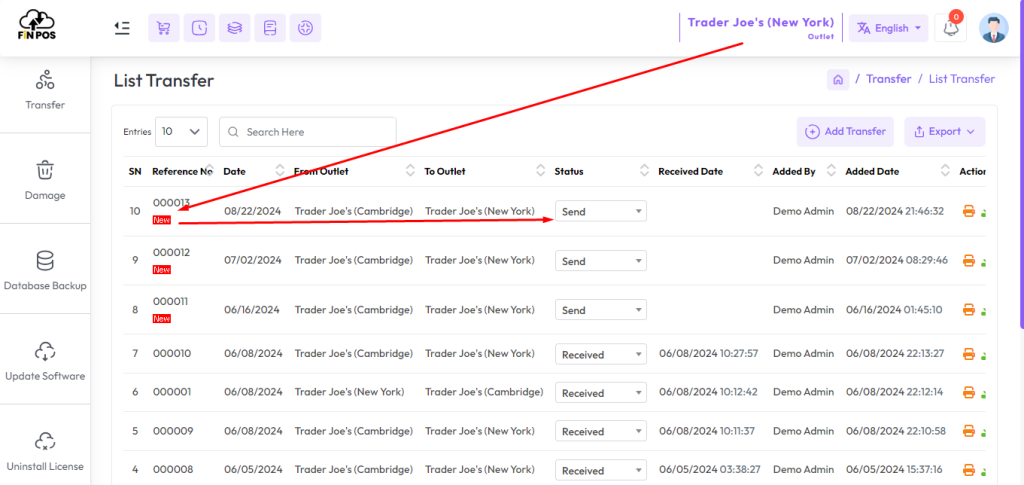
Transfer refers to the process of moving inventory/stock from one outlet or location to another within the same business or organization. This functionality is particularly useful for businesses with multiple physical locations, where there is a need to redistribute stock between stores to maintain optimal stock levels and meet customer demand.
Add Transfer
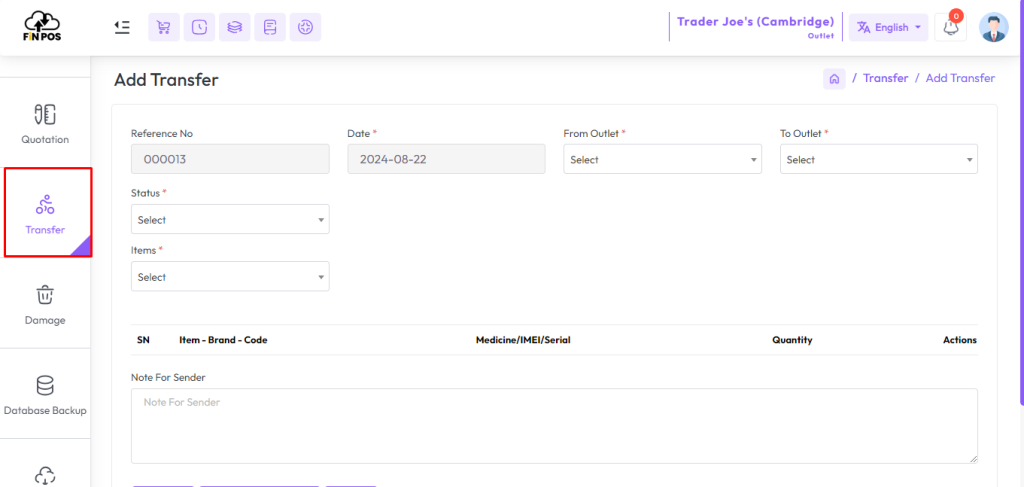
To transfer a “Variation Product” from one outlet to another, first expand the Transfers menu from the left sidebar. Then, click on the Add Transfer option to begin the transfer process. This ensures smooth management of variation products between outlets.
Expand the Transfers menu from the left sidebar.
Click on the Add Transfer option.
Start the transfer process for the Variation Product.
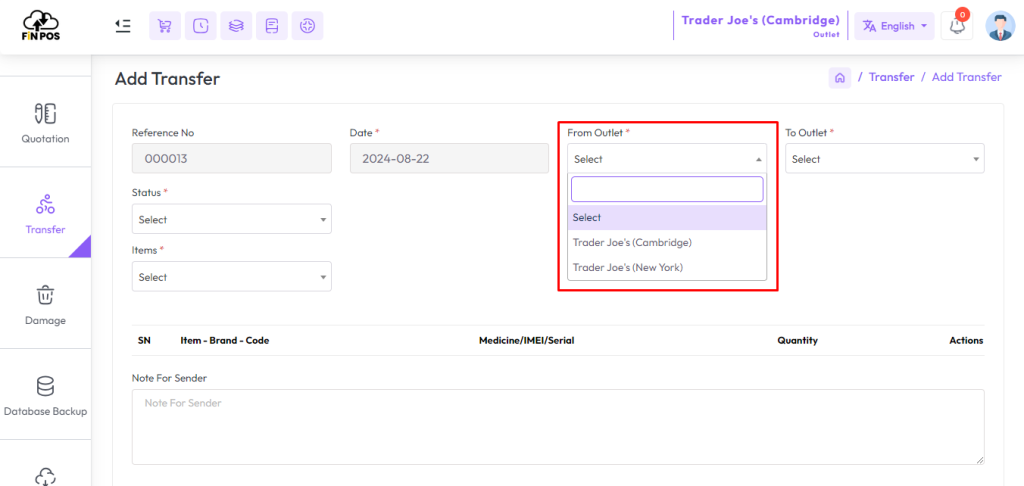
Select the outlet from which you are going to send the products. This step ensures the correct source outlet is chosen for the transfer. Always confirm the selected outlet to avoid sending items from the wrong branch.
Open the transfer form.
Go to the Outlet field.
Select the outlet you are sending products from.
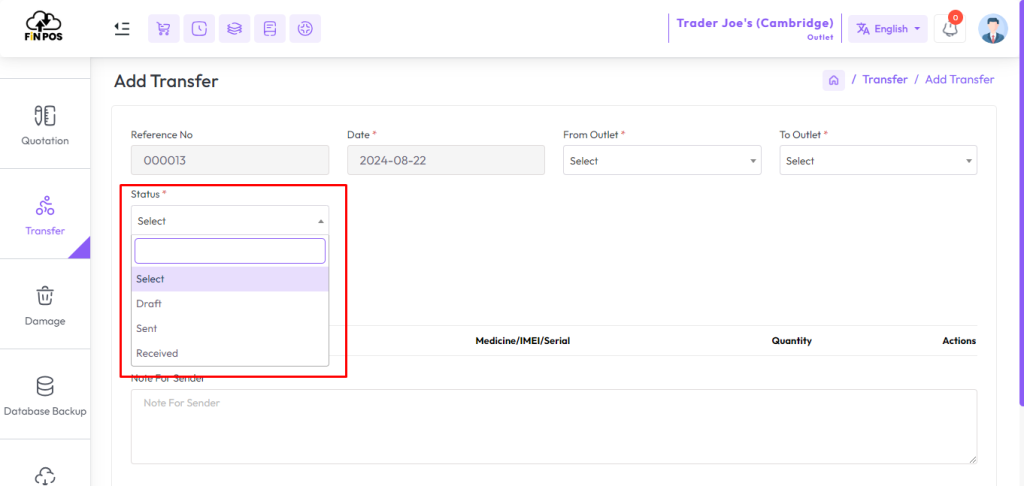
Send products shipping status.
From the Sender Outlet the status can only select Draft and Send.
If the status “Draft” that means the product will not be reduced from the stock, the product will not go to another outlet.
If the status “Send” that means the quantity of the product will not be reduced from the stock, but it will be sent to another outlet. When it is received from other outlet i.e. received status will be reduced from stock and added to other outlet’s stock.
If the status “Received” that means the product will be reduced from the stock, the product will received by another outlet.
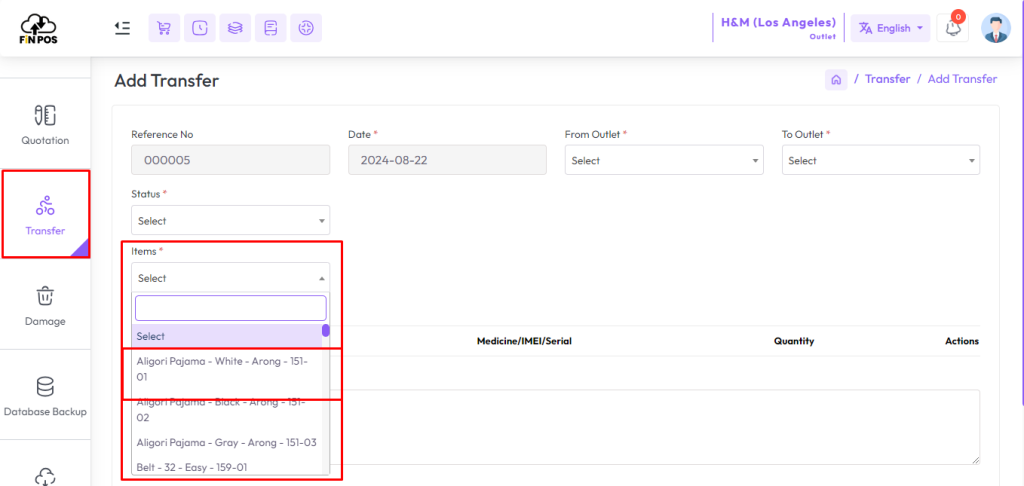
Select a product of “Variation Type” from the Item field that you want to transfer. This option helps in managing different variations of a product, such as size, color, or model. Always ensure the correct variation is chosen for accurate transfer.
Go to the Item field in the transfer form.
Choose a product of “Variation Type”.
Confirm the selected variation before transfer.
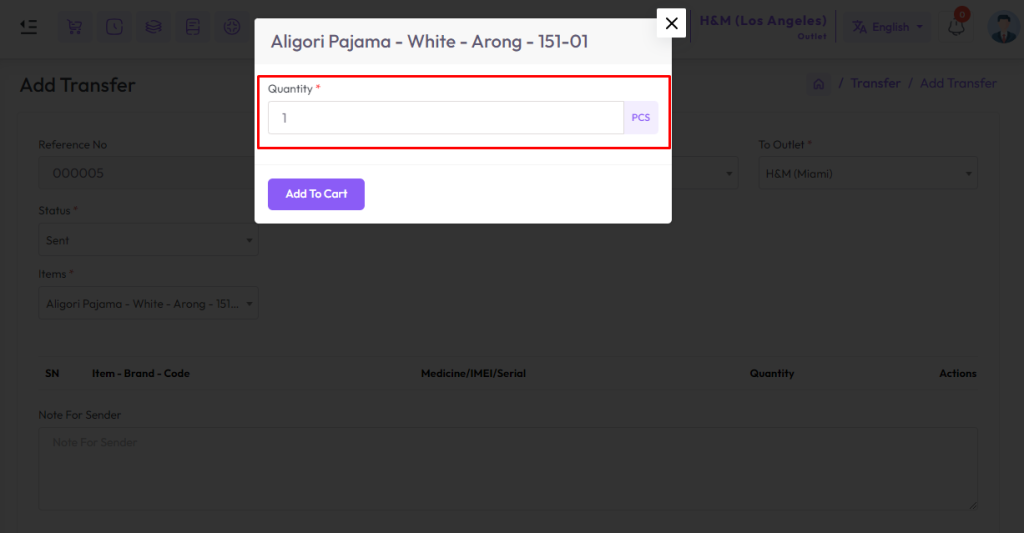
After selecting a variation item you will get a popup modal, Enter the quantity in the Quantity field for how many quantities you want to transfer, Then click the Add to Cart button to add this item to the cart.
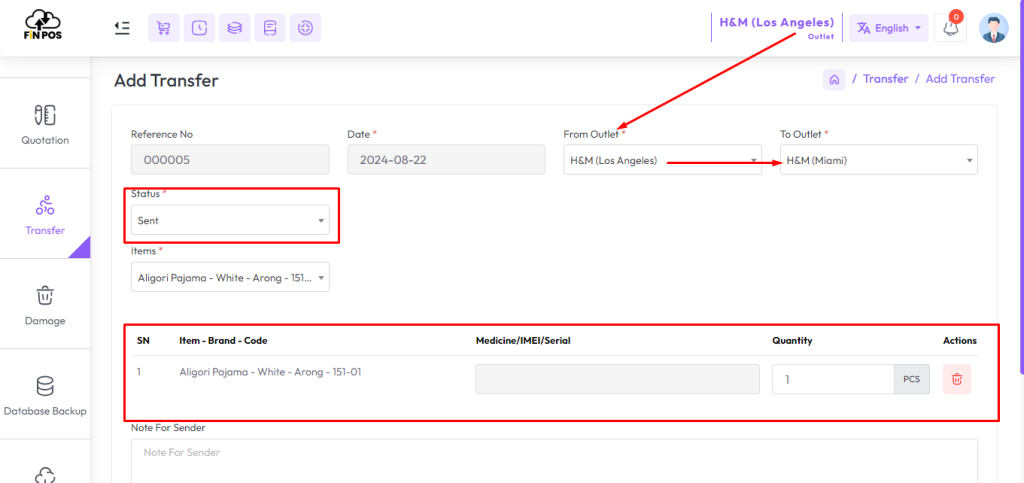
After adding the products to the cart, it will show the selected items ready for transfer. The snapshot highlights that products from the Uttara outlet are being sent to the Mirpur outlet. Finally, complete the required fields and click the Submit button to finish the transfer.
Add the products to the cart.
Review the cart showing transfer from Uttara outlet to Mirpur outlet.
Fill in the required fields.
Click the Submit button to complete the process.
After going to another outlet where it is going with an alert, here you can add it to your outlet by receiving the status.