
Employee Management
Home / Documentation /
⚙️ Getting Started
🏪 Outlet
⚙️ Settings
🏧 Working With Counter
💰 Working Denomination
🛒 Make a Test Sale
👥 Employee Management
📅 Attendance
📋 Working with Tax
🏦 Account
📦 Working (General Item)
📦 Working (Variation Item)
📱 Working (IMEI Item)
🏷️ Working (Serial Item)
💊 Working (Medicine Item)
💳 Working (Installment Item)
🔧 Working (Service Item)
📊 Stock (General Item)
📊 Stock (Variation Item)
📊 Stock (IMEI Item)
📊 Stock (Serial Item)
📊 Stock (Medicine Item)
📊 Stock (Installment Item)
📥 Purchase (General Item)
📥 Purchase (Variation Item)
📥 Purchase (IMEI Item)
📥 Purchase (Serial Item)
📥 Purchase (Medicine Item)
📥 Purchase (Installment Item)
🏷️ Barcode & Label
🖨️ Working with Printer
🛒 Sale (General Item)
🛒 Sale (Variation Item)
🛒 Sale (IMEI Item)
🛒 Sale (Serial Item)
🛒 Sale (Medicine Item)
🛒 Sale (Installment Item)
🔧 Sale (Service Item)
🌐 Multivendor e-Commerce
📧 Working with Email
💬 Working with SMS
💳 Payment Gateway Setting
💬 Working with WhatsApp
👤 Working with Customer
🏢 Working with Supplier
📤 Purchase Return (General Item)
📤 Purchase Return (Variation Item)
📤 Purchase Return (IMEI Item)
📤 Purchase Return (Serial Item)
📤 Purchase Return (Medicine Item)
📤 Purchase Return (Installment Item)
🔄 Sale Return (General Item)
🔄 Sale Return (Variation Item)
🔄 Sale Return (IMEI Item)
🔄 Sale Return (Serial Item)
🔄 Sale Return (Medicine Item)
🔄 Sale Return (Installment Item)
📊 Dashboard
🎁 Promotion & Coupon
🏆 Loyalty
💳 Installment Sale
🔧 Warranty/Servicing
📈 Income
📉 Expense
💰 Salary/Payroll
📋 Quotation
🔄 Transfer (General Item)
🔄 Transfer (Variation Item)
🔄 Transfer (IMEI Item)
🔄 Transfer (Serial Item)
🔄 Transfer (Medicine Item)
🔄 Transfer (Installment Item)
❌ Damage (General Item)
❌ Damage (Variation Item)
❌ Damage (IMEI Item)
❌ Damage (Serial Item)
❌ Damage (Medicine Item)
❌ Damage (Installment Item)
🏢 Fixed Asset
📊 Report
🔄 Update Software
❌ Uninstall License
The Employee management system provides data entry of the employees of an organization and software access control according to their job designation.
Add Role
What is Role?
Role means designation, like Admin, Manager, Cashier, Register etc. A role defines the authority, scope of work, and level of access a person has in the system. For example, an Admin may have complete access to all features, while a Cashier will only have access to billing and transaction modules. Proper role assignment is important to streamline daily tasks, increase efficiency, and protect confidential information.
Before adding an employee, you first need to create a Role. To create a role, expand the Authentication Menu from the left sidebar and click on the Add Role option. This ensures that when you add employees later, you can directly assign them to their respective roles without confusion.

Enter the Role name and select Menu access, “Select All” if you want to set for this role all access, or select single menu for individual access.
When you create a new role, make sure to type a clear and relevant role name that properly represents the designation. After entering the name, carefully choose the menu access for that role. If you select “Select All,” the role will have complete access to every feature in the system. However, if you want to limit the access, you can select only those menus that are required for the specific job function, ensuring security and proper responsibility division.

Add Employee
To add an employee Expand Authentication Menu form the left sidebar, and click on Add Employee menu<./p>

“Salary” Enter Salary amount of this employee,
“Designation” Earlier we explain about Role here you can selecty A role of this employee, this employee can be access those menu which is set for this Role
“Commission” If you set commission for this employee then he will get commission on every sale if the sell is under that employee.
Click here to read the article on Discount Permission for Employee.
“Sale Price Modify” the sale price modify has two option “Yes” or “No” if you select “Yes” that means you are able to modify sale price from POS screen. example shown in below snapshot
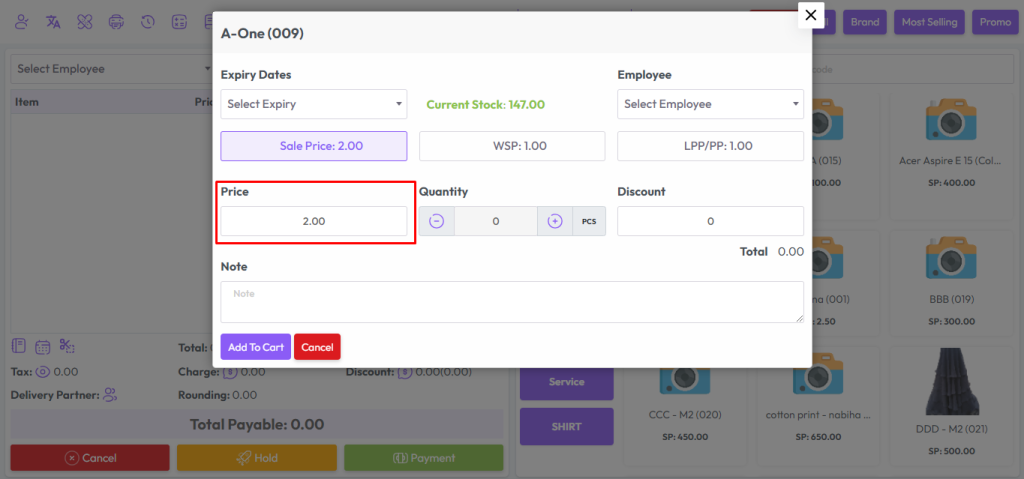
If you select Sale Price Modify “No” that means you are not able to modify sale price from POS screen, example shown below snapshot

Discount Permission for Employee
You can control the percentage or amount of discount an employee can give during the sale. For that set the code in the Discount Permission Code field, you can set any code. Then enter the discount in the Discount field.If you want to give it within specific dates, provide start date and end date for it.

First click on selected area to give discount.

Then a popup modal will open. Enter your valid discount code here.
In my case the discount code is “WA69” You enter your code and click on the submit button.
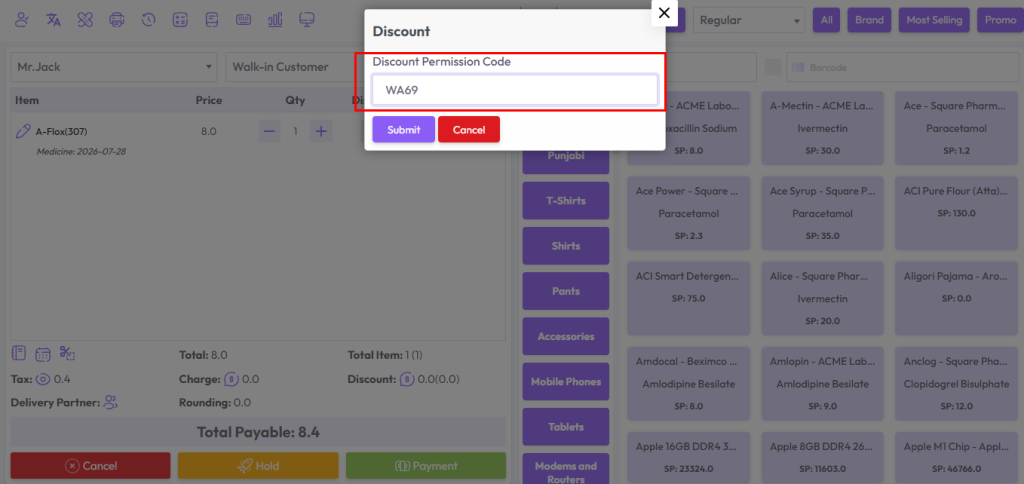
After submitting with discount code you will see another field. Enter your discount here, and click the submit button.

Fill up the required field and hit the submit button.