Sale (Service Item)
Home / Documentation /
⚙️ Getting Started
🏪 Outlet
⚙️ Settings
🏧 Working With Counter
💰 Working Denomination
🛒 Make a Test Sale
👥 Employee Management
📅 Attendance
📋 Working with Tax
🏦 Account
📦 Working (General Item)
📦 Working (Variation Item)
📱 Working (IMEI Item)
🏷️ Working (Serial Item)
💊 Working (Medicine Item)
💳 Working (Installment Item)
🔧 Working (Service Item)
📊 Stock (General Item)
📊 Stock (Variation Item)
📊 Stock (IMEI Item)
📊 Stock (Serial Item)
📊 Stock (Medicine Item)
📊 Stock (Installment Item)
📥 Purchase (General Item)
📥 Purchase (Variation Item)
📥 Purchase (IMEI Item)
📥 Purchase (Serial Item)
📥 Purchase (Medicine Item)
📥 Purchase (Installment Item)
🏷️ Barcode & Label
🖨️ Working with Printer
🛒 Sale (General Item)
🛒 Sale (Variation Item)
🛒 Sale (IMEI Item)
🛒 Sale (Serial Item)
🛒 Sale (Medicine Item)
🛒 Sale (Installment Item)
🔧 Sale (Service Item)
🌐 Multivendor e-Commerce
📧 Working with Email
💬 Working with SMS
💳 Payment Gateway Setting
💬 Working with WhatsApp
👤 Working with Customer
🏢 Working with Supplier
📤 Purchase Return (General Item)
📤 Purchase Return (Variation Item)
📤 Purchase Return (IMEI Item)
📤 Purchase Return (Serial Item)
📤 Purchase Return (Medicine Item)
📤 Purchase Return (Installment Item)
🔄 Sale Return (General Item)
🔄 Sale Return (Variation Item)
🔄 Sale Return (IMEI Item)
🔄 Sale Return (Serial Item)
🔄 Sale Return (Medicine Item)
🔄 Sale Return (Installment Item)
📊 Dashboard
🎁 Promotion & Coupon
🏆 Loyalty
💳 Installment Sale
🔧 Warranty/Servicing
📈 Income
📉 Expense
💰 Salary/Payroll
📋 Quotation
🔄 Transfer (General Item)
🔄 Transfer (Variation Item)
🔄 Transfer (IMEI Item)
🔄 Transfer (Serial Item)
🔄 Transfer (Medicine Item)
🔄 Transfer (Installment Item)
❌ Damage (General Item)
❌ Damage (Variation Item)
❌ Damage (IMEI Item)
❌ Damage (Serial Item)
❌ Damage (Medicine Item)
❌ Damage (Installment Item)
🏢 Fixed Asset
📊 Report
🔄 Update Software
❌ Uninstall License
The Sale (Service Item) module allows you to manage and record sales related to services instead of physical products. It helps in tracking service-based transactions, generating invoices, and maintaining proper records for business reporting.
Add To Cart Modal
The Add To Cart Modal helps you quickly add service-type products to the cart. It ensures that details like product name, quantity, and price are confirmed before moving forward with the sale.
In this modal you can add “Service Type” products like House Cleaning Servicing to the cart.
It allows you to confirm product details before proceeding.
You can adjust the quantity or review pricing before finalizing the sale.
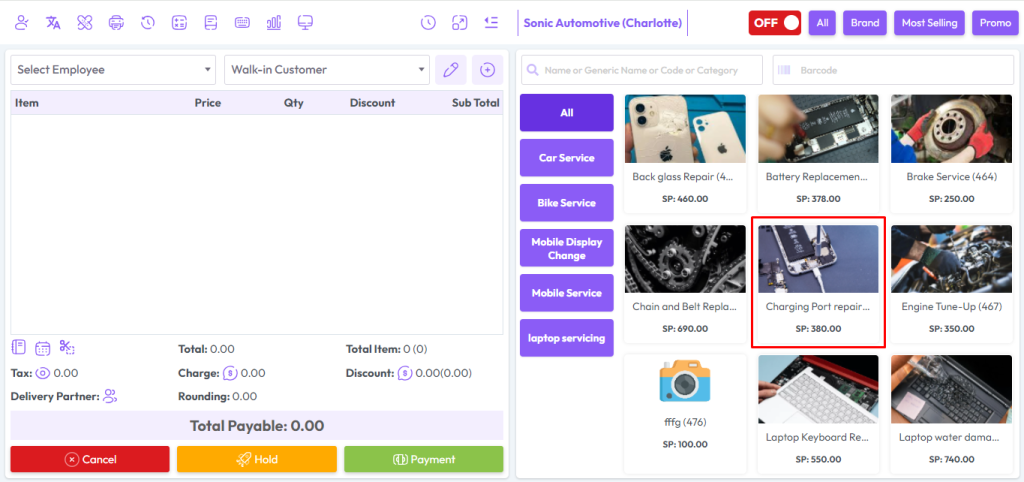
The Add To Cart Modal helps you quickly add service-type products to the cart. It ensures that details like product name, quantity, and price are confirmed before moving forward with the sale.
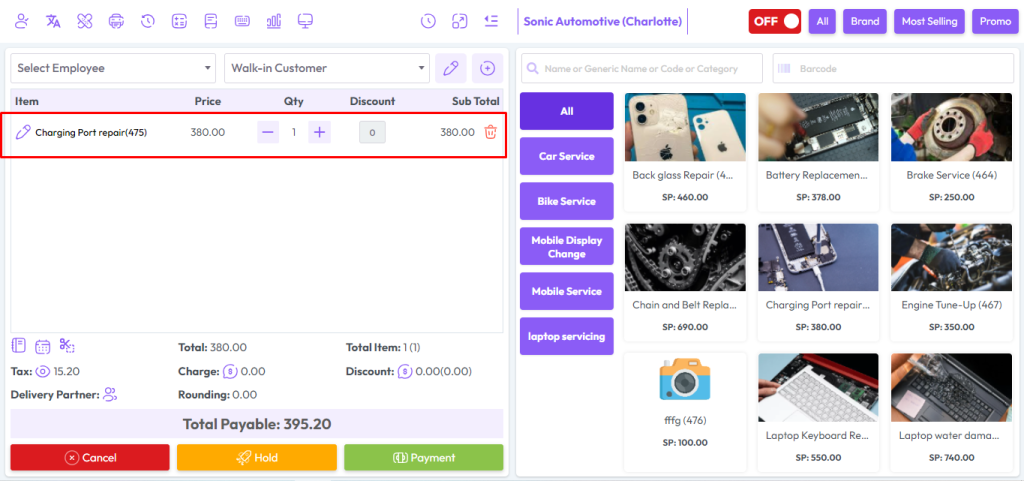
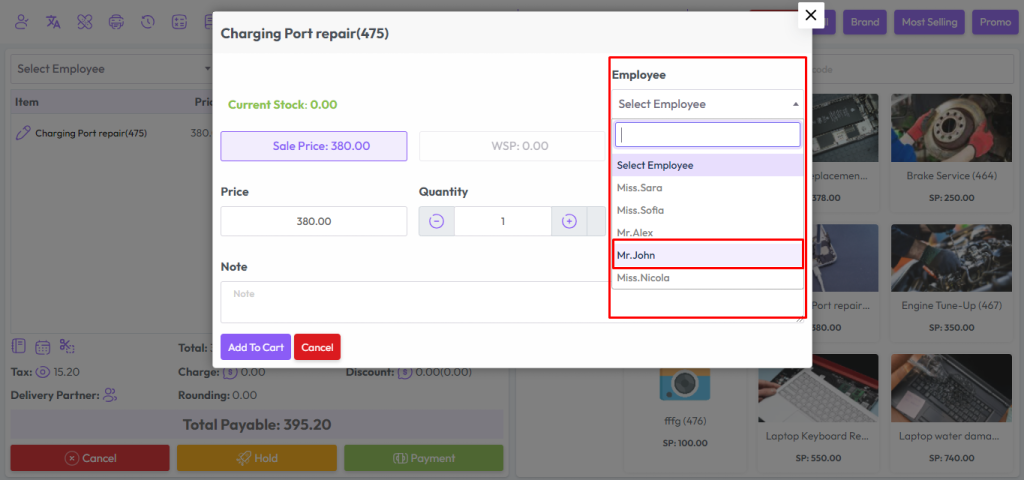
The Employee Assignment option allows you to assign a specific employee to a service by clicking on the marked place or pencil icon. From there, you can select the desired employee from the list, making it easier to track who is responsible for completing the service. This ensures proper assignment, accountability, and better service management.
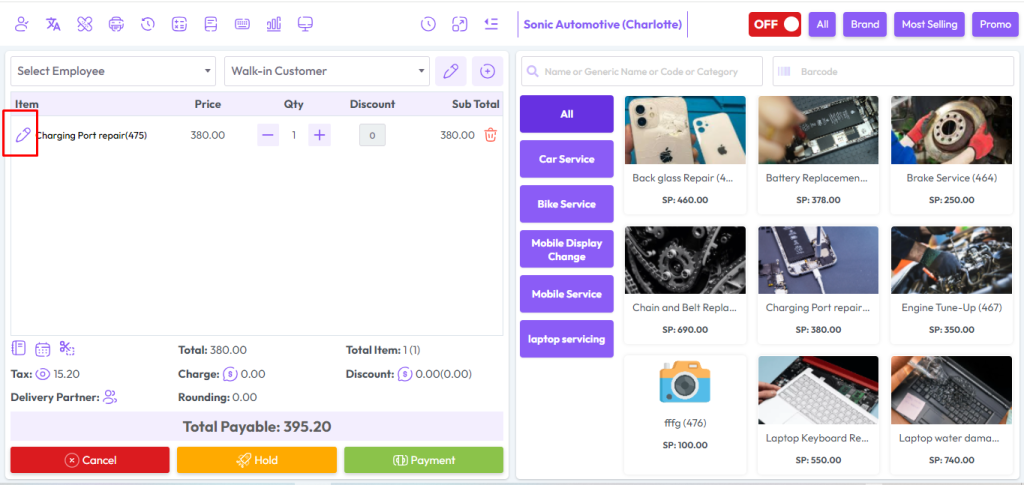
To sell a service, first select an employee from the “Employee” field. Then assign the employee and click on the “Add to Cart” button to save the changes. This ensures the service is linked with the assigned employee, and the cart is updated with correct details. It helps in proper tracking and smooth processing of service sales.
Service Sale Report
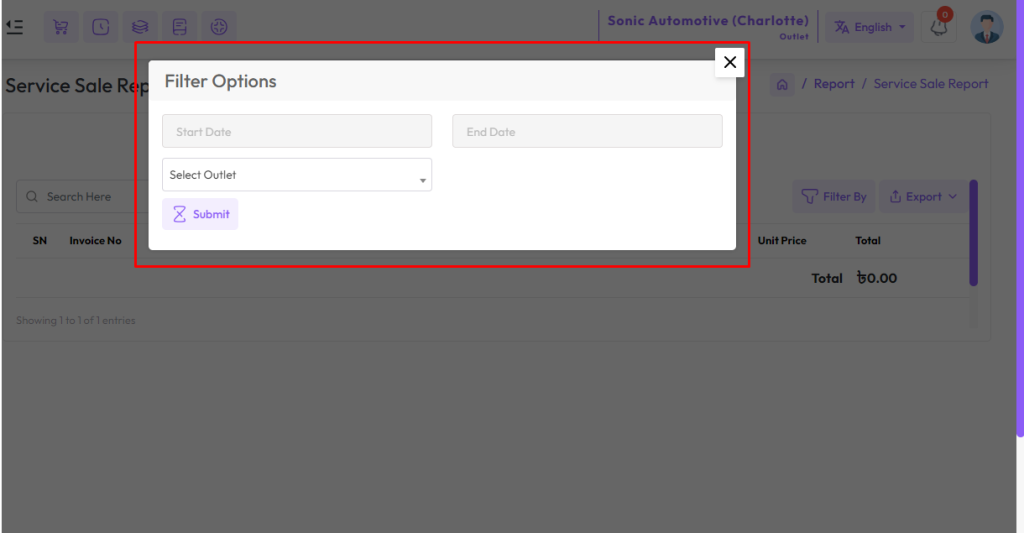
To view the “Service Sale Report” expand the “Report” menu from the left sidebar and click on the “Service Sale Report” menu.
Select a date to view the report within a specified date if needed. select outlet from the outlet field to filter report according to outlet.