Working with IMEI Item
Home / Documentation /
⚙️ Getting Started
🏪 Outlet
⚙️ Settings
🏧 Working With Counter
💰 Working Denomination
🛒 Make a Test Sale
👥 Employee Management
📅 Attendance
📋 Working with Tax
🏦 Account
📦 Working (General Item)
📦 Working (Variation Item)
📱 Working (IMEI Item)
🏷️ Working (Serial Item)
💊 Working (Medicine Item)
💳 Working (Installment Item)
🔧 Working (Service Item)
📊 Stock (General Item)
📊 Stock (Variation Item)
📊 Stock (IMEI Item)
📊 Stock (Serial Item)
📊 Stock (Medicine Item)
📊 Stock (Installment Item)
📥 Purchase (General Item)
📥 Purchase (Variation Item)
📥 Purchase (IMEI Item)
📥 Purchase (Serial Item)
📥 Purchase (Medicine Item)
📥 Purchase (Installment Item)
🏷️ Barcode & Label
🖨️ Working with Printer
🛒 Sale (General Item)
🛒 Sale (Variation Item)
🛒 Sale (IMEI Item)
🛒 Sale (Serial Item)
🛒 Sale (Medicine Item)
🛒 Sale (Installment Item)
🔧 Sale (Service Item)
🌐 Multivendor e-Commerce
📧 Working with Email
💬 Working with SMS
💳 Payment Gateway Setting
💬 Working with WhatsApp
👤 Working with Customer
🏢 Working with Supplier
📤 Purchase Return (General Item)
📤 Purchase Return (Variation Item)
📤 Purchase Return (IMEI Item)
📤 Purchase Return (Serial Item)
📤 Purchase Return (Medicine Item)
📤 Purchase Return (Installment Item)
🔄 Sale Return (General Item)
🔄 Sale Return (Variation Item)
🔄 Sale Return (IMEI Item)
🔄 Sale Return (Serial Item)
🔄 Sale Return (Medicine Item)
🔄 Sale Return (Installment Item)
📊 Dashboard
🎁 Promotion & Coupon
🏆 Loyalty
💳 Installment Sale
🔧 Warranty/Servicing
📈 Income
📉 Expense
💰 Salary/Payroll
📋 Quotation
🔄 Transfer (General Item)
🔄 Transfer (Variation Item)
🔄 Transfer (IMEI Item)
🔄 Transfer (Serial Item)
🔄 Transfer (Medicine Item)
🔄 Transfer (Installment Item)
❌ Damage (General Item)
❌ Damage (Variation Item)
❌ Damage (IMEI Item)
❌ Damage (Serial Item)
❌ Damage (Medicine Item)
❌ Damage (Installment Item)
🏢 Fixed Asset
📊 Report
🔄 Update Software
❌ Uninstall License
Add a Product
Based on the type of business and the nature of products, FiNPOS maintains 7 product types: General Products, Variation Products, IMEI Products, Serial Products, Medicine/Expiry Products, Installment Products, and Servicing.
Here we will discuss only “IMEI Product”.
IMEI Product is best applicable for mobile phones, tablets, or other smart devices that come with a unique IMEI number for identification and tracking. This type helps businesses manage stock, warranty, and sales of devices more efficiently.
To create a new IMEI item/product, follow these steps:
Expand the Item/Product menu from the left sidebar.
Click on the Add Item/Product option.
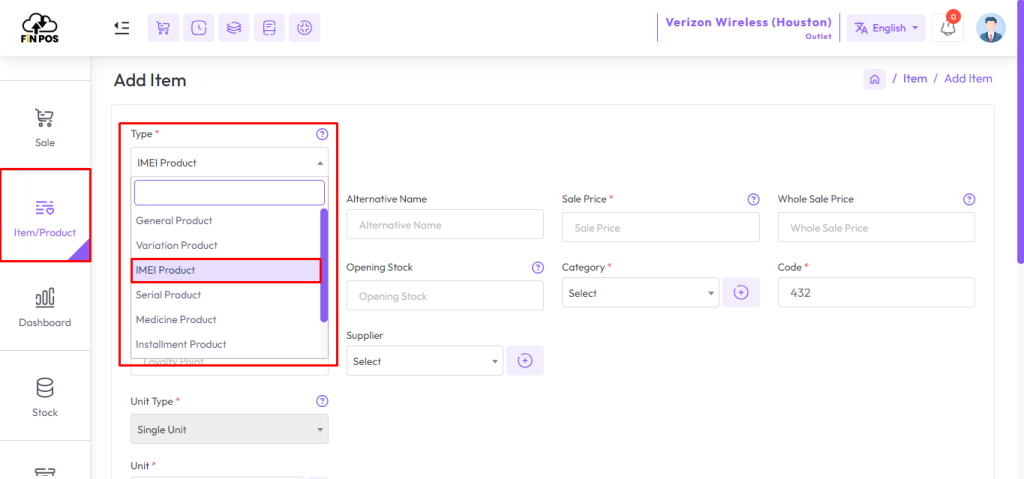
Select IMEI Product as the product type.
Enter the product details along with its IMEI number(s) to complete the setup.

In this lesson, we will show only how to add IMEI Product.
Select “IMEI Product” type from the Type field and enter an “Alternative Name” for this product, “Alternative Name” for a product typically refers to an additional name or label that can be used to identify the product in the system.
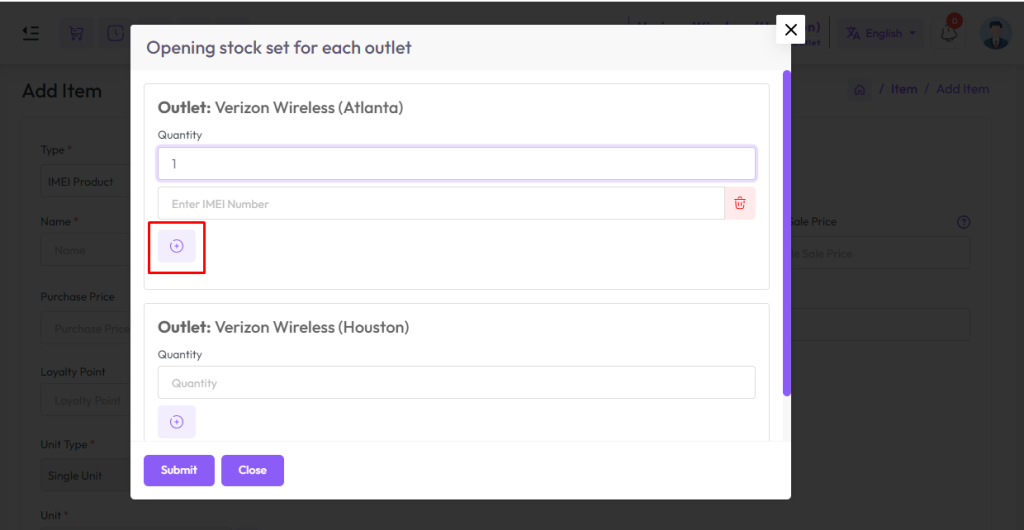
To set opening stock for every outlet click on the “Opening Stock” field after clicking that you will see an outlet list

Enter the quantity in the quantity field under the outlet for which you want to set the opening IMEI Number.

If you want, you can click on the plus button to increase one field at a time, where IMEI Number can be provided.
Click the Delete button to delete the IMEI Number.
Select the unit from the unit field as per your need.
NB: IMEI products only work with single units.

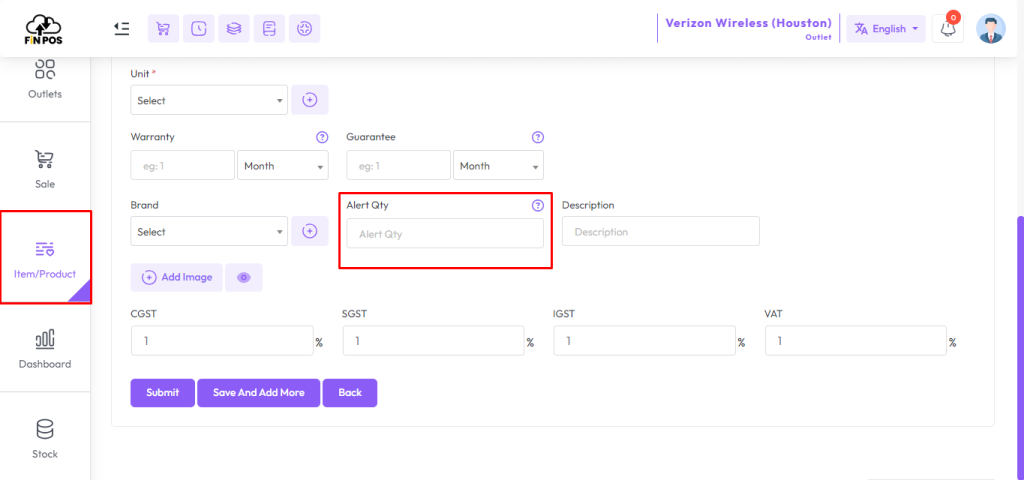
If you have a Warranty Or Gurantee of a product then you should enter amount Warranty and Warranty Type like Day,Month or Year. If you select Warranty 6 month that means 6 months will be counted from when the product is sold. This will work for the rest and the guarantee.

Warranty Gurantee Show in invoice.

Alert Quantity: It refers to the minimum quantity of a product or item that triggers an alert or informs the relevant personnel that the stock level has reached a predefined threshold