Installment Sale
Home / Documentation /
⚙️ Getting Started
🏪 Outlet
⚙️ Settings
🏧 Working With Counter
💰 Working Denomination
🛒 Make a Test Sale
👥 Employee Management
📅 Attendance
📋 Working with Tax
🏦 Account
📦 Working (General Item)
📦 Working (Variation Item)
📱 Working (IMEI Item)
🏷️ Working (Serial Item)
💊 Working (Medicine Item)
💳 Working (Installment Item)
🔧 Working (Service Item)
📊 Stock (General Item)
📊 Stock (Variation Item)
📊 Stock (IMEI Item)
📊 Stock (Serial Item)
📊 Stock (Medicine Item)
📊 Stock (Installment Item)
📥 Purchase (General Item)
📥 Purchase (Variation Item)
📥 Purchase (IMEI Item)
📥 Purchase (Serial Item)
📥 Purchase (Medicine Item)
📥 Purchase (Installment Item)
🏷️ Barcode & Label
🖨️ Working with Printer
🛒 Sale (General Item)
🛒 Sale (Variation Item)
🛒 Sale (IMEI Item)
🛒 Sale (Serial Item)
🛒 Sale (Medicine Item)
🛒 Sale (Installment Item)
🔧 Sale (Service Item)
🌐 Multivendor e-Commerce
📧 Working with Email
💬 Working with SMS
💳 Payment Gateway Setting
💬 Working with WhatsApp
👤 Working with Customer
🏢 Working with Supplier
📤 Purchase Return (General Item)
📤 Purchase Return (Variation Item)
📤 Purchase Return (IMEI Item)
📤 Purchase Return (Serial Item)
📤 Purchase Return (Medicine Item)
📤 Purchase Return (Installment Item)
🔄 Sale Return (General Item)
🔄 Sale Return (Variation Item)
🔄 Sale Return (IMEI Item)
🔄 Sale Return (Serial Item)
🔄 Sale Return (Medicine Item)
🔄 Sale Return (Installment Item)
📊 Dashboard
🎁 Promotion & Coupon
🏆 Loyalty
💳 Installment Sale
🔧 Warranty/Servicing
📈 Income
📉 Expense
💰 Salary/Payroll
📋 Quotation
🔄 Transfer (General Item)
🔄 Transfer (Variation Item)
🔄 Transfer (IMEI Item)
🔄 Transfer (Serial Item)
🔄 Transfer (Medicine Item)
🔄 Transfer (Installment Item)
❌ Damage (General Item)
❌ Damage (Variation Item)
❌ Damage (IMEI Item)
❌ Damage (Serial Item)
❌ Damage (Medicine Item)
❌ Damage (Installment Item)
🏢 Fixed Asset
📊 Report
🔄 Update Software
❌ Uninstall License
Add Installment Customer
To add a new “Installment Customer” expand the “Installment Sale” menu from the left sidebar and click on the “Add Installment Customer” menu.
To sell installment products for security reasons a customer must need a customer photo, customer NID, present address, permanent address, and work address also it must be accompanied by a guarantor’s name, phone number, present address, permanent address, and work address, So whenever the customer buys the product in installments, he must bring this information with him.

Fill up the required field and hit the submit button.
List Installment Customer
To view a list of installment customers, first expand the Installment Sale menu from the left sidebar.
Clicking on the List Installment Sale menu will display all customers with ongoing installment plans.
This helps in monitoring customer payments and managing installment records efficiently.
It ensures accurate tracking of sales and outstanding installments.
Expand the Installment Sale menu from the left sidebar.
Click on List Installment Sale to view all installment customers.
Monitor customer payments and installment details.
Manage sales and outstanding installments efficiently.

To manage customer information, use the options available in the Actions menu.
Clicking on Edit allows you to update customer details as needed.
Clicking on Details lets you view all information related to a specific customer.
These options help in maintaining accurate and up-to-date customer records efficiently.
Click on Edit from Actions to update customer information.
Click on Details from Actions to view customer information.
Keep customer records accurate and updated.
Add Installment Sale
To add a new Installment Sale, first expand the Installment Sale menu from the left sidebar.
Clicking on the Add Installment Sale menu allows you to create a new installment sale record.
This helps in recording customer installment plans accurately and efficiently.
It ensures proper tracking of sales, payments, and outstanding installments.
Expand the Installment Sale menu from the left sidebar.
Click on Add Installment Sale to create a new record.
Record customer installment plans accurately.
Track sales, payments, and outstanding installments efficiently.
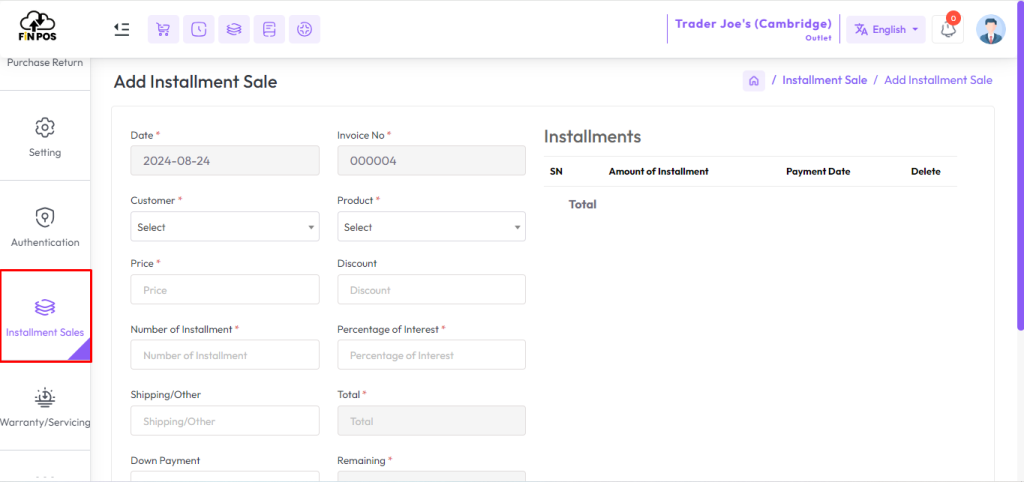
First select a customer then select the product you want to sell.
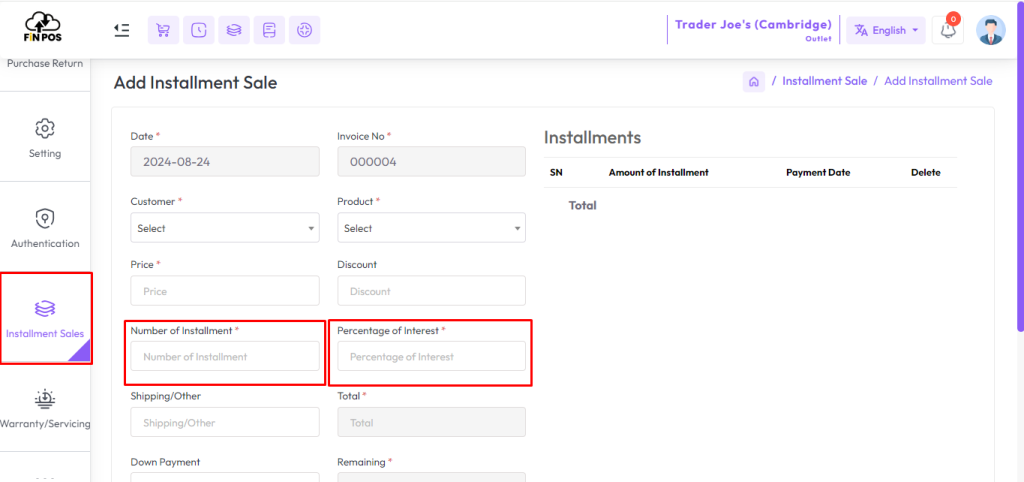
Enter number of installment in “Number of Installment” field then enter percentage of interest in “Percentage of Interes” field.
More about Percentage of Interest In installment products, the percentage of interest refers to the additional amount charged on the principal loan amount over the installment period. This interest rate is applied to each installment payment made by the borrower. It represents the cost of financing the purchase over time and is typically determined based on factors such as the borrower’s creditworthiness.
Enter down payment amont in “Down Payment” field.
More about Down Payment A down payment in installment product sales is an initial partial payment made by the customer at the time of purchase. It is a percentage of the total purchase price and is paid upfront before the installment plan begins. The purpose of a down payment is to reduce the amount of financing required for the purchase and to provide assurance to the seller that the customer is committed to completing the purchase. Down payments vary depending on the seller’s policies.
Installment duration refers to the period of time over which an installment plan extends. It represents the length of time during which the buyer will make regular payments to repay the total purchase amount, including any interest or financing charges. The installment duration is typically determined by the seller or lender and may vary depending on factors such as the type of product being purchased, the buyer’s financial situation, and the terms of the installment agreement. Shorter installment durations result in higher installment payments but lower overall interest costs, while longer durations lead to lower installment payments but higher total interest costs.
Enter the duration number in the “Installment Duration” field and click the Next button.

A sample of an Installment Sale is shown in the snapshot below for reference.
It provides a clear view of how installment details are recorded and displayed.
This helps in understanding the layout and information included in each sale entry.
It ensures easier monitoring and management of installment sales.
View the sample Installment Sale in the snapshot below.
Understand how installment details are recorded and displayed.
Learn the layout and information included in each sale.
Monitor and manage installment sales efficiently.
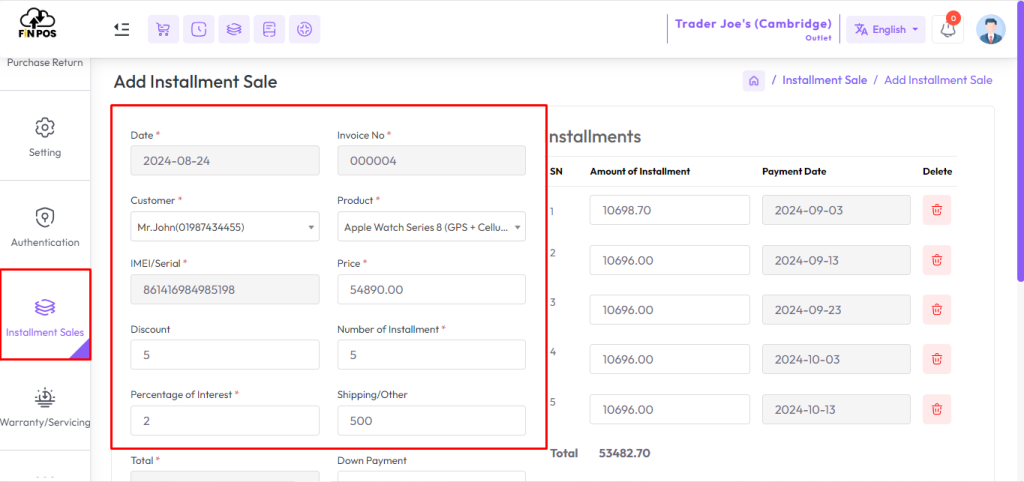
A sample of installment sale shown below snapshot

A sample of installment sale shown below snapshot
Here are the generated Installments.

Fill up the required field and hit the submit button.
List Installment Sale
To view a list of installment sales expand the “Installment Sale” menu from the left sidebar, and click on the “List Installment Sale” menu.
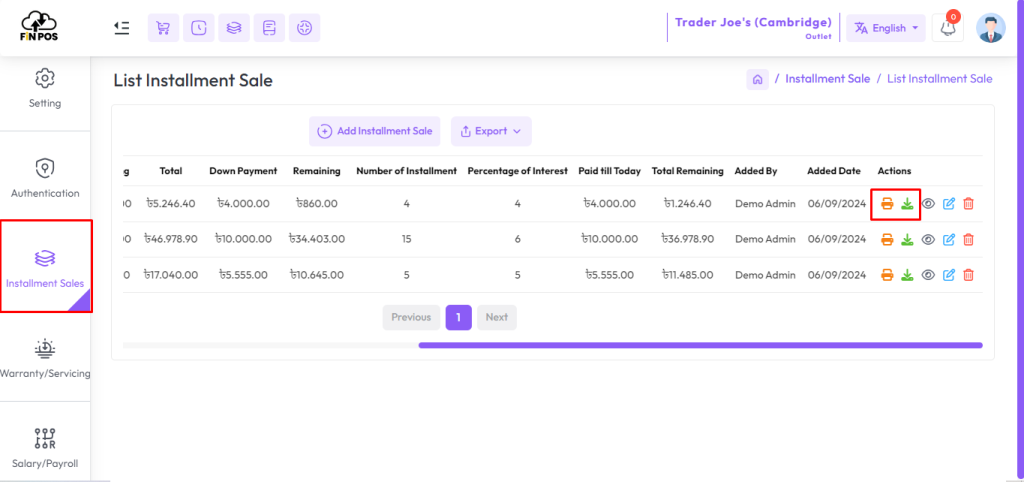
To manage an Installment Sale Invoice, use the Actions menu options.
Click Print Invoice to get a hard copy and Download Invoice to save a digital copy.
These options help in maintaining and sharing invoice records efficiently.
Click Print Invoice from Actions to print the invoice.
Click Download Invoice from Actions to save it digitally.
Maintain and share installment invoice records efficiently.
Installment Collection
To view the Installment Collection, first expand the Installment Sale menu from the left sidebar.
Clicking on the Installment Collection menu displays all collected installments from customers.
This helps in tracking payments and monitoring outstanding balances efficiently.
It ensures accurate management of installment collections for all customers.
Expand the Installment Sale menu from the left sidebar.
Click on Installment Collection to view all collected installments.
Track customer payments and outstanding balances.
Manage installment collections accurately and efficiently.

First, select a customer from whom you want to collect installment payments.
This ensures that the payment is recorded for the correct customer.
Selecting the right customer helps in maintaining accurate installment records.
It allows for proper tracking of payments and outstanding balances efficiently.
Select the customer for installment collection.
Ensure the payment is recorded for the correct customer.
Maintain accurate installment records.
Track payments and outstanding balances efficiently.
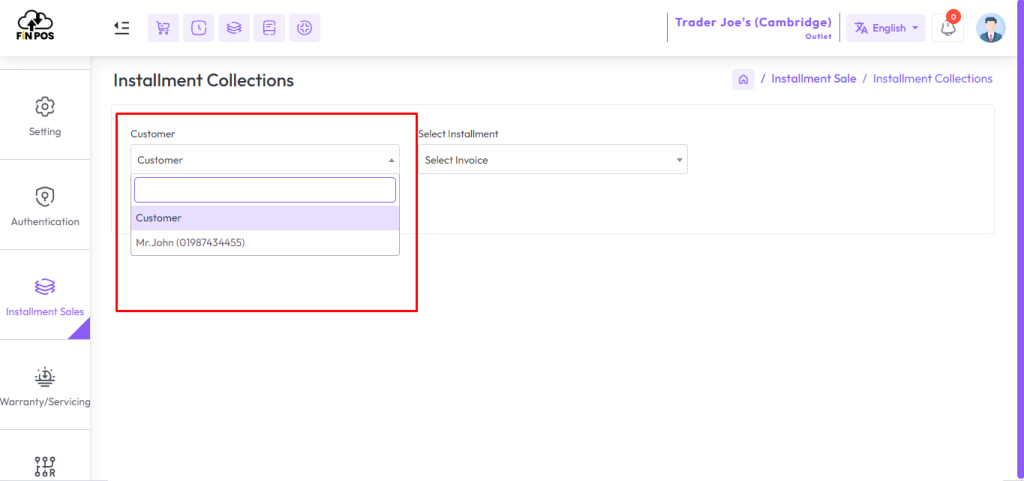
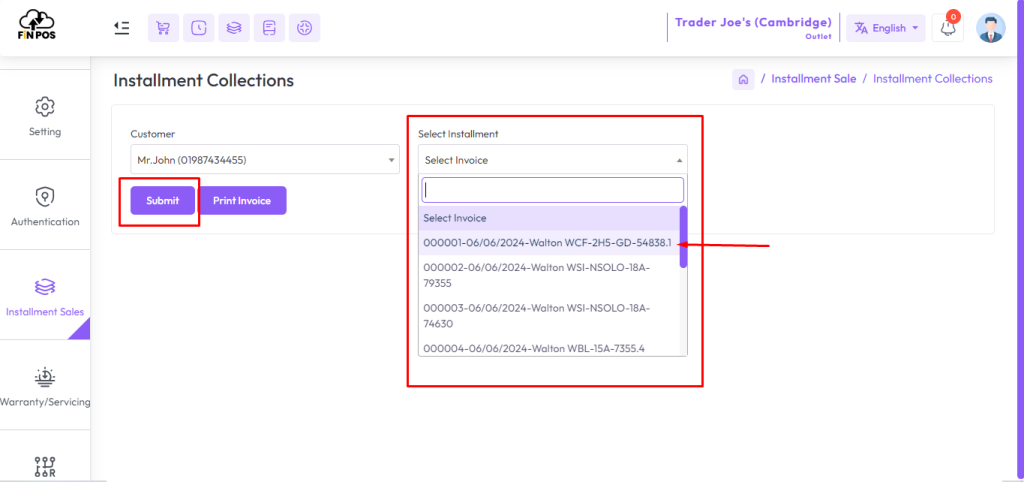
After selecting the customer, you will see the invoice of that customer in the “Select Installment” field on the right side, select the desired invoice, and click on the submit button.
After selecting the customer and invoice and submitting, you will see the installment lists of that invoice.
Edit the installment for which you want to receive payment.
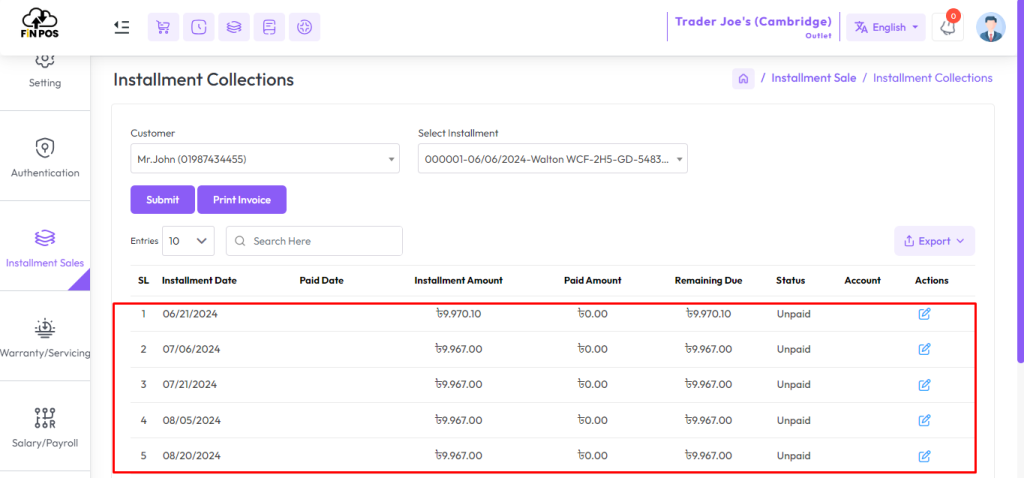
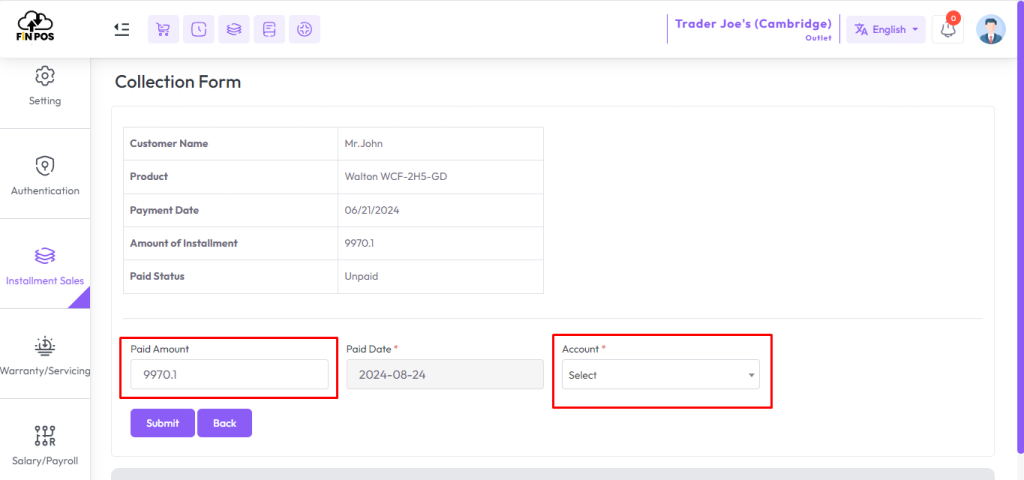
After clicking the edit button you will see an interface like below snapshot.
Enter the amount in the Paid Amount field, and select a payment method from the Account field, then click the Submit button.
List Due Installment
To view a list of due installments, first expand the Installment Sale menu from the left sidebar.
Clicking on the List Due Installment menu displays all pending installment payments from customers.
This helps in monitoring unpaid installments and following up with customers efficiently.
It ensures accurate tracking and management of outstanding payments.
Expand the Installment Sale menu from the left sidebar.
Click on List Due Installment to view all pending payments.
Monitor unpaid installments for each customer.
Track and manage outstanding payments efficiently.

Here you can filter by those who have due within 3 days, 7 days, 15 days.

Send SMS to all Due Customers
To send the message to the customers who hvae due, select them and click on the submit button.

Installment Report
To view the “Installment Report” expand the “Report” menu from the left sidebar and click on the “Installment Report” menu.
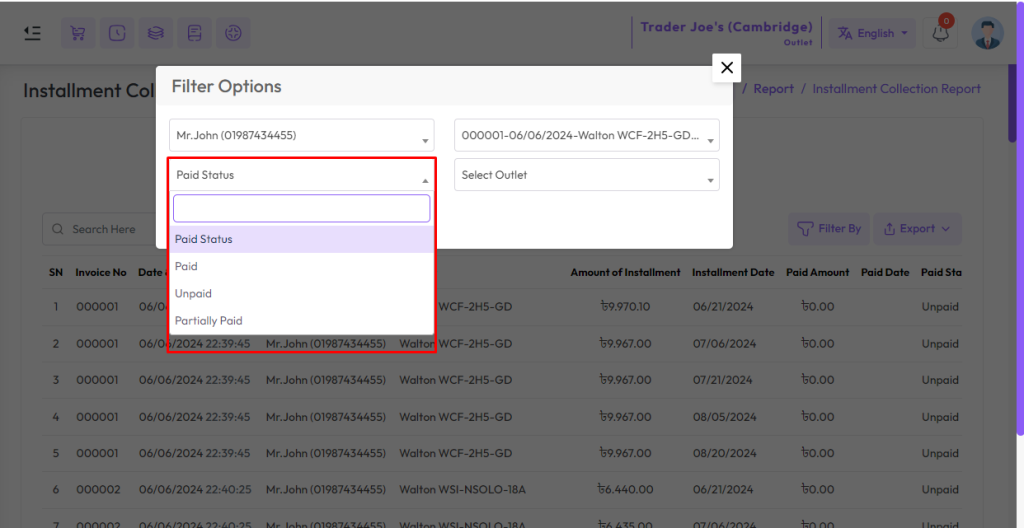
Select a customer after selecting the customer you will see the list of invoices in the invoice field as per the customer.

After selecting the customer, choose the status of the installment payment.
Click the Submit button to save the selected status.
This ensures that the payment status is updated correctly for each customer.
It helps in maintaining accurate records and tracking installment collections efficiently.
Select the status of the installment payment.
Click the Submit button to save the status.
Update payment status accurately for each customer.
Maintain and track installment collections efficiently.
Installment Due Report
To view the installment due reports expand the “Report” menu from the left sidebar and click on the “Installment Due Report” menu.
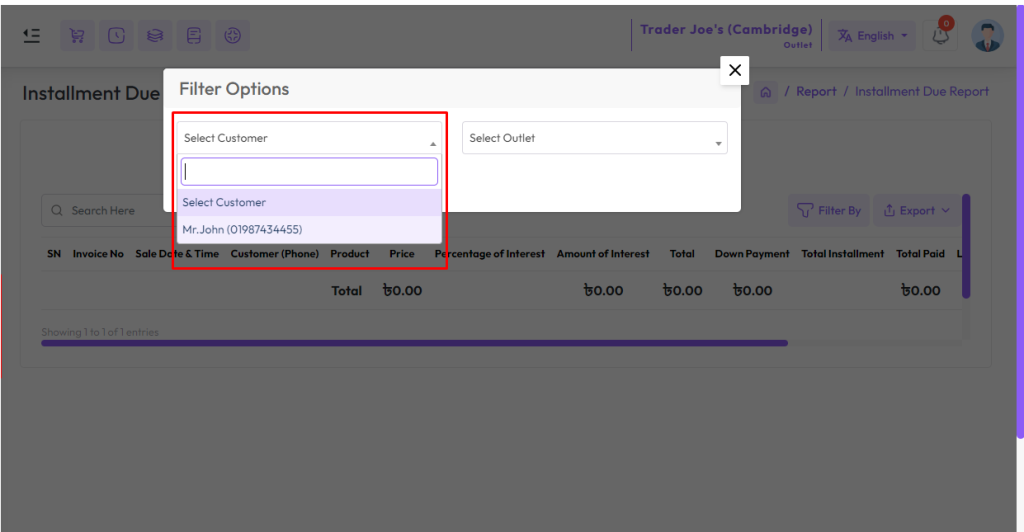
Select a customer, select outlet from the outlet field to filter report according to outlet.