Working With SMS
Home / Documentation /
⚙️ Getting Started
🏪 Outlet
⚙️ Settings
🏧 Working With Counter
💰 Working Denomination
🛒 Make a Test Sale
👥 Employee Management
📅 Attendance
📋 Working with Tax
🏦 Account
📦 Working (General Item)
📦 Working (Variation Item)
📱 Working (IMEI Item)
🏷️ Working (Serial Item)
💊 Working (Medicine Item)
💳 Working (Installment Item)
🔧 Working (Service Item)
📊 Stock (General Item)
📊 Stock (Variation Item)
📊 Stock (IMEI Item)
📊 Stock (Serial Item)
📊 Stock (Medicine Item)
📊 Stock (Installment Item)
📥 Purchase (General Item)
📥 Purchase (Variation Item)
📥 Purchase (IMEI Item)
📥 Purchase (Serial Item)
📥 Purchase (Medicine Item)
📥 Purchase (Installment Item)
🏷️ Barcode & Label
🖨️ Working with Printer
🛒 Sale (General Item)
🛒 Sale (Variation Item)
🛒 Sale (IMEI Item)
🛒 Sale (Serial Item)
🛒 Sale (Medicine Item)
🛒 Sale (Installment Item)
🔧 Sale (Service Item)
🌐 Multivendor e-Commerce
📧 Working with Email
💬 Working with SMS
💳 Payment Gateway Setting
💬 Working with WhatsApp
👤 Working with Customer
🏢 Working with Supplier
📤 Purchase Return (General Item)
📤 Purchase Return (Variation Item)
📤 Purchase Return (IMEI Item)
📤 Purchase Return (Serial Item)
📤 Purchase Return (Medicine Item)
📤 Purchase Return (Installment Item)
🔄 Sale Return (General Item)
🔄 Sale Return (Variation Item)
🔄 Sale Return (IMEI Item)
🔄 Sale Return (Serial Item)
🔄 Sale Return (Medicine Item)
🔄 Sale Return (Installment Item)
📊 Dashboard
🎁 Promotion & Coupon
🏆 Loyalty
💳 Installment Sale
🔧 Warranty/Servicing
📈 Income
📉 Expense
💰 Salary/Payroll
📋 Quotation
🔄 Transfer (General Item)
🔄 Transfer (Variation Item)
🔄 Transfer (IMEI Item)
🔄 Transfer (Serial Item)
🔄 Transfer (Medicine Item)
🔄 Transfer (Installment Item)
❌ Damage (General Item)
❌ Damage (Variation Item)
❌ Damage (IMEI Item)
❌ Damage (Serial Item)
❌ Damage (Medicine Item)
❌ Damage (Installment Item)
🏢 Fixed Asset
📊 Report
🔄 Update Software
❌ Uninstall License
SMS Configuration
To configure you SMS expand Setting Menu click on SMS Setting menu from the left sidebar.
Click on “Configure SMS” card to configure you SMS setting.

After clicking on “Configure SMS” card you will see an interface below snapshot.
Select your “SMS Service Provider” here is 4 type Email Service 1. Twilo, 2.Mobishastra, 3.MiMSMS, 4.Text Local
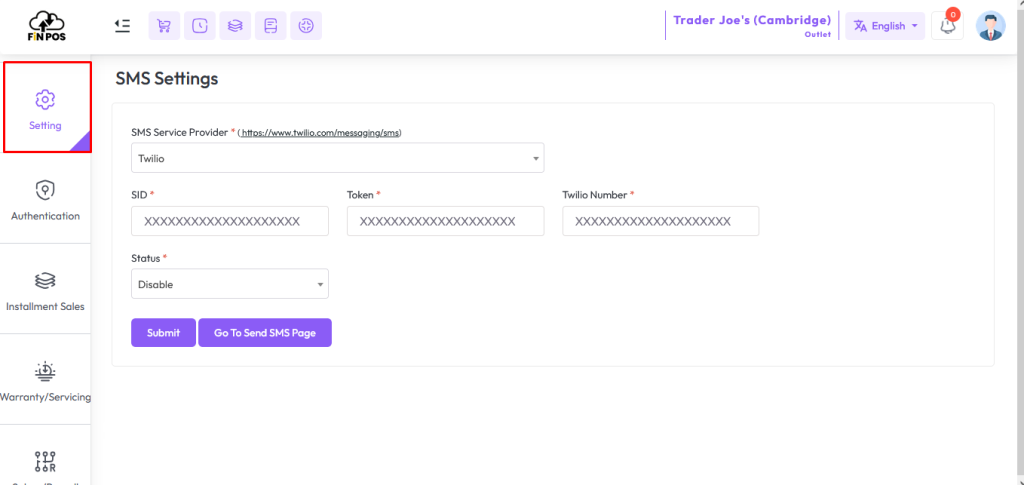
To configure your “SMS Service Provider” with “Twilo” fill up the required field with valid information, like SID, Toke, Twilo Number.
You can Enable or Disable service by clicking “Status”
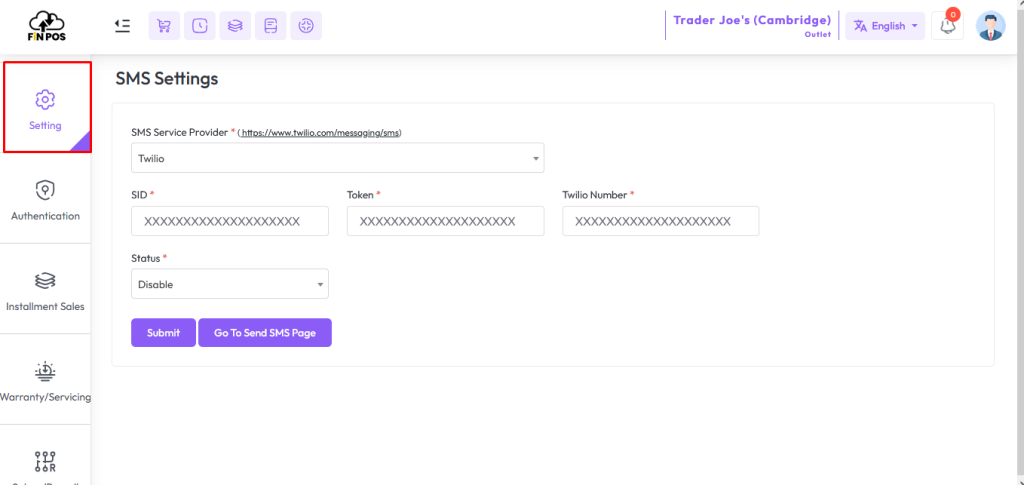
To configure your “SMS Service Provider” with “Mobishastra” fill up the required field with valid information, like Profile ID, Password, Sender ID, Country Code.
You can Enable or Disable service by clicking “Status”
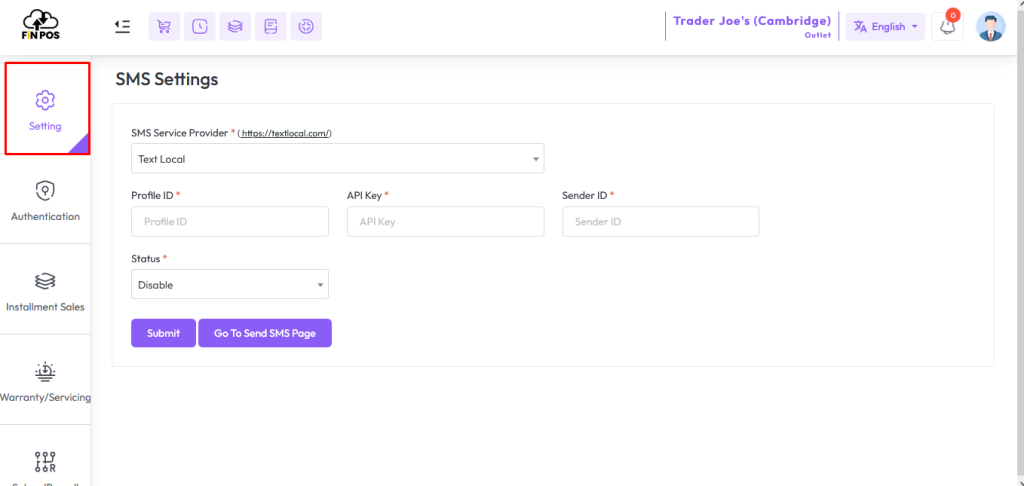
To configure your “SMS Service Provider” with “Text Local” fill up the required field with valid information, like Profile ID, API Key, Sender ID.
You can Enable or Disable service by clicking “Status”
Send Test SMS
To Send a Test SMS expand Setting Menu click on SMS Setting menu from the left sidebar.
Click on “Send Test SMS” card to Send Test SMS.
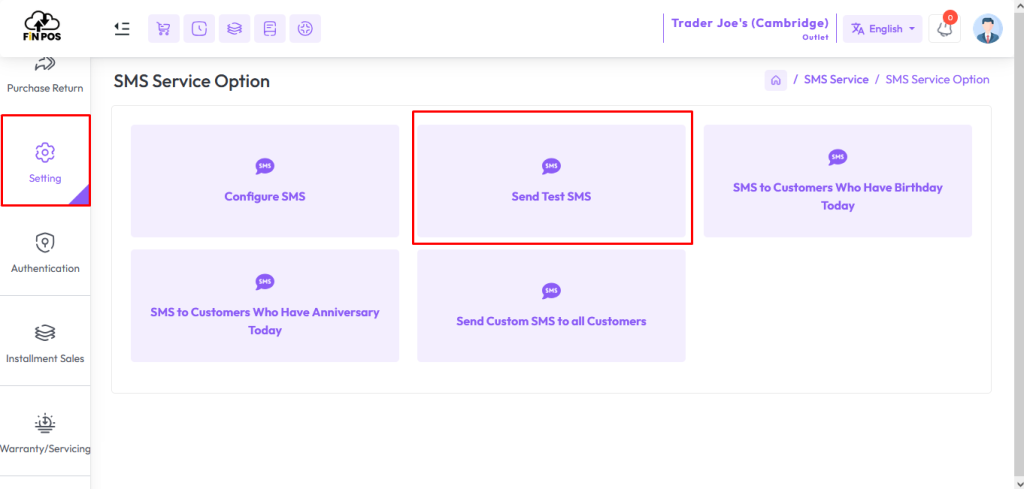
Enter a valid Phone Number in “Number” field, Enter message in “Message” field hit the submit button to send a test SMS.
NB: Message will not go to wrong number.
SMS to Customer Who have Birtheday Today
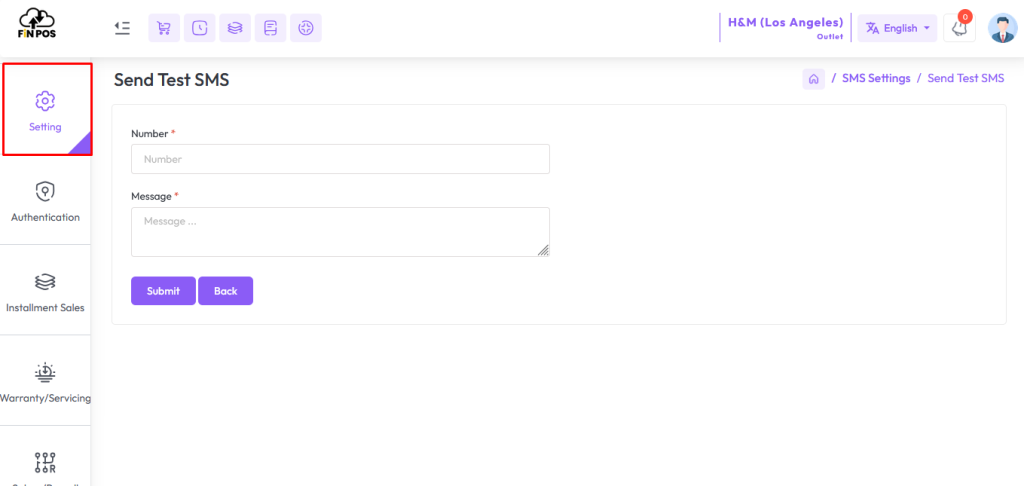
To Send a SMS to “Who have Birthday Today” expand the Setting Menu and click on the SMS Setting menu from the left sidebar.
Click on the “SMS to Customers who have birthday today” card to Send “Birthday SMS message”.
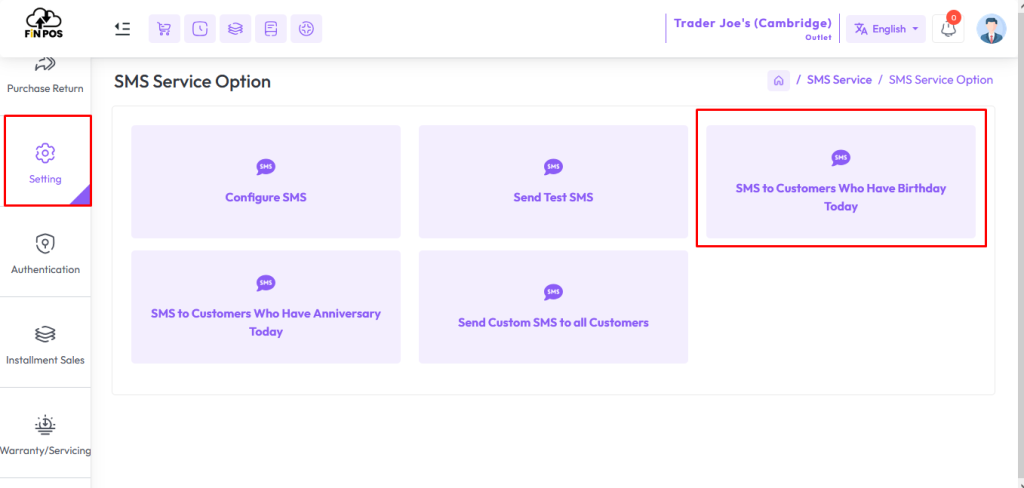
Just enter the message in the message field, the system will automatically send the message to those who have birthday.
NB: SMS will not go to those whose number is invalid.

SMS to Customer Who have Anniversary Today
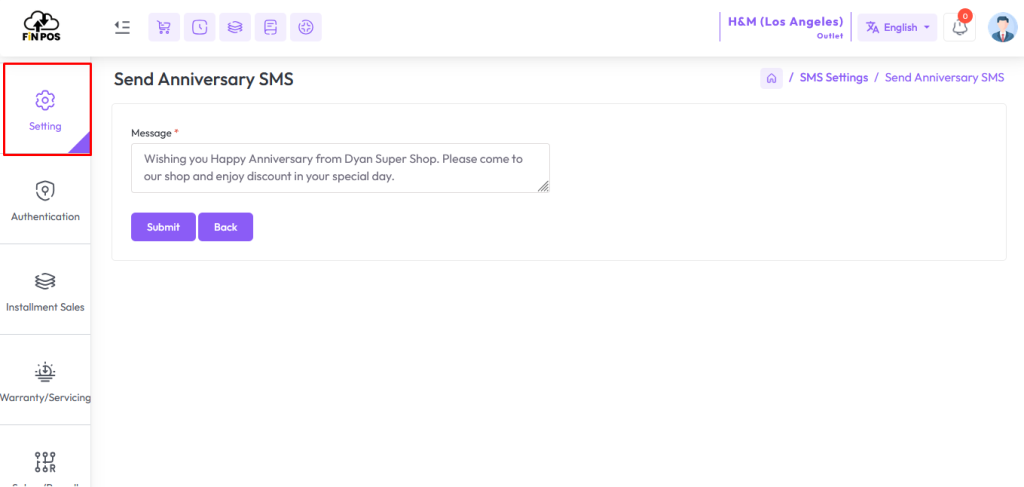
To Send an SMS to “Who have Anniversary Today” expand the Setting Menu and click on the SMS Setting menu from the left sidebar.
Click on the “SMS to Customers who have Anniversary today” card to Send “Anniversary SMS message”.
Just enter the message in the message field, the system will automatically send the message to those who have anniversary.
NB: SMS will not go to those whose Number invalid.
Send Custom SMS to all Customers
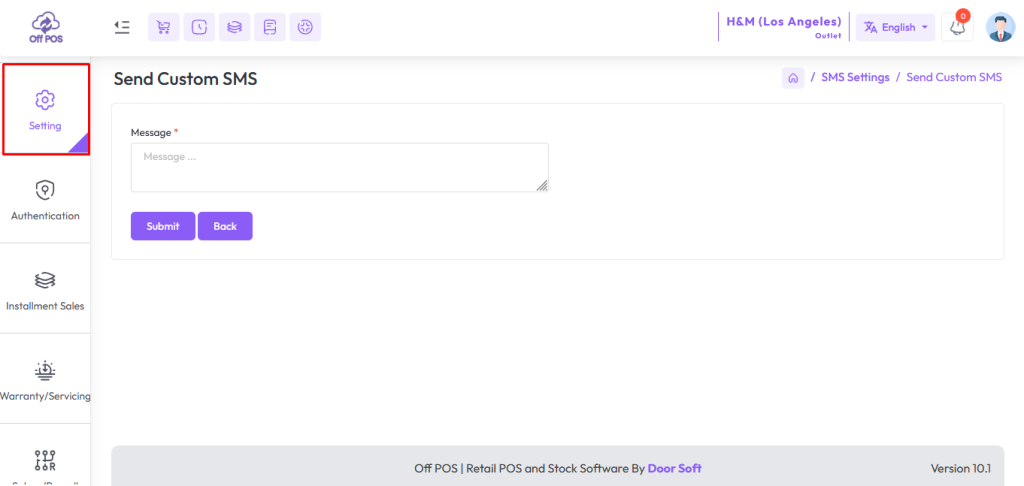
To Send an SMS to “Custom SMS to all customers” expand the Setting Menu and click on the SMS Setting menu from the left sidebar.
Click on the “Custom SMS to all customers” card to Send Bulk message or “Send Custom SMS to all customers”.
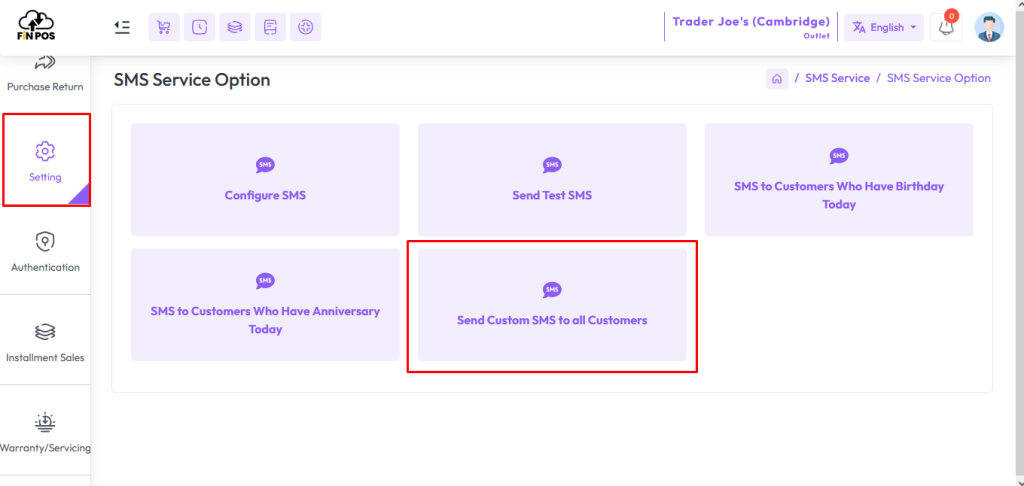
Just enter the message in the message field, the system will automatically send the message to all customers.
NB: SMS will not go to those whose Number is invalid.