Working with Medicine Item
Home / Documentation /
⚙️ Getting Started
🏪 Outlet
⚙️ Settings
🏧 Working With Counter
💰 Working Denomination
🛒 Make a Test Sale
👥 Employee Management
📅 Attendance
📋 Working with Tax
🏦 Account
📦 Working (General Item)
📦 Working (Variation Item)
📱 Working (IMEI Item)
🏷️ Working (Serial Item)
💊 Working (Medicine Item)
💳 Working (Installment Item)
🔧 Working (Service Item)
📊 Stock (General Item)
📊 Stock (Variation Item)
📊 Stock (IMEI Item)
📊 Stock (Serial Item)
📊 Stock (Medicine Item)
📊 Stock (Installment Item)
📥 Purchase (General Item)
📥 Purchase (Variation Item)
📥 Purchase (IMEI Item)
📥 Purchase (Serial Item)
📥 Purchase (Medicine Item)
📥 Purchase (Installment Item)
🏷️ Barcode & Label
🖨️ Working with Printer
🛒 Sale (General Item)
🛒 Sale (Variation Item)
🛒 Sale (IMEI Item)
🛒 Sale (Serial Item)
🛒 Sale (Medicine Item)
🛒 Sale (Installment Item)
🔧 Sale (Service Item)
🌐 Multivendor e-Commerce
📧 Working with Email
💬 Working with SMS
💳 Payment Gateway Setting
💬 Working with WhatsApp
👤 Working with Customer
🏢 Working with Supplier
📤 Purchase Return (General Item)
📤 Purchase Return (Variation Item)
📤 Purchase Return (IMEI Item)
📤 Purchase Return (Serial Item)
📤 Purchase Return (Medicine Item)
📤 Purchase Return (Installment Item)
🔄 Sale Return (General Item)
🔄 Sale Return (Variation Item)
🔄 Sale Return (IMEI Item)
🔄 Sale Return (Serial Item)
🔄 Sale Return (Medicine Item)
🔄 Sale Return (Installment Item)
📊 Dashboard
🎁 Promotion & Coupon
🏆 Loyalty
💳 Installment Sale
🔧 Warranty/Servicing
📈 Income
📉 Expense
💰 Salary/Payroll
📋 Quotation
🔄 Transfer (General Item)
🔄 Transfer (Variation Item)
🔄 Transfer (IMEI Item)
🔄 Transfer (Serial Item)
🔄 Transfer (Medicine Item)
🔄 Transfer (Installment Item)
❌ Damage (General Item)
❌ Damage (Variation Item)
❌ Damage (IMEI Item)
❌ Damage (Serial Item)
❌ Damage (Medicine Item)
❌ Damage (Installment Item)
🏢 Fixed Asset
📊 Report
🔄 Update Software
❌ Uninstall License
Add a Product
Based on the type of business and the nature of products, FiNPOS maintains 7 product types: General Products, Variation Products, IMEI Products, Serial Products, Medicine/Expiry Products, Installment Products, and Servicing.
Here we will discuss only “Medicine/Expiry Product”.
Medicine/Expiry Product is best applicable for pharmaceutical items, food products, or any goods that have an expiry date. This product type helps businesses ensure proper stock rotation, timely sales, and reduces the risk of selling expired products.
To create a new Medicine/Expiry item/product, follow these steps:
Expand the Item/Product menu from the left sidebar.
Click on the Add Item/Product option.
Select Medicine/Expiry Product as the product type.
Enter the product details along with its Expiry Date to complete the setup.

In this lesson, we will show only how to add medicine/expiry Product.
Select a type from the Type field and enter an “Alternative Name” for this product, “Alternative Name” for a product typically refers to an additional name or label that can be used to identify the product in the system.
Rack: Medicines are often stored in “Rack” by brand name in pharmacy systems, So select the “Rack” you want to store the medicine in.
Generic name: A generic name refers to the official, non-proprietary name of a product, especially a pharmaceutical drug, that is not subject to trademark. It is the standardized name assigned to a medication or substance, typically reflecting its chemical composition, and is used universally irrespective of the brand name or manufacturer. For example, “Paracetamol” is the generic name for a drug commonly known by the brand name “Napa.” Generic names ensure consistency and clarity in identifying medications across different regions and manufacturers.
Enter the generic name in the Generic Name field.

To set opening stock for every outlet click on the “Opening Stock” field after clicking that you will see an outlet list.
How to add loyalty points to an item? Click here to read the article.

Click on the plus button to increase one field, where Quantity & Expiry date can be provided.

After clicking on the plus button you will see an interface like the below snapshot.
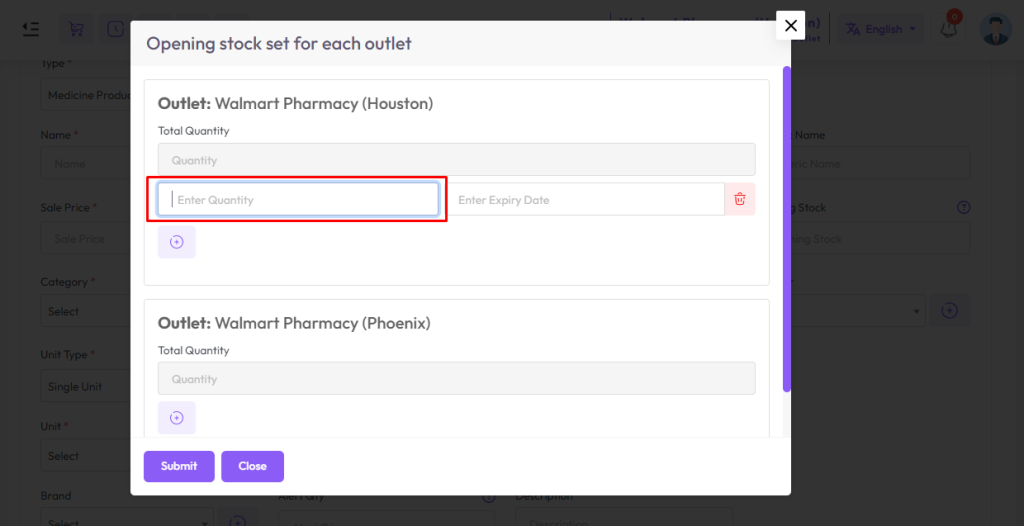
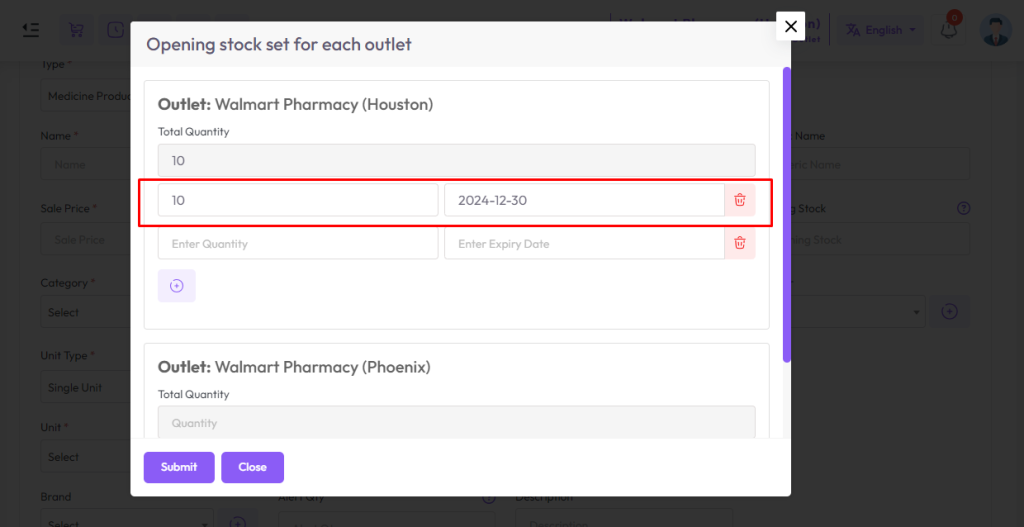
Here enter the quantity in the quantity field. Then select an expiry date from Expiry Date.

After entering the quantity and expiry date, the interface will look like the snapshot below.

Single unit and double unit can be applied on the product as per business requirement.
The unit type is a very crucial part of the product management system, let’s try to understand the unit type system!
In this system, we have 2 types of unit system, 1st “Single Unit” and 2nd “Double Unit”.
What is “Single Unit” or “Double Unit”? How it works?
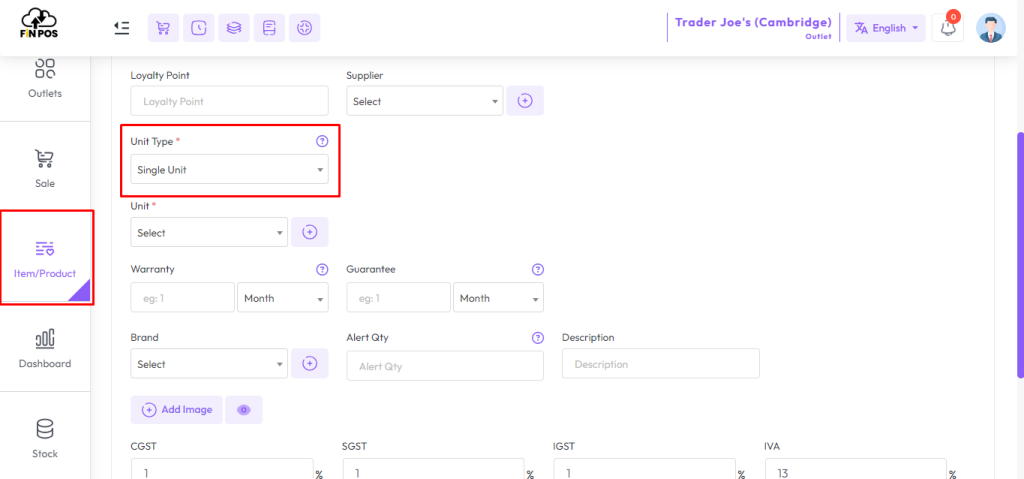
Single Unit Type
When you select Unit Type “Single Unit” then you should select Unit also from the Unit field.
In our system, it means You purchase this product in a Unit and sale this product in the same unit.
Double Unit Type
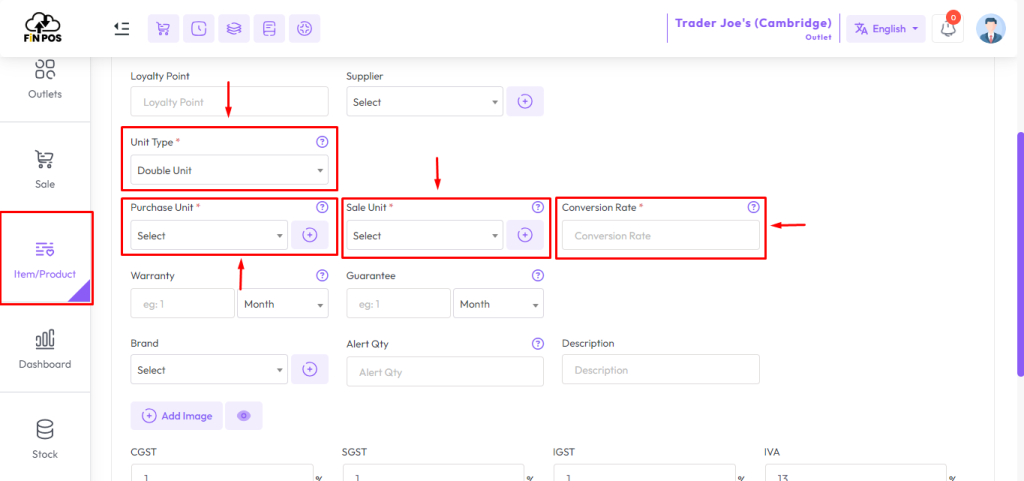
When you select Unit Type “Double Unit” then you see an additional 3 fields, Purchase Unit, Sale Unit, and Conversion rate respectively.
Select Purchase Unit from the “Purchase Unit” field, Select Sale Unit from the “Sale Unit” field, and enter conversion rate to convert purchase unit to sale unit.
Lets try to understand double unit type with a example
Let’s assume you select “Purchase Unit” as “Box”, and “Single Unit” as “PCC” It means you purchased this product Box and you want to sell “PCS”
For example:if a box contains 12 pens, and you want to convert each pen as a “Single Unit” then you should convertion rate “12” 12/12=1, Now Single pen you can sale as “Single Unit”
if you convert a Box Pen into 6 “Pare” that means 2 pen = 1 pare then you should enter convertion rate 6, A box pen = 12, convertion rate 6, 12/6=2, now you can sale 1 pare = 2 pen as a Sinle Unit.
NB: As you purchased a box of pens, you enter the purchase price of the entire box of pens in the Purchase Price field, not just the purchase price of one pen.
If you have a Warranty Or Gurantee of a product then you should enter amount Warranty and Warranty Type like Day,Month or Year. If you select Warranty 6 month that means 6 months will be counted from when the product is sold. This will work for the rest and the guarantee.

Warranty Gurantee Show in invoice.

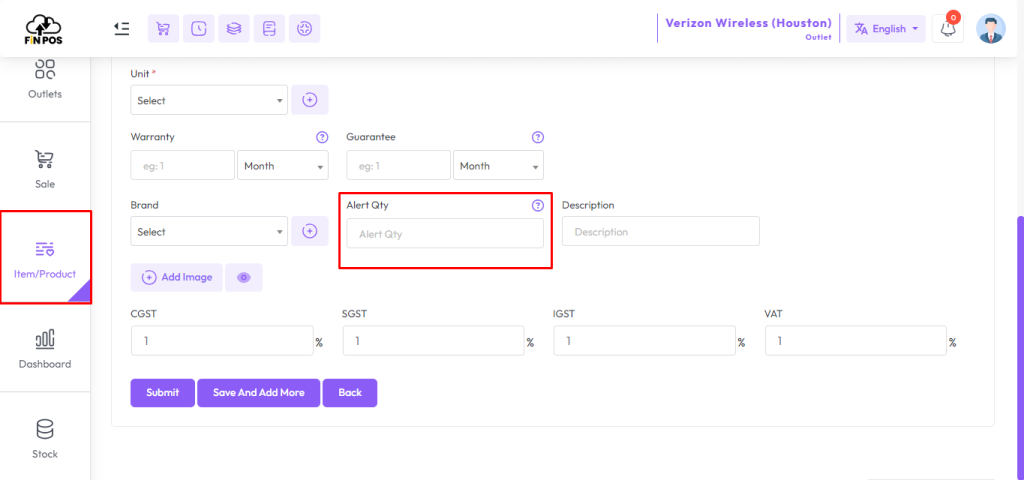
Alert Quantity: It refers to the minimum quantity of a product or item that triggers an alert or informs the relevant personnel that the stock level has reached a predefined threshold