Sale (Variation Item)
Home / Documentation /
⚙️ Getting Started
🏪 Outlet
⚙️ Settings
🏧 Working With Counter
💰 Working Denomination
🛒 Make a Test Sale
👥 Employee Management
📅 Attendance
📋 Working with Tax
🏦 Account
📦 Working (General Item)
📦 Working (Variation Item)
📱 Working (IMEI Item)
🏷️ Working (Serial Item)
💊 Working (Medicine Item)
💳 Working (Installment Item)
🔧 Working (Service Item)
📊 Stock (General Item)
📊 Stock (Variation Item)
📊 Stock (IMEI Item)
📊 Stock (Serial Item)
📊 Stock (Medicine Item)
📊 Stock (Installment Item)
📥 Purchase (General Item)
📥 Purchase (Variation Item)
📥 Purchase (IMEI Item)
📥 Purchase (Serial Item)
📥 Purchase (Medicine Item)
📥 Purchase (Installment Item)
🏷️ Barcode & Label
🖨️ Working with Printer
🛒 Sale (General Item)
🛒 Sale (Variation Item)
🛒 Sale (IMEI Item)
🛒 Sale (Serial Item)
🛒 Sale (Medicine Item)
🛒 Sale (Installment Item)
🔧 Sale (Service Item)
🌐 Multivendor e-Commerce
📧 Working with Email
💬 Working with SMS
💳 Payment Gateway Setting
💬 Working with WhatsApp
👤 Working with Customer
🏢 Working with Supplier
📤 Purchase Return (General Item)
📤 Purchase Return (Variation Item)
📤 Purchase Return (IMEI Item)
📤 Purchase Return (Serial Item)
📤 Purchase Return (Medicine Item)
📤 Purchase Return (Installment Item)
🔄 Sale Return (General Item)
🔄 Sale Return (Variation Item)
🔄 Sale Return (IMEI Item)
🔄 Sale Return (Serial Item)
🔄 Sale Return (Medicine Item)
🔄 Sale Return (Installment Item)
📊 Dashboard
🎁 Promotion & Coupon
🏆 Loyalty
💳 Installment Sale
🔧 Warranty/Servicing
📈 Income
📉 Expense
💰 Salary/Payroll
📋 Quotation
🔄 Transfer (General Item)
🔄 Transfer (Variation Item)
🔄 Transfer (IMEI Item)
🔄 Transfer (Serial Item)
🔄 Transfer (Medicine Item)
🔄 Transfer (Installment Item)
❌ Damage (General Item)
❌ Damage (Variation Item)
❌ Damage (IMEI Item)
❌ Damage (Serial Item)
❌ Damage (Medicine Item)
❌ Damage (Installment Item)
🏢 Fixed Asset
📊 Report
🔄 Update Software
❌ Uninstall License
The Sale (Variation Item) module allows you to manage and record sales of products with different variations such as size, color, or model. It helps in tracking each variation separately, ensuring accurate stock management and smooth sales operations.
Add To Cart Modal
To sell “Variation Type” products, click on the desired product (for example, “Exclusive-T-Shirt”).
The product will be added to the cart along with its selected variation (like size or color).
This ensures accurate sales entry for the chosen variation.
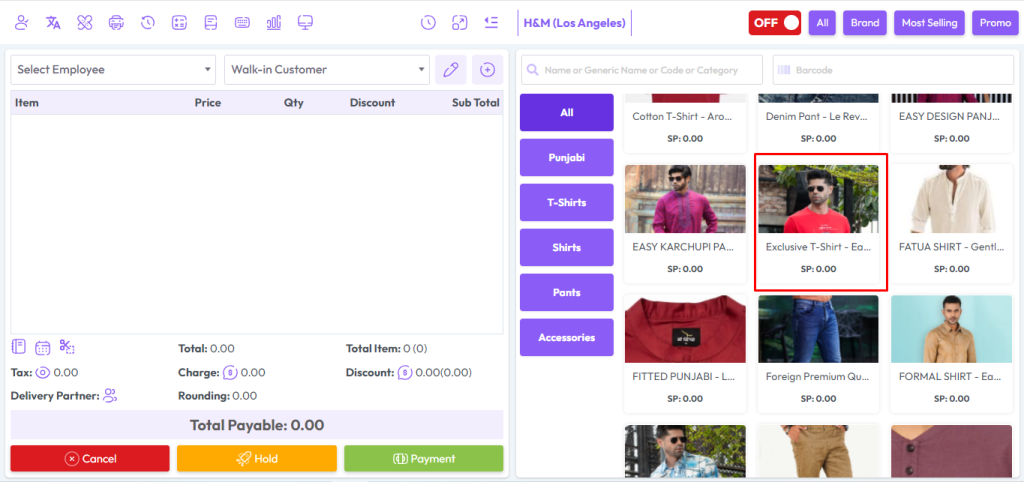
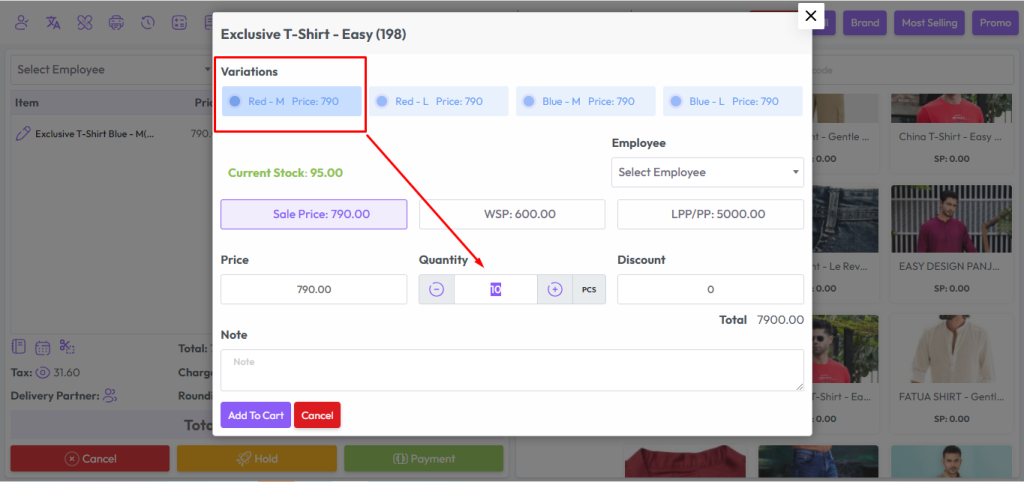
After clicking on Variation product you will get a popup modal.
Here you can see all the variations of “Exclusive-T-Shirts”.
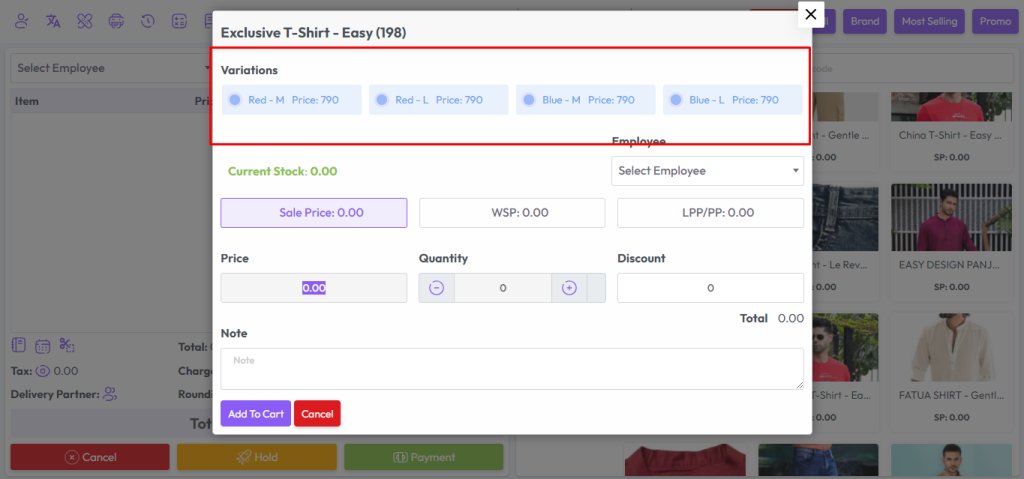
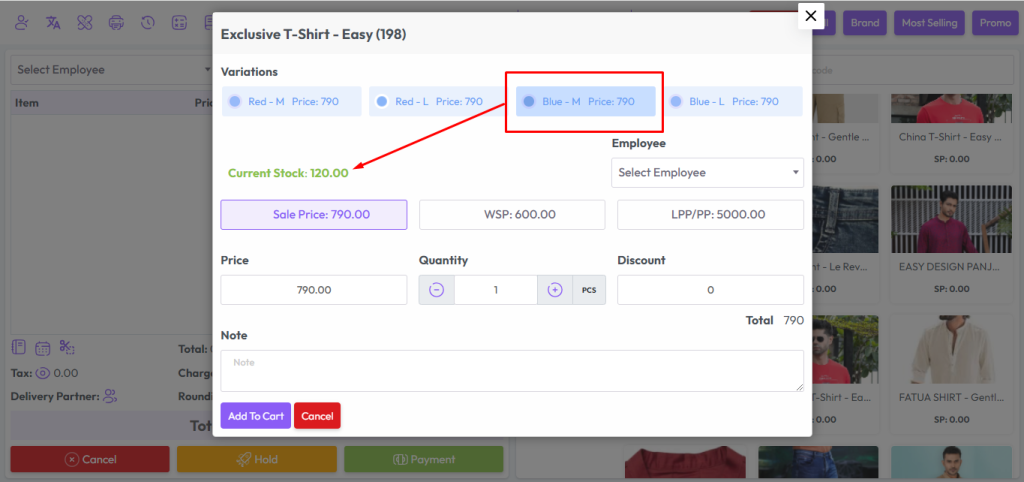
Click on the item you want to sell.
After clicking on any item of variation you will see the stock of that product.
Enter the quantity in the quantity field, or increase the quantity by clicking the plus button.
Select Employee from the Employee field if this product sale Employee-wise, Change the price if needed, LPP = Last Purchase Price of this product, WSP=Wholde Sale Price of this product, Increase Quantity if you need, enter discount if you have permission after that hit “Add To Cart” button to add this product in the cart.
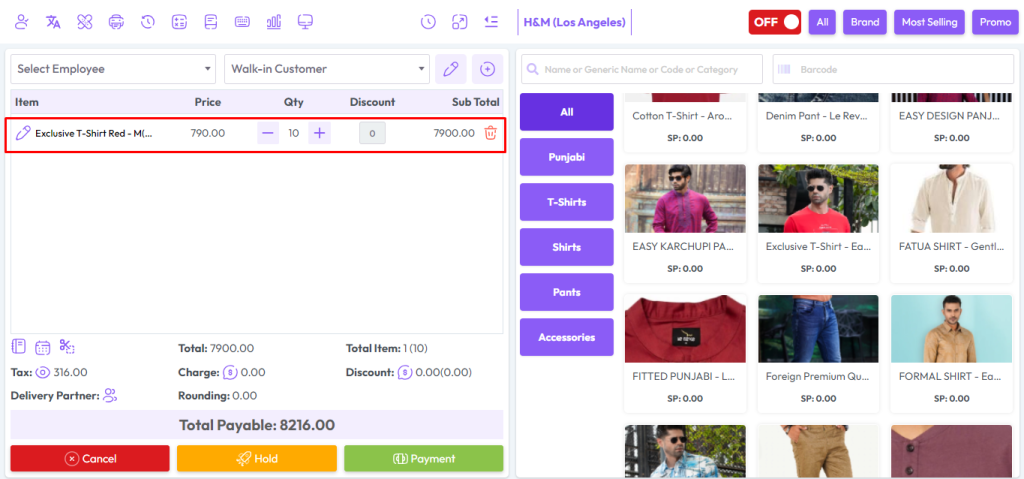
After adding the products to the cart, the cart will look like the snapshot below. It will display the product name along with its selected variation, quantity, and price. This helps you verify the chosen variation and confirm details before finalizing the sale.
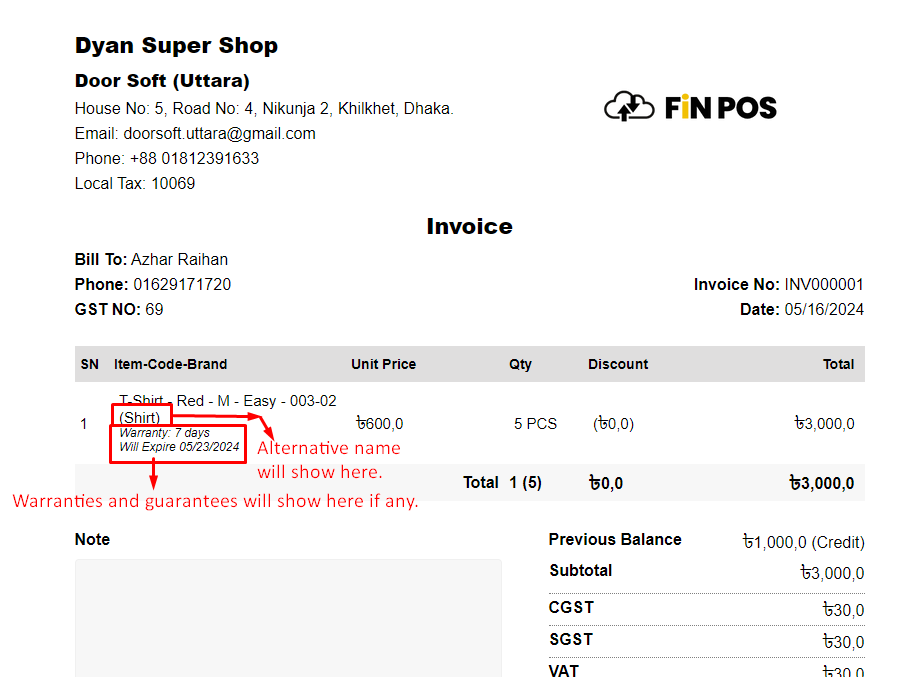
After the sale you will see an invoice like the snapshot below.
Alternative names are used especially in Arab countries.
Warranties and guarantees can be found on the invoice.
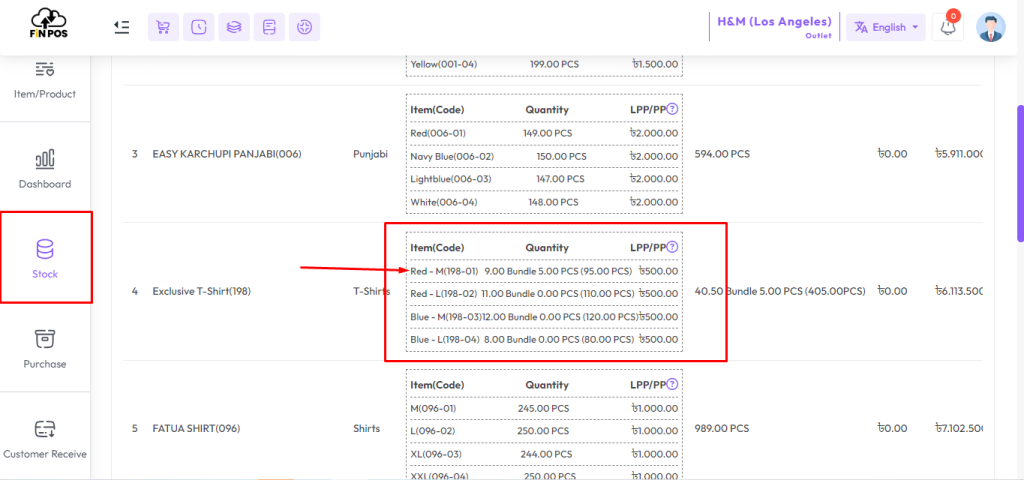
Show Stock Before & After Sale
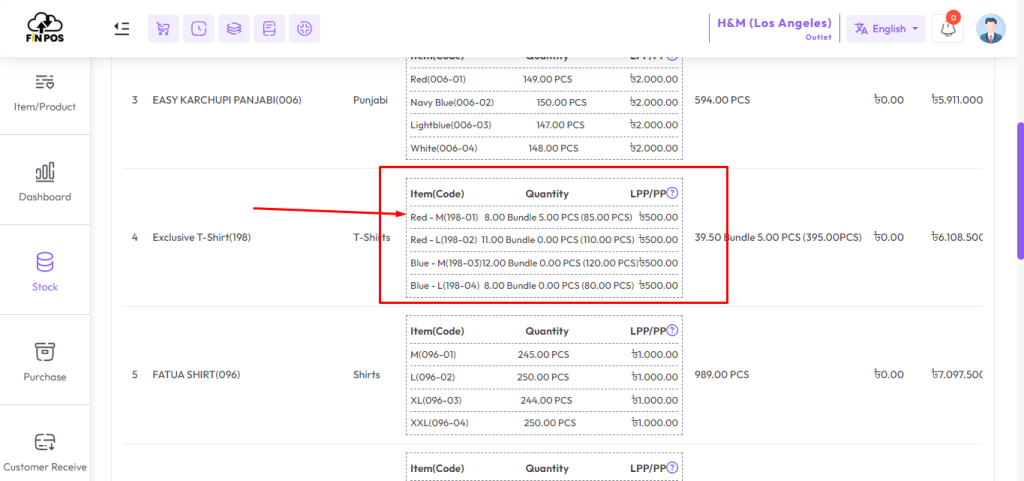
The snapshot shows the stock available before the sale, for example: 5 bundles = 60 pieces.
After the sale, the stock quantity updates automatically in the system.
This helps in monitoring inventory movement and maintaining accurate stock records.
In this example, 5 quantity sale entries have been made.
The system deducts these quantities automatically from the available stock.
This ensures accurate inventory tracking and avoids stock mismatches.
Current stock status after sale.
Before selling 5 quantity the stock was 5,0 Bundle 0,0 PCS, and after selling 5 net quantity the current stock is 4,0 Bundle 7,0 PCS.