Salary/Payroll
Home / Documentation /
⚙️ Getting Started
🏪 Outlet
⚙️ Settings
🏧 Working With Counter
💰 Working Denomination
🛒 Make a Test Sale
👥 Employee Management
📅 Attendance
📋 Working with Tax
🏦 Account
📦 Working (General Item)
📦 Working (Variation Item)
📱 Working (IMEI Item)
🏷️ Working (Serial Item)
💊 Working (Medicine Item)
💳 Working (Installment Item)
🔧 Working (Service Item)
📊 Stock (General Item)
📊 Stock (Variation Item)
📊 Stock (IMEI Item)
📊 Stock (Serial Item)
📊 Stock (Medicine Item)
📊 Stock (Installment Item)
📥 Purchase (General Item)
📥 Purchase (Variation Item)
📥 Purchase (IMEI Item)
📥 Purchase (Serial Item)
📥 Purchase (Medicine Item)
📥 Purchase (Installment Item)
🏷️ Barcode & Label
🖨️ Working with Printer
🛒 Sale (General Item)
🛒 Sale (Variation Item)
🛒 Sale (IMEI Item)
🛒 Sale (Serial Item)
🛒 Sale (Medicine Item)
🛒 Sale (Installment Item)
🔧 Sale (Service Item)
🌐 Multivendor e-Commerce
📧 Working with Email
💬 Working with SMS
💳 Payment Gateway Setting
💬 Working with WhatsApp
👤 Working with Customer
🏢 Working with Supplier
📤 Purchase Return (General Item)
📤 Purchase Return (Variation Item)
📤 Purchase Return (IMEI Item)
📤 Purchase Return (Serial Item)
📤 Purchase Return (Medicine Item)
📤 Purchase Return (Installment Item)
🔄 Sale Return (General Item)
🔄 Sale Return (Variation Item)
🔄 Sale Return (IMEI Item)
🔄 Sale Return (Serial Item)
🔄 Sale Return (Medicine Item)
🔄 Sale Return (Installment Item)
📊 Dashboard
🎁 Promotion & Coupon
🏆 Loyalty
💳 Installment Sale
🔧 Warranty/Servicing
📈 Income
📉 Expense
💰 Salary/Payroll
📋 Quotation
🔄 Transfer (General Item)
🔄 Transfer (Variation Item)
🔄 Transfer (IMEI Item)
🔄 Transfer (Serial Item)
🔄 Transfer (Medicine Item)
🔄 Transfer (Installment Item)
❌ Damage (General Item)
❌ Damage (Variation Item)
❌ Damage (IMEI Item)
❌ Damage (Serial Item)
❌ Damage (Medicine Item)
❌ Damage (Installment Item)
🏢 Fixed Asset
📊 Report
🔄 Update Software
❌ Uninstall License
Add Salary
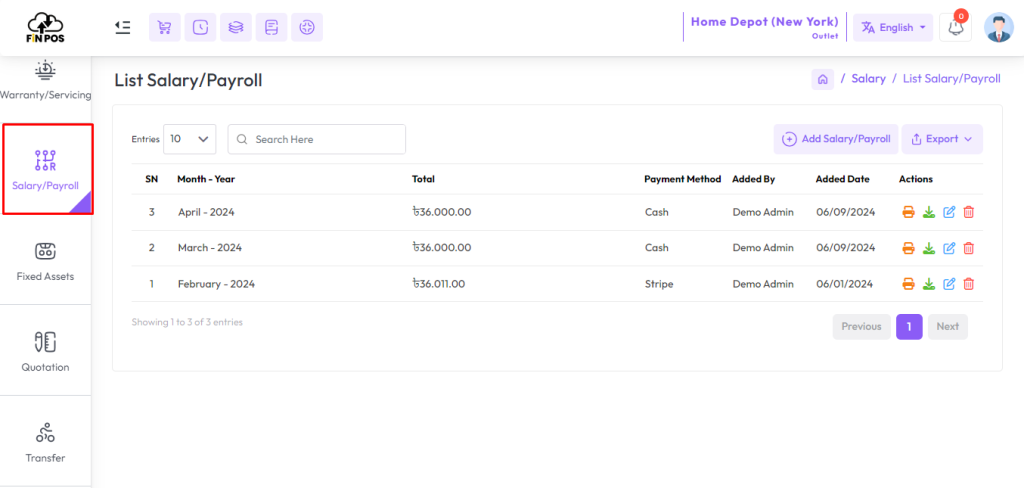
You can generate employee salaries through the Salary/Payroll section. The process is simple and managed from the sidebar menu. Just expand the Salary/Payroll option and choose the list to proceed.
Expand Salary/Payroll → From the left sidebar.
Click List Salary/Payroll → To generate and view salaries.
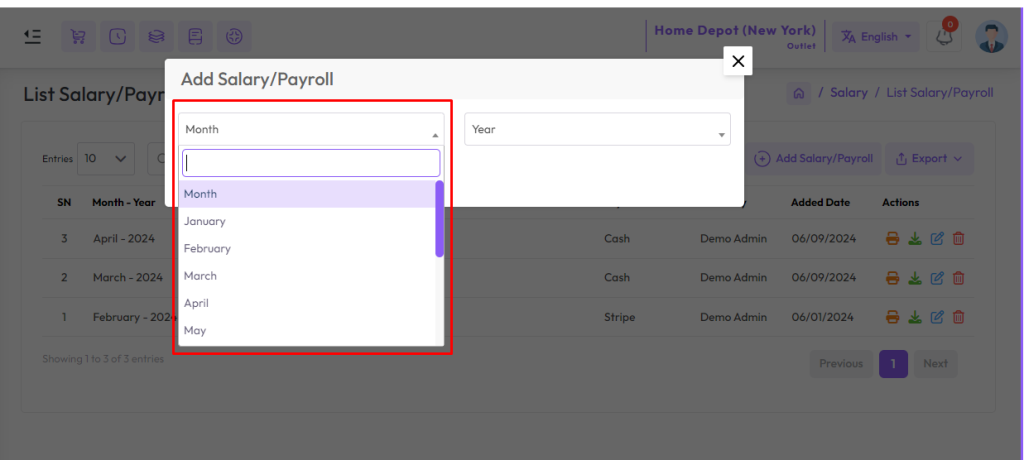
To generate salary, you must first select the month. This ensures that the payroll is created only for the chosen time period.
Go to Salary/Payroll → Expand the “Salary/Payroll” menu from the left sidebar.
Open List Salary/Payroll → Click on “List Salary/Payroll” option.
Select Month → Choose the specific month for which you want to generate the salary.
When transferring an installment product, you need to carefully choose the correct item from the list.
This ensures that the right product is moved between outlets without any mistakes.
Selecting the correct installment type product keeps records accurate and updated.
It also helps in tracking sales, payments, and product movement easily.
Select a product of Installment Type from the Item field.
Ensure the correct product is chosen to avoid errors.
The selection keeps records accurate and updated.
Helps in tracking installment sales and product movement.
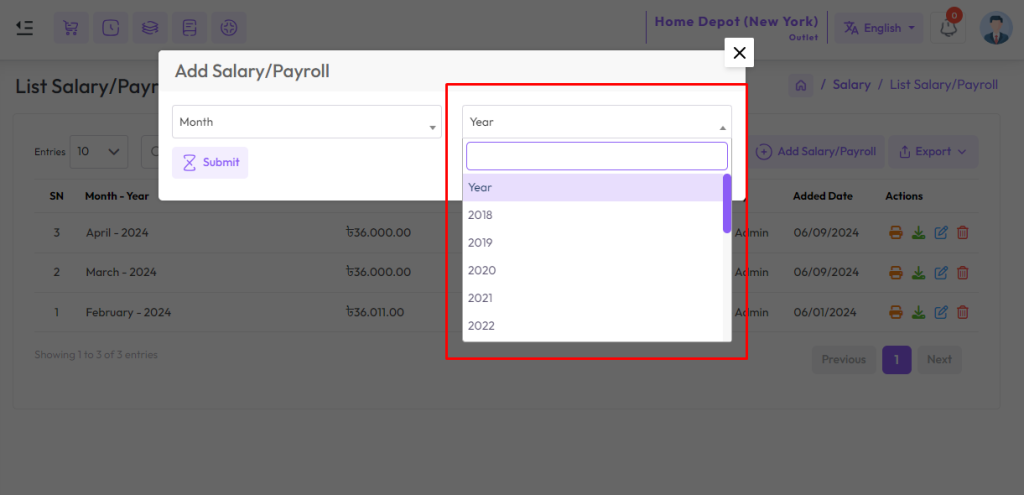
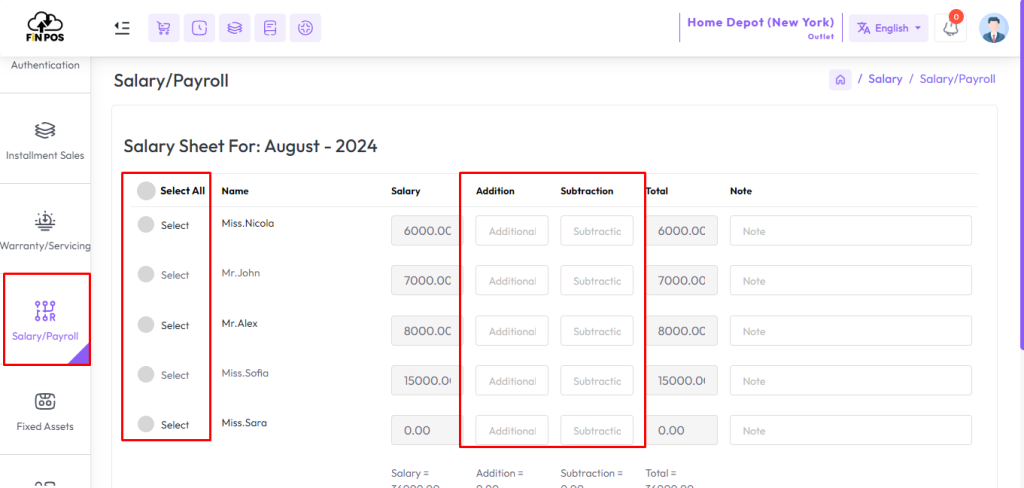
Select the employees whose salary you want to generate.
Enter the amount in the Addition field to add an additional amount to the salary.
Enter the amount in the Subtraction field to subtract the amount to the salary.
Then select the account from which you want to pay salary, and hit the submit button to generate salary.
List Salary
To view a list of salaries, first expand the Salary/Payroll menu from the left sidebar.
Clicking on the List Salary/Payroll menu will display all recorded salaries.
This allows you to see salary details for each employee clearly.
It helps in monitoring, updating, and managing payroll efficiently.
Expand the Salary/Payroll menu from the left sidebar.
Click on List Salary/Payroll to view all salaries.
Review salary details for each employee.
Manage and update payroll efficiently.
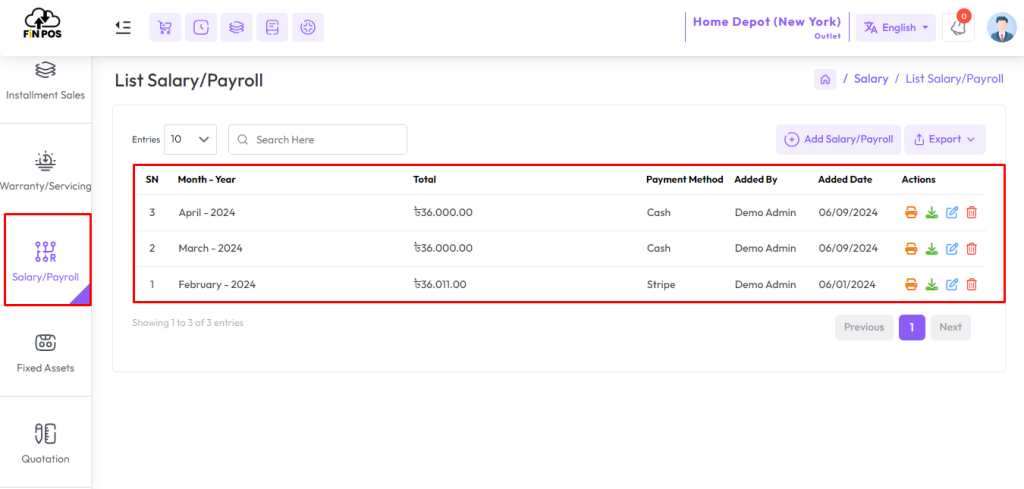
Click on the “Print Invoice” and “Download Invoice” buttons from Actions to print and download the “Salary Invoice”.
Salary Report
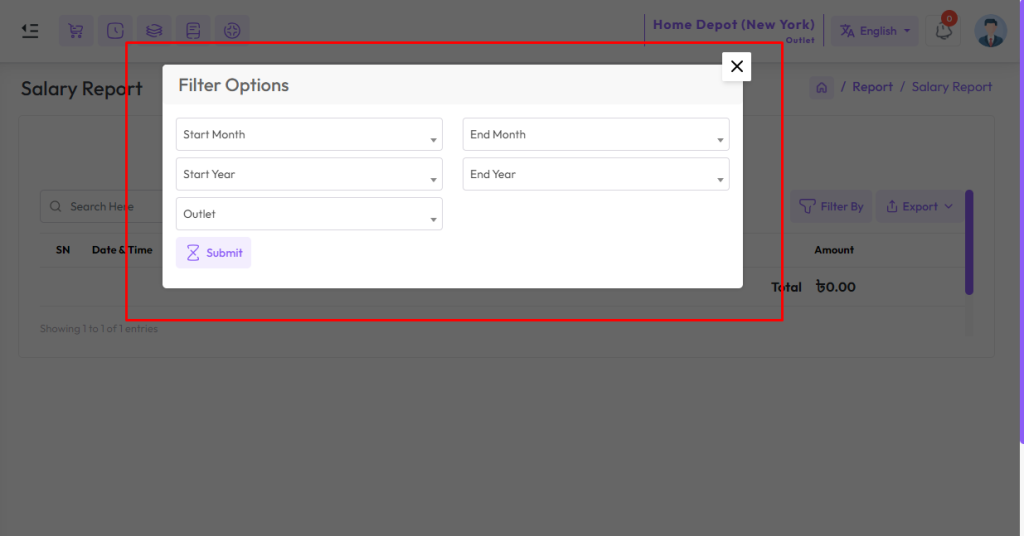
To view the “Salary Report” expand the “Report” menu from the left sidebar and click on the “Salary Report” menu.
Select a month or year to view the report within a specified month or year if needed. select outlet from the outlet field to filter report according to outlet.