Working with Serial Item
Home / Documentation /
⚙️ Getting Started
🏪 Outlet
⚙️ Settings
🏧 Working With Counter
💰 Working Denomination
🛒 Make a Test Sale
👥 Employee Management
📅 Attendance
📋 Working with Tax
🏦 Account
📦 Working (General Item)
📦 Working (Variation Item)
📱 Working (IMEI Item)
🏷️ Working (Serial Item)
💊 Working (Medicine Item)
💳 Working (Installment Item)
🔧 Working (Service Item)
📊 Stock (General Item)
📊 Stock (Variation Item)
📊 Stock (IMEI Item)
📊 Stock (Serial Item)
📊 Stock (Medicine Item)
📊 Stock (Installment Item)
📥 Purchase (General Item)
📥 Purchase (Variation Item)
📥 Purchase (IMEI Item)
📥 Purchase (Serial Item)
📥 Purchase (Medicine Item)
📥 Purchase (Installment Item)
🏷️ Barcode & Label
🖨️ Working with Printer
🛒 Sale (General Item)
🛒 Sale (Variation Item)
🛒 Sale (IMEI Item)
🛒 Sale (Serial Item)
🛒 Sale (Medicine Item)
🛒 Sale (Installment Item)
🔧 Sale (Service Item)
🌐 Multivendor e-Commerce
📧 Working with Email
💬 Working with SMS
💳 Payment Gateway Setting
💬 Working with WhatsApp
👤 Working with Customer
🏢 Working with Supplier
📤 Purchase Return (General Item)
📤 Purchase Return (Variation Item)
📤 Purchase Return (IMEI Item)
📤 Purchase Return (Serial Item)
📤 Purchase Return (Medicine Item)
📤 Purchase Return (Installment Item)
🔄 Sale Return (General Item)
🔄 Sale Return (Variation Item)
🔄 Sale Return (IMEI Item)
🔄 Sale Return (Serial Item)
🔄 Sale Return (Medicine Item)
🔄 Sale Return (Installment Item)
📊 Dashboard
🎁 Promotion & Coupon
🏆 Loyalty
💳 Installment Sale
🔧 Warranty/Servicing
📈 Income
📉 Expense
💰 Salary/Payroll
📋 Quotation
🔄 Transfer (General Item)
🔄 Transfer (Variation Item)
🔄 Transfer (IMEI Item)
🔄 Transfer (Serial Item)
🔄 Transfer (Medicine Item)
🔄 Transfer (Installment Item)
❌ Damage (General Item)
❌ Damage (Variation Item)
❌ Damage (IMEI Item)
❌ Damage (Serial Item)
❌ Damage (Medicine Item)
❌ Damage (Installment Item)
🏢 Fixed Asset
📊 Report
🔄 Update Software
❌ Uninstall License
Add a Product
Here we will discuss only “Serial Product”.
Serial Product is best applicable for computers, electronic devices, or similar items that come with a unique Serial Number for identification and record-keeping. This product type helps businesses track inventory, warranty, and sales with accuracy.
To create a new Serial item/product, follow these steps:
Expand the Item/Product menu from the left sidebar.
Click on the Add Item/Product option.
Select Serial Product as the product type.
Enter the product details along with its Serial Number(s) to complete the setup.

In this lesson, we will show only how to add Serial Product.
Select “Serial Product” a type from the Type field and enter an “Alternative Name” for this product, “Alternative Name” for a product typically refers to an additional name or label that can be used to identify the product in the system.

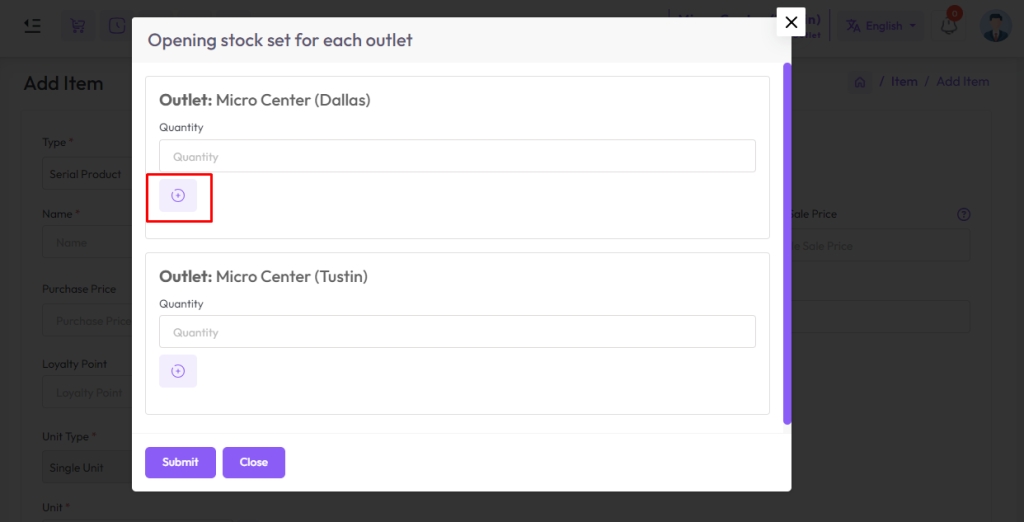
To set opening stock for every outlet click on the “Opening Stock” field after clicking that you will see an outlet list
How to add loyalty points to an item? Click here to read the article.

Enter the quantity in the quantity field under the outlet for which you want to set the opening Serial Number.

If you want, you can click on the plus button to increase one field at a time, where Serial Number can be provided.
Click the Delete button to delete the Serial Number.
NB: Serial products only work with single units.
Select the unit from the unit field as per your need.

If you have a Warranty Or Gurantee of a product then you should enter amount Warranty and Warranty Type like Day,Month or Year. If you select Warranty 6 month that means 6 months will be counted from when the product is sold. This will work for the rest and the guarantee.

Warranty Gurantee Show in invoice.

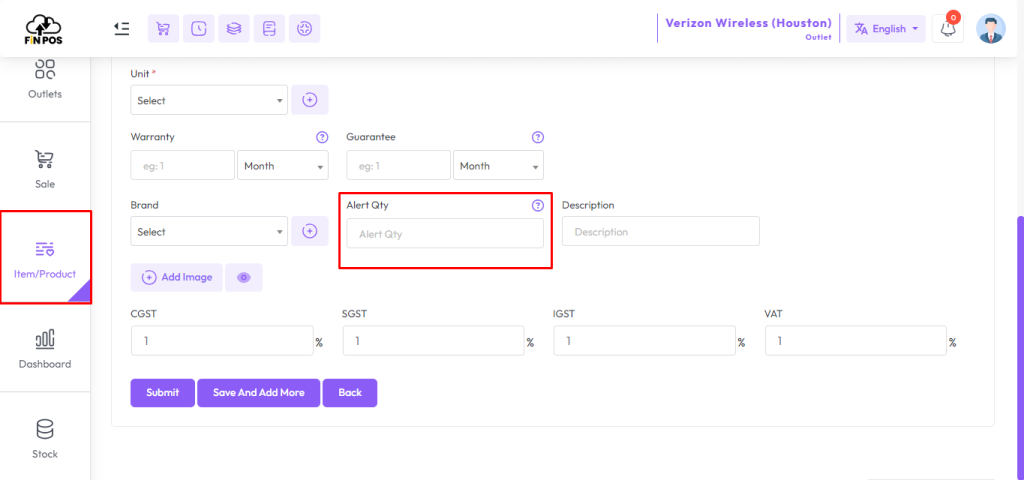
Alert Quantity: It refers to the minimum quantity of a product or item that triggers an alert or informs the relevant personnel that the stock level has reached a predefined threshold