Working With Email
Home / Documentation /
⚙️ Getting Started
🏪 Outlet
⚙️ Settings
🏧 Working With Counter
💰 Working Denomination
🛒 Make a Test Sale
👥 Employee Management
📅 Attendance
📋 Working with Tax
🏦 Account
📦 Working (General Item)
📦 Working (Variation Item)
📱 Working (IMEI Item)
🏷️ Working (Serial Item)
💊 Working (Medicine Item)
💳 Working (Installment Item)
🔧 Working (Service Item)
📊 Stock (General Item)
📊 Stock (Variation Item)
📊 Stock (IMEI Item)
📊 Stock (Serial Item)
📊 Stock (Medicine Item)
📊 Stock (Installment Item)
📥 Purchase (General Item)
📥 Purchase (Variation Item)
📥 Purchase (IMEI Item)
📥 Purchase (Serial Item)
📥 Purchase (Medicine Item)
📥 Purchase (Installment Item)
🏷️ Barcode & Label
🖨️ Working with Printer
🛒 Sale (General Item)
🛒 Sale (Variation Item)
🛒 Sale (IMEI Item)
🛒 Sale (Serial Item)
🛒 Sale (Medicine Item)
🛒 Sale (Installment Item)
🔧 Sale (Service Item)
🌐 Multivendor e-Commerce
📧 Working with Email
💬 Working with SMS
💳 Payment Gateway Setting
💬 Working with WhatsApp
👤 Working with Customer
🏢 Working with Supplier
📤 Purchase Return (General Item)
📤 Purchase Return (Variation Item)
📤 Purchase Return (IMEI Item)
📤 Purchase Return (Serial Item)
📤 Purchase Return (Medicine Item)
📤 Purchase Return (Installment Item)
🔄 Sale Return (General Item)
🔄 Sale Return (Variation Item)
🔄 Sale Return (IMEI Item)
🔄 Sale Return (Serial Item)
🔄 Sale Return (Medicine Item)
🔄 Sale Return (Installment Item)
📊 Dashboard
🎁 Promotion & Coupon
🏆 Loyalty
💳 Installment Sale
🔧 Warranty/Servicing
📈 Income
📉 Expense
💰 Salary/Payroll
📋 Quotation
🔄 Transfer (General Item)
🔄 Transfer (Variation Item)
🔄 Transfer (IMEI Item)
🔄 Transfer (Serial Item)
🔄 Transfer (Medicine Item)
🔄 Transfer (Installment Item)
❌ Damage (General Item)
❌ Damage (Variation Item)
❌ Damage (IMEI Item)
❌ Damage (Serial Item)
❌ Damage (Medicine Item)
❌ Damage (Installment Item)
🏢 Fixed Asset
📊 Report
🔄 Update Software
❌ Uninstall License
Email Configuration
To configure you email expand Setting Menu click on Email Setting menu from the left sidebar.
Click on “Configure Email” card to configure you email setting.

After clicking on “Configure Email” card you will see an interface below snapshot.
Select your “Email Service Type” here is 2 type Email Service 1. Sendinblue, 2.Gmail.
To configure your “Email Service” with Sendinblue fill up the required field with valid information, like Username, Password, API Key.
NB: SMTP host, Port Address, Encryption don’t need to be change.
You can Enable or Disable service by clicking “Status”
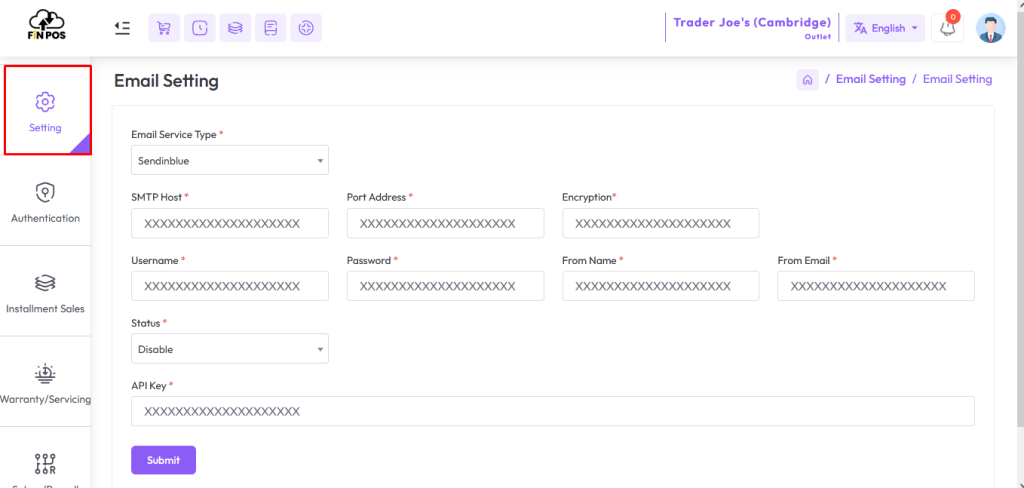
To configure your “Email Service” with Gmail fill up the required field with valid information, like Username, Password.
NB: SMTP host, Port Address, Encryption don’t need to be change.
You can Enable or Disable service by clicking “Status”

Send Test Email
To Send a Test Email expand Setting Menu click on Email Setting menu from the left sidebar.
Click on “Send Test Email” card to Send Test Email.

Enter a valid Email address in “Email” field, Enter message in “Message” field hit the submit button to send a test mail.
NB: Message will not go to invalid email.

Email to Customer Who have Birtheday Today
To Send an email to “Who have Birthday Today” expand the Setting Menu and click on the Email Setting menu from the left sidebar.
Click on the “Email to Customers who have birthday today” card to Send “Birthday email message”.

Just enter the message in the message field, the system will automatically send the message to those who have birthday.
NB: Mail will not go to those whose email address is invalid.

Email to Customer Who have Anniversary Today
To Send an email to “Who have Anniversary Today” expand the Setting Menu and click on the Email Setting menu from the left sidebar.
Click on the “Email to Customers who have Anniversary today” card to Send “Anniversary email message”.

Just enter the message in the message field, the system will automatically send the message to those who have anniversary.
NB: Mail will not go to those whose email address is invalid.

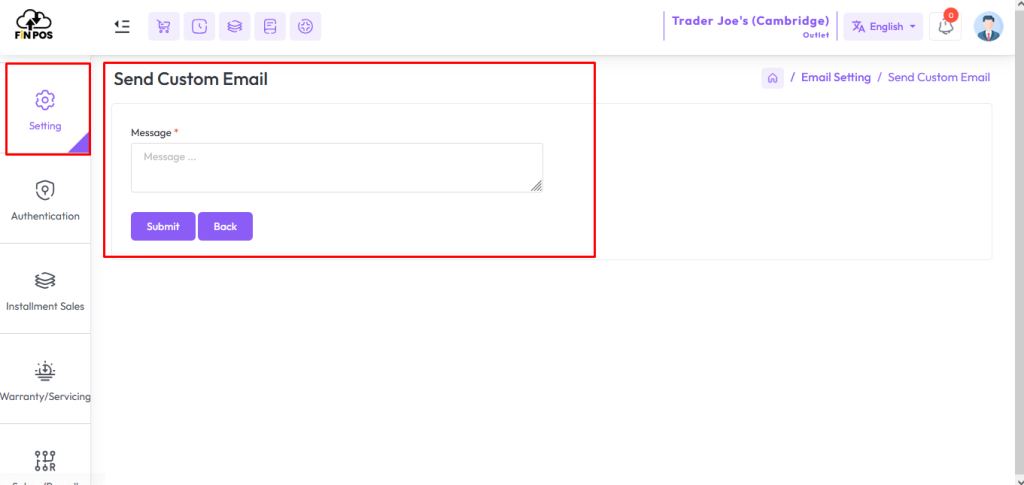
Send Custom Email to all Customers
To Send an email to “Send Custom Email to all customers” expand the Setting Menu and click on the Email Setting menu from the left sidebar.
Click on the “Send Custom Email to all customers” card to Send Bulk message or “Custom Email to all customers”.

Just enter the message in the message field, the system will automatically send the message to all customers.
NB: Mail will not go to those whose email address is invalid.