Report
Home / Documentation /
⚙️ Getting Started
🏪 Outlet
⚙️ Settings
🏧 Working With Counter
💰 Working Denomination
🛒 Make a Test Sale
👥 Employee Management
📅 Attendance
📋 Working with Tax
🏦 Account
📦 Working (General Item)
📦 Working (Variation Item)
📱 Working (IMEI Item)
🏷️ Working (Serial Item)
💊 Working (Medicine Item)
💳 Working (Installment Item)
🔧 Working (Service Item)
📊 Stock (General Item)
📊 Stock (Variation Item)
📊 Stock (IMEI Item)
📊 Stock (Serial Item)
📊 Stock (Medicine Item)
📊 Stock (Installment Item)
📥 Purchase (General Item)
📥 Purchase (Variation Item)
📥 Purchase (IMEI Item)
📥 Purchase (Serial Item)
📥 Purchase (Medicine Item)
📥 Purchase (Installment Item)
🏷️ Barcode & Label
🖨️ Working with Printer
🛒 Sale (General Item)
🛒 Sale (Variation Item)
🛒 Sale (IMEI Item)
🛒 Sale (Serial Item)
🛒 Sale (Medicine Item)
🛒 Sale (Installment Item)
🔧 Sale (Service Item)
🌐 Multivendor e-Commerce
📧 Working with Email
💬 Working with SMS
💳 Payment Gateway Setting
💬 Working with WhatsApp
👤 Working with Customer
🏢 Working with Supplier
📤 Purchase Return (General Item)
📤 Purchase Return (Variation Item)
📤 Purchase Return (IMEI Item)
📤 Purchase Return (Serial Item)
📤 Purchase Return (Medicine Item)
📤 Purchase Return (Installment Item)
🔄 Sale Return (General Item)
🔄 Sale Return (Variation Item)
🔄 Sale Return (IMEI Item)
🔄 Sale Return (Serial Item)
🔄 Sale Return (Medicine Item)
🔄 Sale Return (Installment Item)
📊 Dashboard
🎁 Promotion & Coupon
🏆 Loyalty
💳 Installment Sale
🔧 Warranty/Servicing
📈 Income
📉 Expense
💰 Salary/Payroll
📋 Quotation
🔄 Transfer (General Item)
🔄 Transfer (Variation Item)
🔄 Transfer (IMEI Item)
🔄 Transfer (Serial Item)
🔄 Transfer (Medicine Item)
🔄 Transfer (Installment Item)
❌ Damage (General Item)
❌ Damage (Variation Item)
❌ Damage (IMEI Item)
❌ Damage (Serial Item)
❌ Damage (Medicine Item)
❌ Damage (Installment Item)
🏢 Fixed Asset
📊 Report
🔄 Update Software
❌ Uninstall License
Register Report
To view the “Register Report” expand the “Report” menu from the left sidebar and click on the “Register Report” menu.
Registers play a vital role in streamlining the checkout process, improving customer service, and maintaining accurate records of sales activities in retail environments. They serve as the frontline interface between businesses and their customers, facilitating efficient and secure transactions while enabling businesses to track sales performance and make informed decisions.
The register consists of an opening ledger and a closing ledger. So that the register can keep track of how much is left after buying and selling.
– Select an employee from the Employee field.
– After selecting the employee, you will see all the reports of this employee on the right side.
Note: All reports that have been closed will appear in the report list. Open registers will not appear in register list.

How to Close Register?
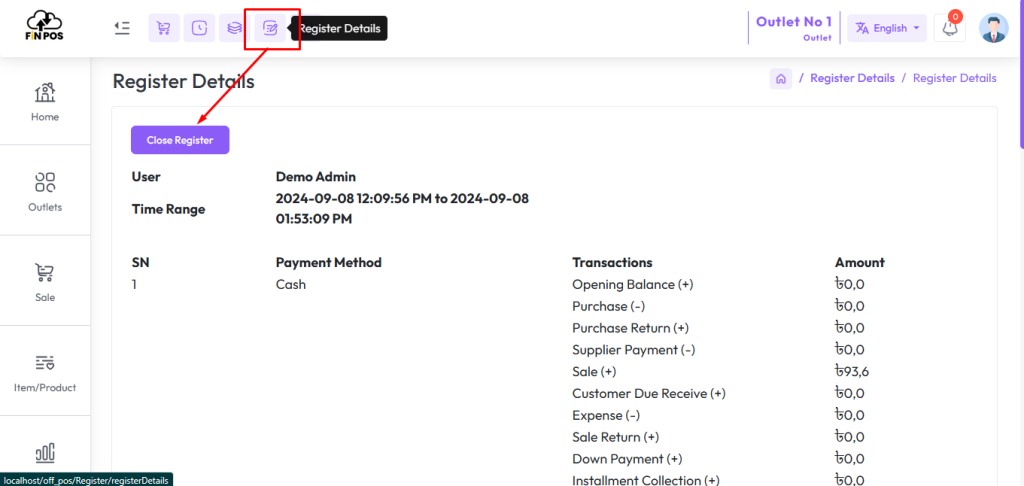
Click the Register Details button, if the register is open you will see an interface similar to the snapshot below, and click Close Register. If the register is open then you won’t see such an interface.
Z Report
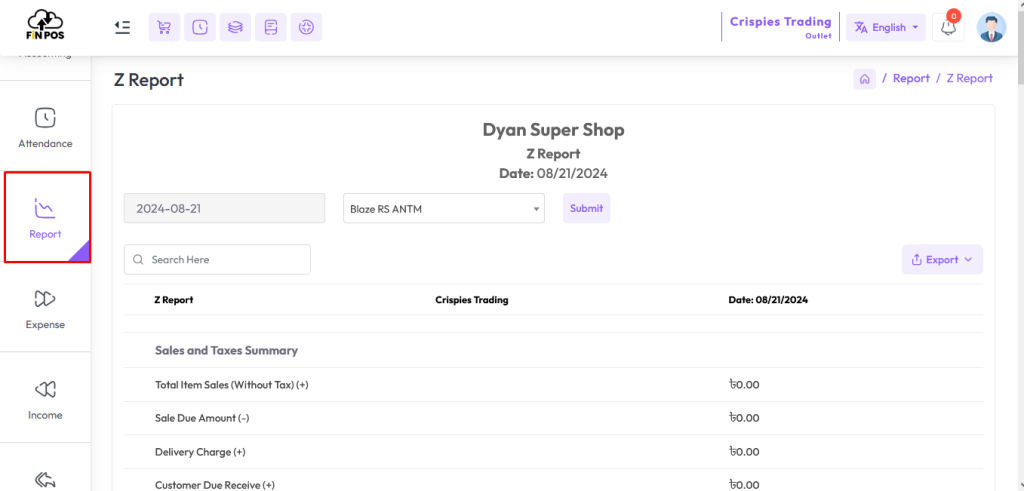
To view the “zReport” expand the “Report” menu from the left sidebar and click on the “zReport” menu.
A “Z” report is a report that shows all the transactions of a business for a particular day. Like Sales and Tax Summary, Payment method-wise Summary, Item-wise Summary, Purchases, Expenses, Supplier Summary, Customer Receive etc.
Daily Summary Report
To view the “Daily Summary Report” expand the “Report” menu from the left sidebar and click on the “Daily Summary Report” menu.
The purpose of the Daily Summary Report is to offer a quick overview of the day’s business activities to management, helping them to assess performance, identify trends, and make informed decisions. It serves as a valuable tool for monitoring daily sales targets.
Select a date, select an outlet if needed.

Profit Loss Report
To view the “Profit Loss Report” expand the “Report” menu from the left sidebar and click on the “Profit Loss Report” menu.
Profit and Loss Report, also known as an Income Statement, is a financial statement that summarizes the revenues, expenses, and resulting profits or losses of a business over a specific period, typically a month or year. The Profit and Loss report provides valuable scenarios into the financial performance of the business.
Revenue: This section of the report lists all the income generated by the business during the reporting period. Revenue sources may include sales of products or services, as well as any other sources of income such as Tax, Delivery/Service, Installment Sale(Delivery Charge + Percentage of Interest), Income, Servicing, Sale Returned etc. earned.
Cost of Sale: This section includes all the direct costs associated with producing or acquiring the products or services sold by the business.
Gross Profit: Gross profit is calculated by subtracting the “Cost of Sale” from the total revenue. It represents the amount of money the business has earned from its core operations after accounting for the direct costs of producing product or delivering services. Gross Profit = Revenue – Cost of Sale.
Other Expenses: This section includes all the indirect costs incurred by the business in its day-to-day operations. The Other Expenses may include expense, salaries, and any other expenses not directly tied to the production of goods or services.
Net Profit: Net profit is the final result after subtracting all Other Expenses from the gross profit. It represents the overall profitability of the business during the reporting period. If the expenses exceed the gross profit, the result is a net profit. Net Profit = Gross Profit – Other Expenses.

Select the option from “Costing Method” field to view the report based on the “Average Costing of last 3 Purchase” or the “Last Purchase Price”.

The snapshot below explains a method to calculate Gross Profit and Net Profit. Gross Profit shows the difference between sales and the cost of goods sold, while Net Profit reflects the final profit after deducting all expenses. This helps in understanding both operational and overall profitability.
Identify total Sales Revenue.
Subtract Cost of Goods Sold (COGS) to calculate Gross Profit.
List down all Operating Expenses (rent, salaries, utilities, etc.).
Deduct these expenses from Gross Profit.
The result will give you the Net Profit.

Price History Report
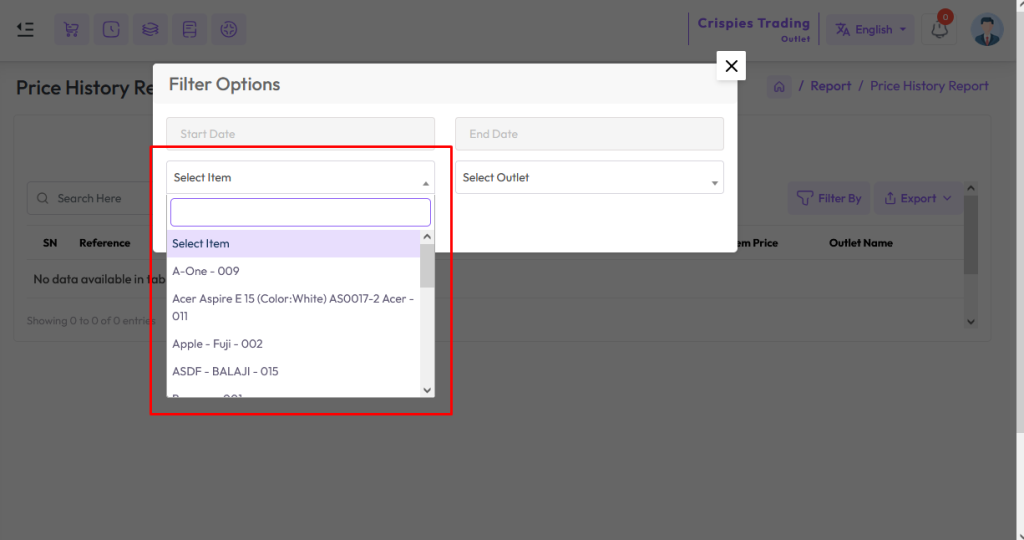
To view the “Price History Report” expand the “Report” menu from the left sidebar and click on the “Price History Report” menu.
A price history report is a report that provides detailed information on the price of a product, such as purchases price, sales price, purchase return price, sale return price, damages price etc.
Cash Flow Report
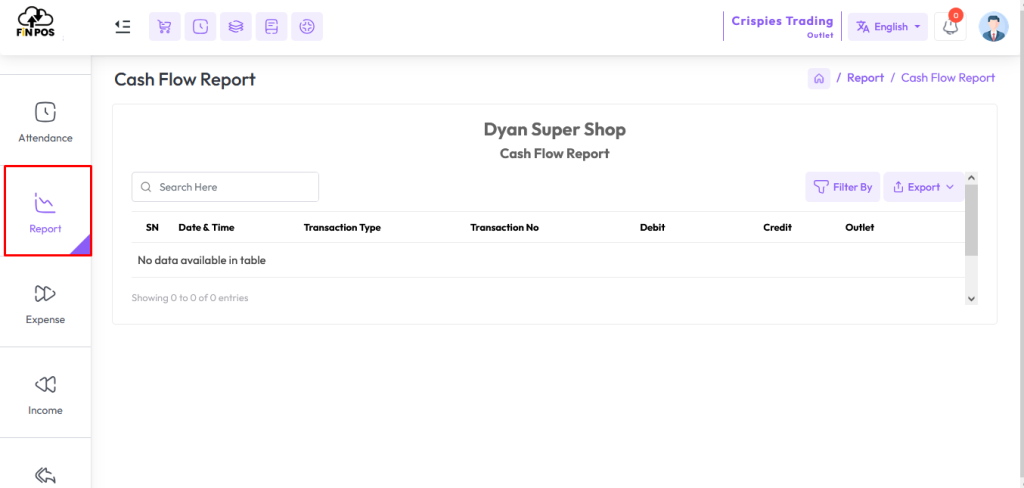
To view the “Cash Flow Report” expand the “Report” menu from the left sidebar and click on the “Cash Flow Report” menu.
A cash flow report describes a system’s cash payment method of transactions.
Select a date to view the report within a specified date if needed. select outlet from the outlet field to filter report according to outlet.