
Working With Whatsapp
Home / Documentation /
⚙️ Getting Started
🏪 Outlet
⚙️ Settings
🏧 Working With Counter
💰 Working Denomination
🛒 Make a Test Sale
👥 Employee Management
📅 Attendance
📋 Working with Tax
🏦 Account
📦 Working (General Item)
📦 Working (Variation Item)
📱 Working (IMEI Item)
🏷️ Working (Serial Item)
💊 Working (Medicine Item)
💳 Working (Installment Item)
🔧 Working (Service Item)
📊 Stock (General Item)
📊 Stock (Variation Item)
📊 Stock (IMEI Item)
📊 Stock (Serial Item)
📊 Stock (Medicine Item)
📊 Stock (Installment Item)
📥 Purchase (General Item)
📥 Purchase (Variation Item)
📥 Purchase (IMEI Item)
📥 Purchase (Serial Item)
📥 Purchase (Medicine Item)
📥 Purchase (Installment Item)
🏷️ Barcode & Label
🖨️ Working with Printer
🛒 Sale (General Item)
🛒 Sale (Variation Item)
🛒 Sale (IMEI Item)
🛒 Sale (Serial Item)
🛒 Sale (Medicine Item)
🛒 Sale (Installment Item)
🔧 Sale (Service Item)
🌐 Multivendor e-Commerce
📧 Working with Email
💬 Working with SMS
💳 Payment Gateway Setting
💬 Working with WhatsApp
👤 Working with Customer
🏢 Working with Supplier
📤 Purchase Return (General Item)
📤 Purchase Return (Variation Item)
📤 Purchase Return (IMEI Item)
📤 Purchase Return (Serial Item)
📤 Purchase Return (Medicine Item)
📤 Purchase Return (Installment Item)
🔄 Sale Return (General Item)
🔄 Sale Return (Variation Item)
🔄 Sale Return (IMEI Item)
🔄 Sale Return (Serial Item)
🔄 Sale Return (Medicine Item)
🔄 Sale Return (Installment Item)
📊 Dashboard
🎁 Promotion & Coupon
🏆 Loyalty
💳 Installment Sale
🔧 Warranty/Servicing
📈 Income
📉 Expense
💰 Salary/Payroll
📋 Quotation
🔄 Transfer (General Item)
🔄 Transfer (Variation Item)
🔄 Transfer (IMEI Item)
🔄 Transfer (Serial Item)
🔄 Transfer (Medicine Item)
🔄 Transfer (Installment Item)
❌ Damage (General Item)
❌ Damage (Variation Item)
❌ Damage (IMEI Item)
❌ Damage (Serial Item)
❌ Damage (Medicine Item)
❌ Damage (Installment Item)
🏢 Fixed Asset
📊 Report
🔄 Update Software
❌ Uninstall License
Whatsapp Setting
There are several steps to configure WhatsApp settings, the steps are given in order.
Sign up here to get WhatsApp Appkey & WhatsApp Authkey.
After signing up here you can see below interface.
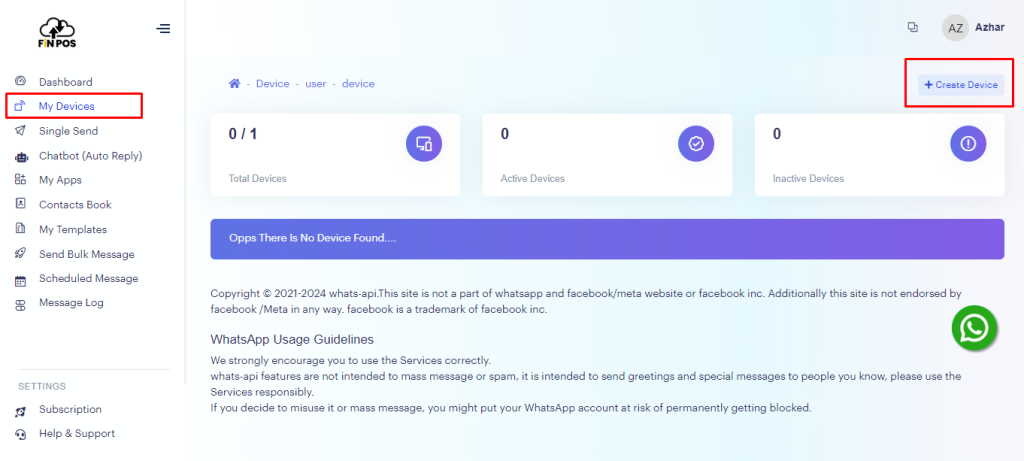
Find the My Devices menu from the left sidebar and click on it.
After clicking on the My Device menu, you will see a button called Create Device on the right side, click on it.
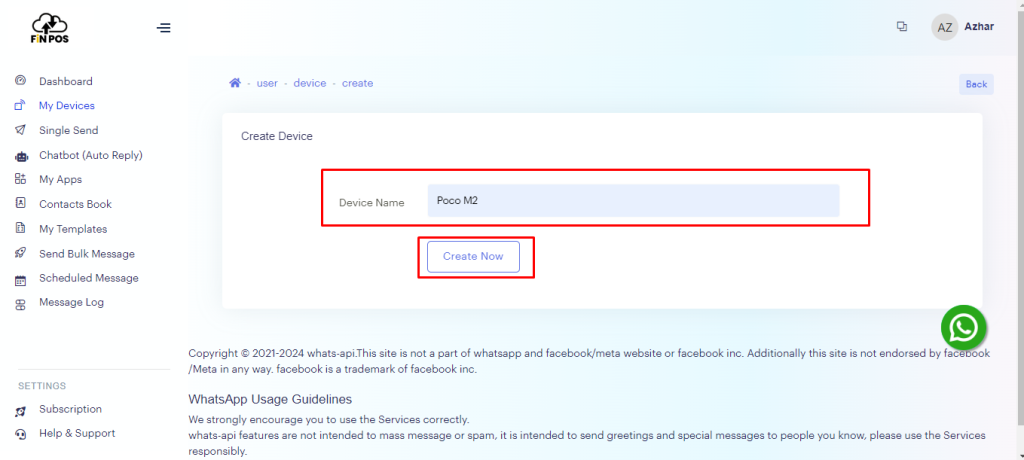
After clicking the Create Device button, you will see an interface like below.
Enter your device name here and click on the Create Now button.
After creating a device you will see a QR code.
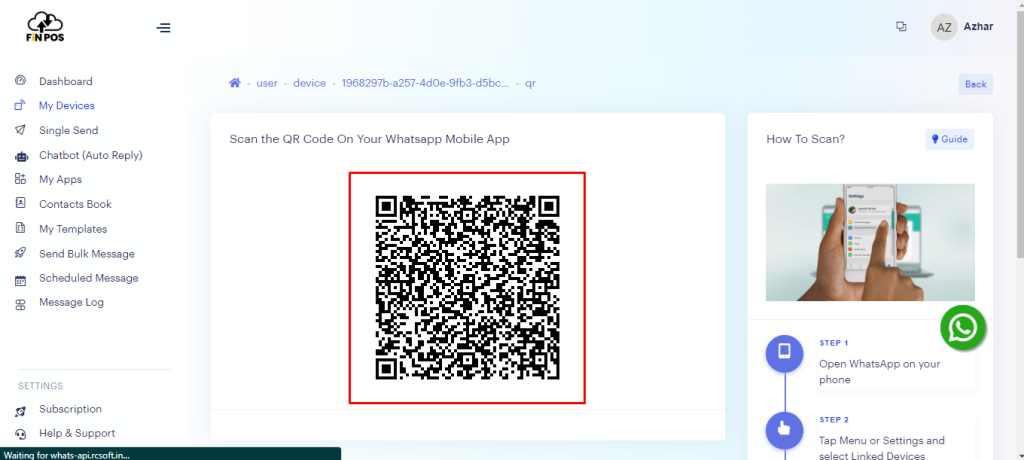
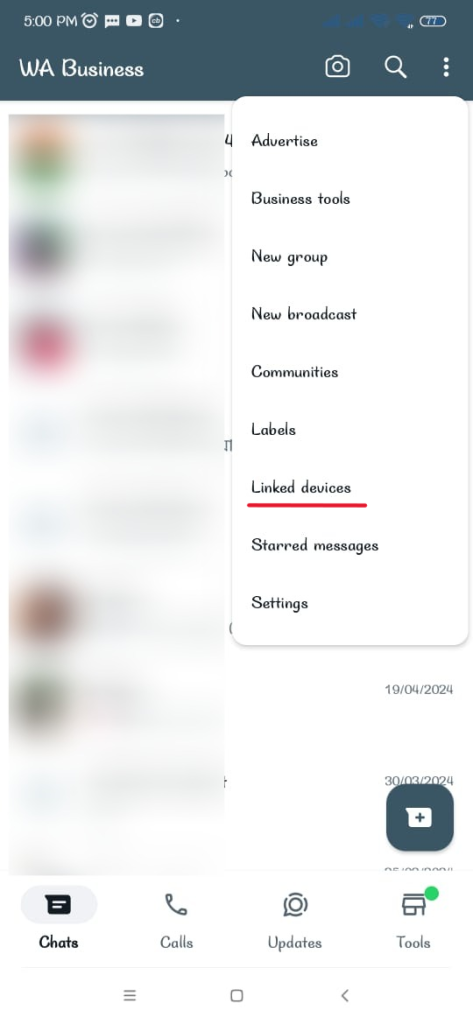
Go to WhatsApp Settings from mobile and link the device by clicking on “Linked Devices”.
Find the My Apps menu from the left sidebar and click on it.
After clicking on the My Apps menu, you will see a button called Create App on the right side, click on it.
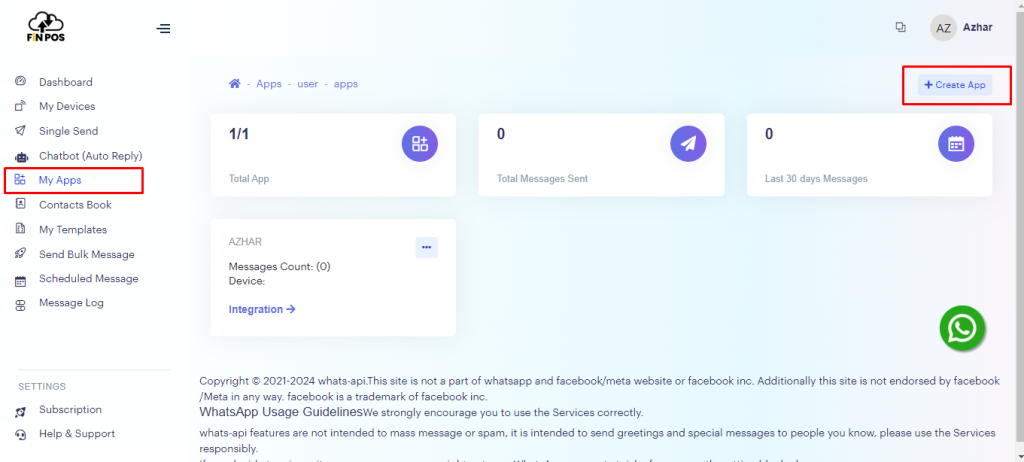
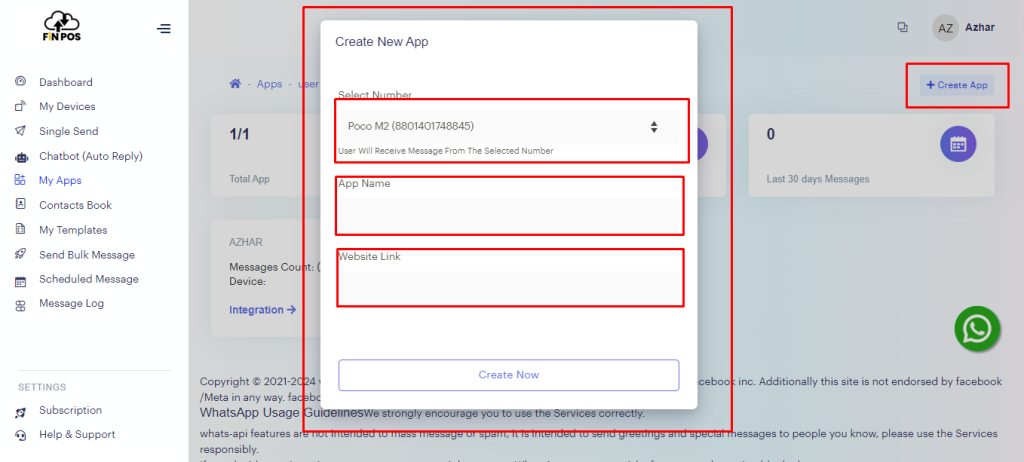
After clicking the “Create App” button, you will see an interface like below.
Then select your linked device, enter the app name in the App Name field, enter the website link and click the “Create Now” button.
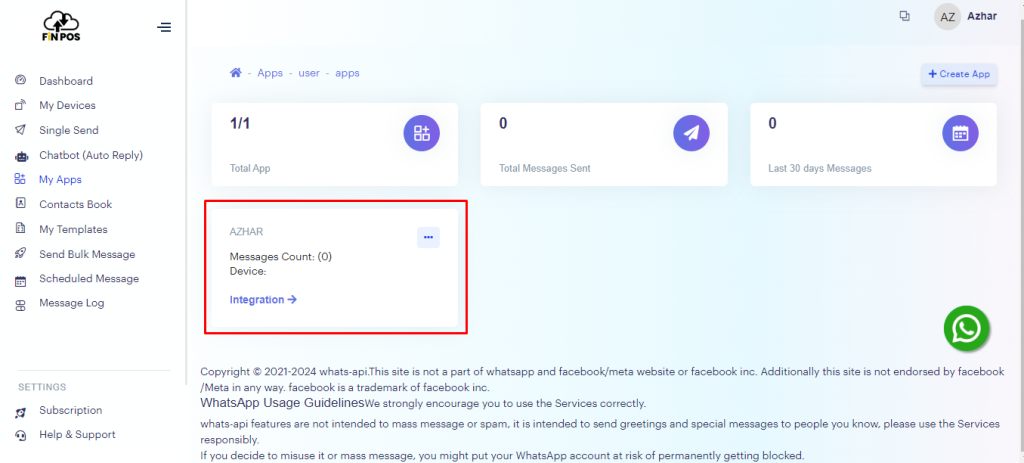
After create a “New App” Then click on the App Name card, as shown in the snapshot below.
Click on “Integration” from the App Name card.
Then you will see an interface below.
Click on the php Tab.
After clicking that copy the appkey and authkey value. Copy only values inside single quotations, not with single quotations.

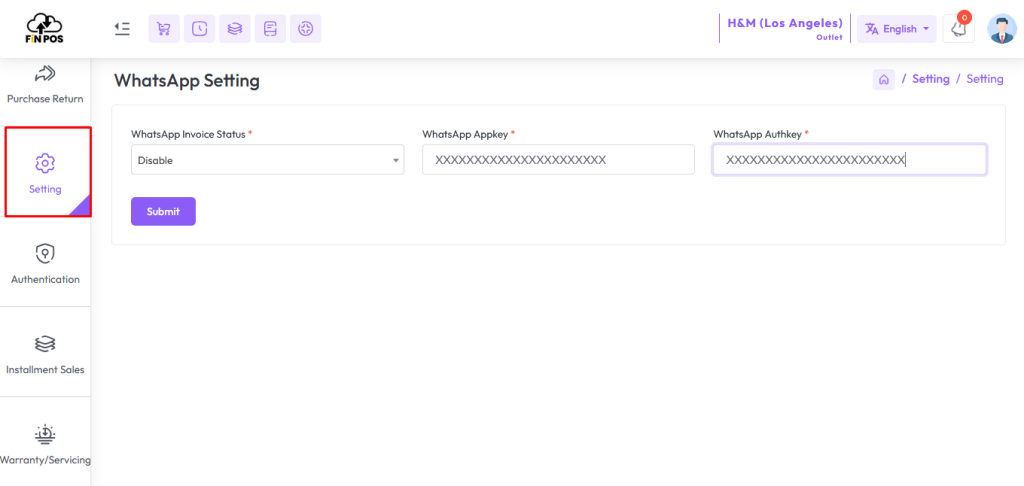
To configure you WhatsApp Setting expand Setting Menu click on WhatsApp Setting menu from the left sidebar.
Enter valid WhatsApp AppKey and WhatsApp AuthKey, Which is shown by configuring WhatsApp earlier.
You can Enable or Disable Settings by clicking “WhatsApp Invoice Status”
Hit the submit button to save this configuration.
Whatsapp Work in Sale
To send a message on WhatsApp, you must check the Send Invoice Via Whatsapp option from the finalize sale, otherwise the message will not go through.
