Expense
Home / Documentation /
⚙️ Getting Started
🏪 Outlet
⚙️ Settings
🏧 Working With Counter
💰 Working Denomination
🛒 Make a Test Sale
👥 Employee Management
📅 Attendance
📋 Working with Tax
🏦 Account
📦 Working (General Item)
📦 Working (Variation Item)
📱 Working (IMEI Item)
🏷️ Working (Serial Item)
💊 Working (Medicine Item)
💳 Working (Installment Item)
🔧 Working (Service Item)
📊 Stock (General Item)
📊 Stock (Variation Item)
📊 Stock (IMEI Item)
📊 Stock (Serial Item)
📊 Stock (Medicine Item)
📊 Stock (Installment Item)
📥 Purchase (General Item)
📥 Purchase (Variation Item)
📥 Purchase (IMEI Item)
📥 Purchase (Serial Item)
📥 Purchase (Medicine Item)
📥 Purchase (Installment Item)
🏷️ Barcode & Label
🖨️ Working with Printer
🛒 Sale (General Item)
🛒 Sale (Variation Item)
🛒 Sale (IMEI Item)
🛒 Sale (Serial Item)
🛒 Sale (Medicine Item)
🛒 Sale (Installment Item)
🔧 Sale (Service Item)
🌐 Multivendor e-Commerce
📧 Working with Email
💬 Working with SMS
💳 Payment Gateway Setting
💬 Working with WhatsApp
👤 Working with Customer
🏢 Working with Supplier
📤 Purchase Return (General Item)
📤 Purchase Return (Variation Item)
📤 Purchase Return (IMEI Item)
📤 Purchase Return (Serial Item)
📤 Purchase Return (Medicine Item)
📤 Purchase Return (Installment Item)
🔄 Sale Return (General Item)
🔄 Sale Return (Variation Item)
🔄 Sale Return (IMEI Item)
🔄 Sale Return (Serial Item)
🔄 Sale Return (Medicine Item)
🔄 Sale Return (Installment Item)
📊 Dashboard
🎁 Promotion & Coupon
🏆 Loyalty
💳 Installment Sale
🔧 Warranty/Servicing
📈 Income
📉 Expense
💰 Salary/Payroll
📋 Quotation
🔄 Transfer (General Item)
🔄 Transfer (Variation Item)
🔄 Transfer (IMEI Item)
🔄 Transfer (Serial Item)
🔄 Transfer (Medicine Item)
🔄 Transfer (Installment Item)
❌ Damage (General Item)
❌ Damage (Variation Item)
❌ Damage (IMEI Item)
❌ Damage (Serial Item)
❌ Damage (Medicine Item)
❌ Damage (Installment Item)
🏢 Fixed Asset
📊 Report
🔄 Update Software
❌ Uninstall License
Add Expense Category
To add a new Expense Category, first expand the Expense menu from the left sidebar.
Clicking on the Add Expense Category menu allows you to create a new category.
This helps in organizing expenses under proper headings for better tracking.
It ensures all expense records are categorized accurately and efficiently.
Expand the Expense menu from the left sidebar.
Click on Add Expense Category to create a new category.
Organize expenses under proper headings.
Ensure accurate and efficient expense tracking.
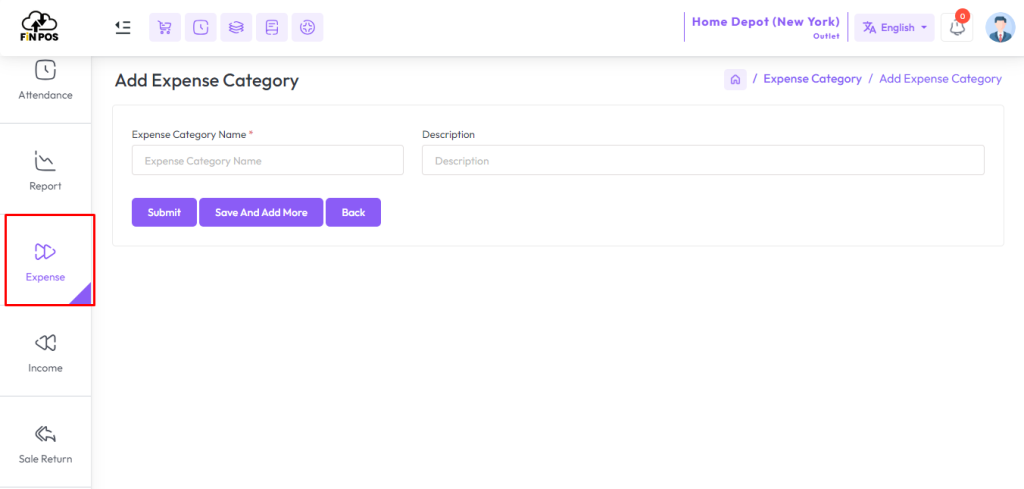
Fill up all the required fields carefully to ensure correct information is entered.
Once all fields are completed, click the Submit button to save the data.
This process helps in maintaining accurate records without any missing information.
It ensures that the submitted information is properly stored and processed.
Fill up all the required fields.
Click the Submit button to save the data.
Ensure all information is accurate and complete.
Maintain proper records efficiently.
Add Expense
To add a new Expense, first expand the Expense menu from the left sidebar.
Clicking on the Add Expense menu allows you to record a new expense entry.
Here, the Expense Category indicates where the money is being spent.
This helps in tracking all expenses accurately and managing financial records efficiently.
Expand the Expense menu from the left sidebar.
Click on Add Expense to record a new entry.
Select the Expense Category to indicate where the money is spent.
Track and manage all expenses accurately.
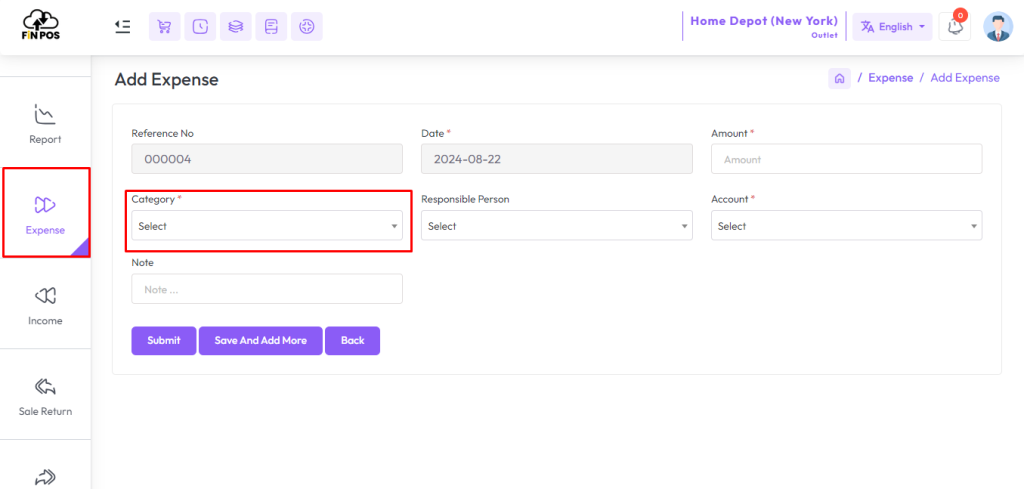
Fill up the required field and hit the submit button.
Expense Report
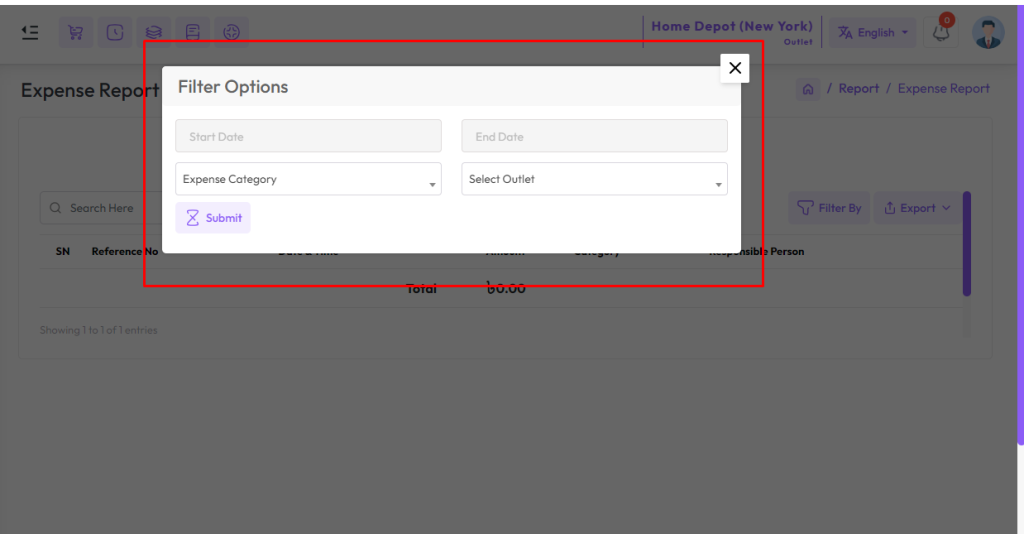
To view the “Expense Report” expand the “Report” menu from the left sidebar and click on the “Expense Report” menu.
Select a date to view the report within a specified date if needed. select a Expense category also you can select outlet from the outlet field to filter report according to outlet.