Promotion & Coupon
Home / Documentation /
⚙️ Getting Started
🏪 Outlet
⚙️ Settings
🏧 Working With Counter
💰 Working Denomination
🛒 Make a Test Sale
👥 Employee Management
📅 Attendance
📋 Working with Tax
🏦 Account
📦 Working (General Item)
📦 Working (Variation Item)
📱 Working (IMEI Item)
🏷️ Working (Serial Item)
💊 Working (Medicine Item)
💳 Working (Installment Item)
🔧 Working (Service Item)
📊 Stock (General Item)
📊 Stock (Variation Item)
📊 Stock (IMEI Item)
📊 Stock (Serial Item)
📊 Stock (Medicine Item)
📊 Stock (Installment Item)
📥 Purchase (General Item)
📥 Purchase (Variation Item)
📥 Purchase (IMEI Item)
📥 Purchase (Serial Item)
📥 Purchase (Medicine Item)
📥 Purchase (Installment Item)
🏷️ Barcode & Label
🖨️ Working with Printer
🛒 Sale (General Item)
🛒 Sale (Variation Item)
🛒 Sale (IMEI Item)
🛒 Sale (Serial Item)
🛒 Sale (Medicine Item)
🛒 Sale (Installment Item)
🔧 Sale (Service Item)
🌐 Multivendor e-Commerce
📧 Working with Email
💬 Working with SMS
💳 Payment Gateway Setting
💬 Working with WhatsApp
👤 Working with Customer
🏢 Working with Supplier
📤 Purchase Return (General Item)
📤 Purchase Return (Variation Item)
📤 Purchase Return (IMEI Item)
📤 Purchase Return (Serial Item)
📤 Purchase Return (Medicine Item)
📤 Purchase Return (Installment Item)
🔄 Sale Return (General Item)
🔄 Sale Return (Variation Item)
🔄 Sale Return (IMEI Item)
🔄 Sale Return (Serial Item)
🔄 Sale Return (Medicine Item)
🔄 Sale Return (Installment Item)
📊 Dashboard
🎁 Promotion & Coupon
🏆 Loyalty
💳 Installment Sale
🔧 Warranty/Servicing
📈 Income
📉 Expense
💰 Salary/Payroll
📋 Quotation
🔄 Transfer (General Item)
🔄 Transfer (Variation Item)
🔄 Transfer (IMEI Item)
🔄 Transfer (Serial Item)
🔄 Transfer (Medicine Item)
🔄 Transfer (Installment Item)
❌ Damage (General Item)
❌ Damage (Variation Item)
❌ Damage (IMEI Item)
❌ Damage (Serial Item)
❌ Damage (Medicine Item)
❌ Damage (Installment Item)
🏢 Fixed Asset
📊 Report
🔄 Update Software
❌ Uninstall License
Add Promotion
To add a new Promotion or Coupon, first expand the Sale menu from the left sidebar.Clicking on the Add Promotion menu allows you to create a new promotion or coupon.This helps in offering discounts or special deals to customers efficiently.
It ensures proper management and tracking of all promotions and coupons.
Expand the Sale menu from the left sidebar.
Click on Add Promotion to create a new promotion or coupon.
Offer discounts or special deals to customers.
Manage and track all promotions efficiently.

Here various promotions or discounts can be given based on the type.
let’s explain one by one

Discount for an Item within date range.
A discount can be given on a specific item within a specific time frame.
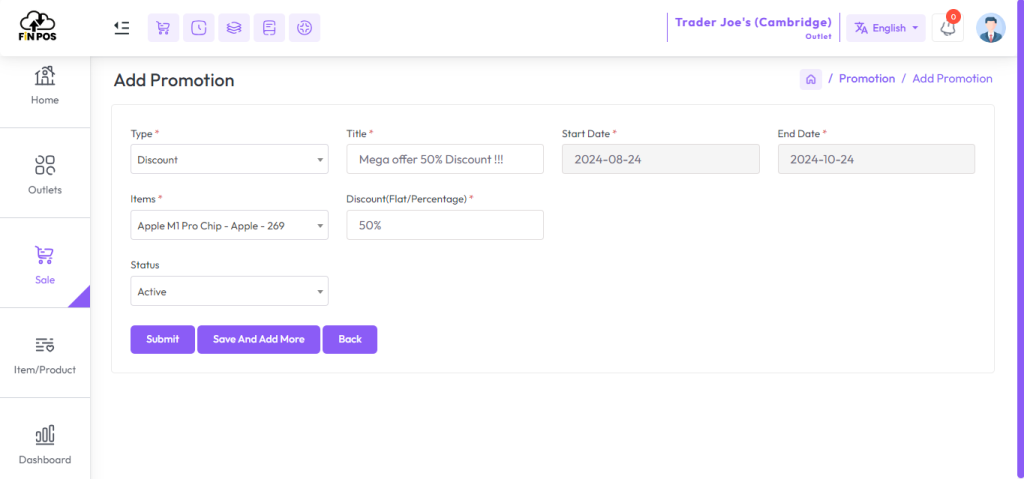
Select “Discount” option from Type field enter a title in “Title” field, select Start Date and End Date, select an “Item” from Items field, enter discount percentage or plain amount in “Discount(Flat/Percentage)” field. after fill up required field hit the submit button.
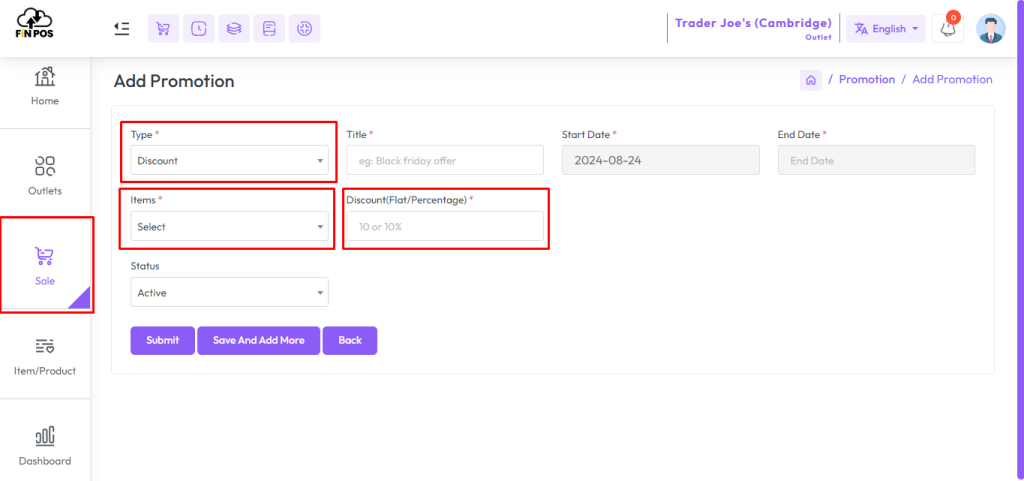
The example below shows a discount applied to an item within a specific date range.
It demonstrates how promotions or coupons affect the product price temporarily.
This helps in planning and managing sales campaigns efficiently.
It ensures customers receive the correct discount during the promotion period.
View the example of a discounted item within a date range.
Understand how promotions affect product prices.
Plan and manage sales campaigns efficiently.
Ensure correct discounts are applied to customers.
Discount on the entire sale within date range.
A discount can be given on the entire sale within a specific time frame.
Select “Discount coupon (on entire sale)” option from Type field enter a title in “Title” field, select Start Date and End Date, enter a coupon code from “Coupon Code” field ( Coupon code must contain 2 letters followed by 2 numbers or vice versa ) To verify the customer’s coupon code is valid during the sale, enter discount percentage or plain amount in “Discount(Flat/Percentage)” field. after fill up required field hit the submit button.
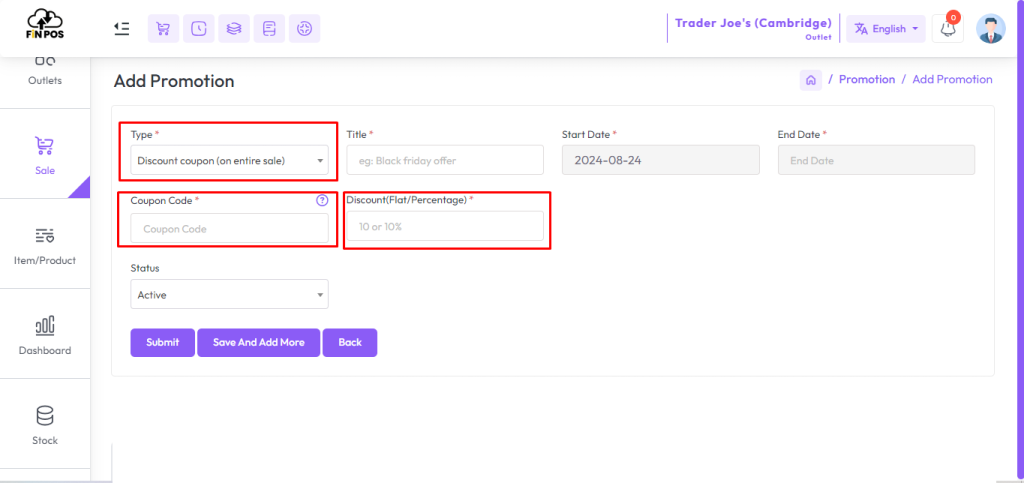
The example below shows a discount applied to the entire sale within a specific date range.
It demonstrates how a promotion affects the total bill for all items purchased.
This helps in managing store-wide sales campaigns efficiently.
It ensures customers receive the correct discount on their total purchase during the promotion period.
View the example of a discount on the entire sale within a date range.
Understand how promotions affect the total bill.
Manage store-wide sales campaigns efficiently.
Ensure correct discounts are applied to customers’ total purchase.

Free Item on specific product within date range.
It can also offer Buy and Get offers within specified time periods.
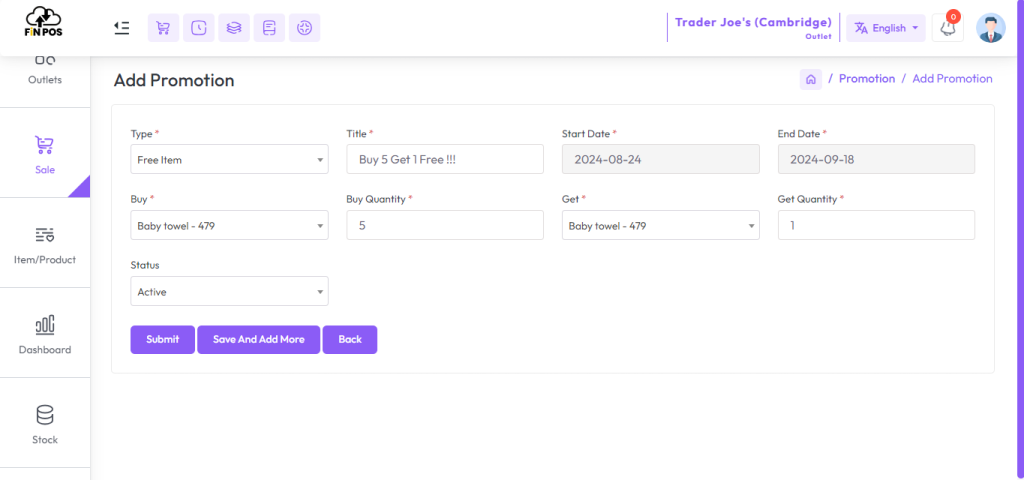
Select the “Free Item” option from the Type field, enter a title in the “Title” field, select Start Date and End Date, select an item from the “Buy” field, enter the number of products to be purchased in the “Buy Quantity” field, select an item from “Get” field, enter the number of products you will receive in the “Get Quantity” field. after fill up the required field hit the submit button.

The example below shows a Free Item offer available within a specific date range.
It demonstrates how customers receive a free product when certain conditions are met.
This helps in promoting sales and encouraging customer purchases efficiently.
It ensures customers benefit from offers during the promotion period.
View the example of a Free Item offer within a date range.
Understand how free products are given with qualifying purchases.
Promote sales and encourage customer purchases.
Ensure offers are applied correctly during the promotion period.
Edit Promotion
To edit a Promotion or Coupon, first expand the Sale menu from the left sidebar.
Click on the List Promotion menu to view all existing promotions and coupons.
From the list, select the promotion you want to update and click the Edit button in Actions.
This process allows you to modify promotion details efficiently and keep offers up-to-date.
Expand the Sale menu from the left sidebar.
Click on List Promotion to view all promotions and coupons.
Select the promotion and click Edit from Actions.
Update promotion or coupon details efficiently.
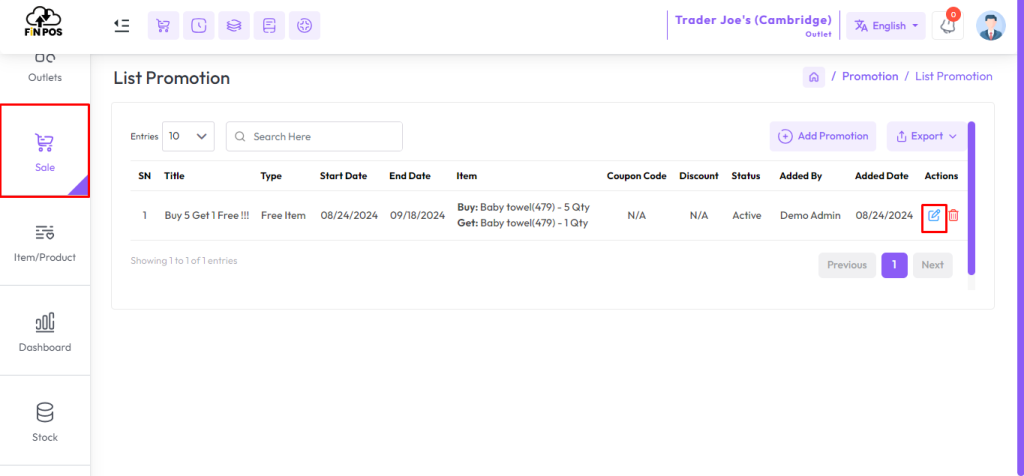
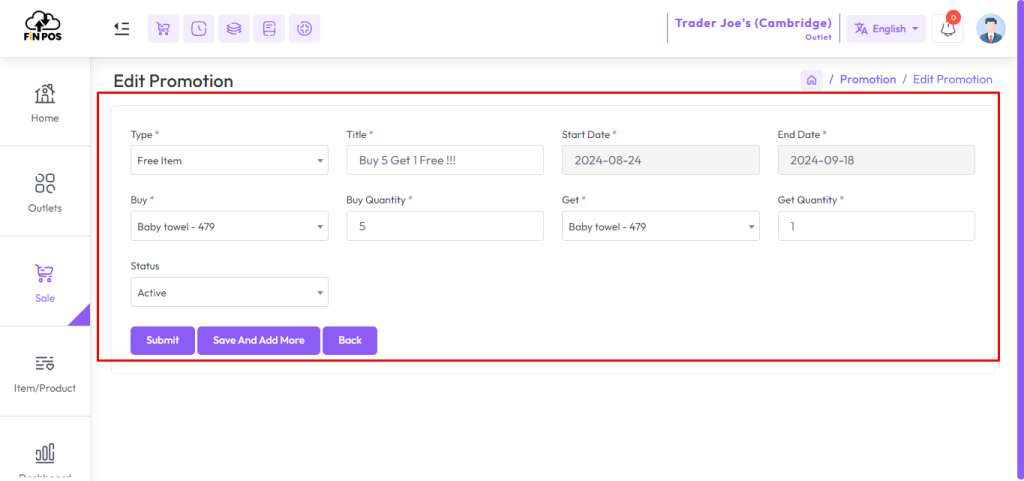
The Edit Promotion screen is shown in the snapshot below for reference.
You can update the promotion or coupon information as per your requirements.
After making the necessary changes, click the Submit button to save the updates.
This ensures that all promotions and coupons remain accurate and up-to-date.
View the Edit Promotion screen in the snapshot below.
Edit the promotion or coupon information as needed.
Click the Submit button to save changes.
Keep all promotions and coupons accurate and updated.
How to promotion work in POS
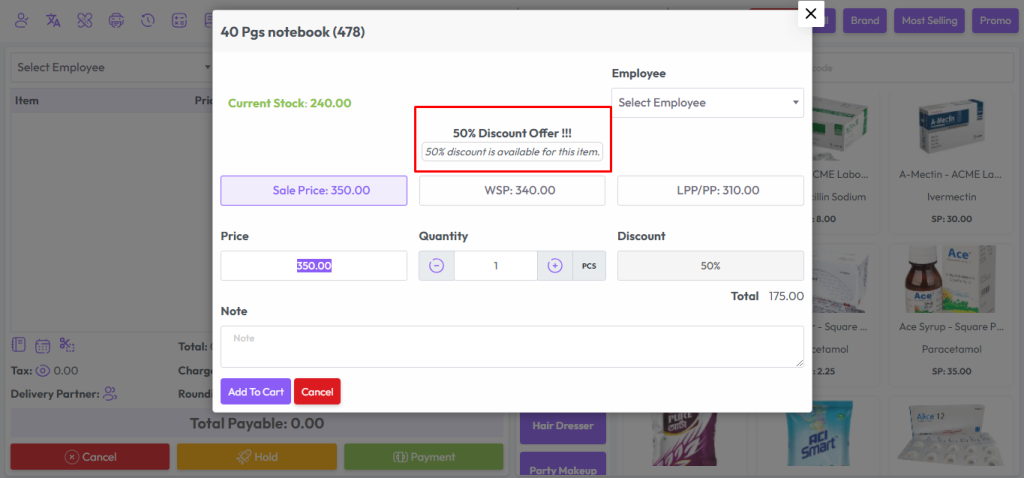
Discount for an Item in POS Item Modal
If you click on the product on which the Promotion and Discount has been given, its title will be shown in the modal.
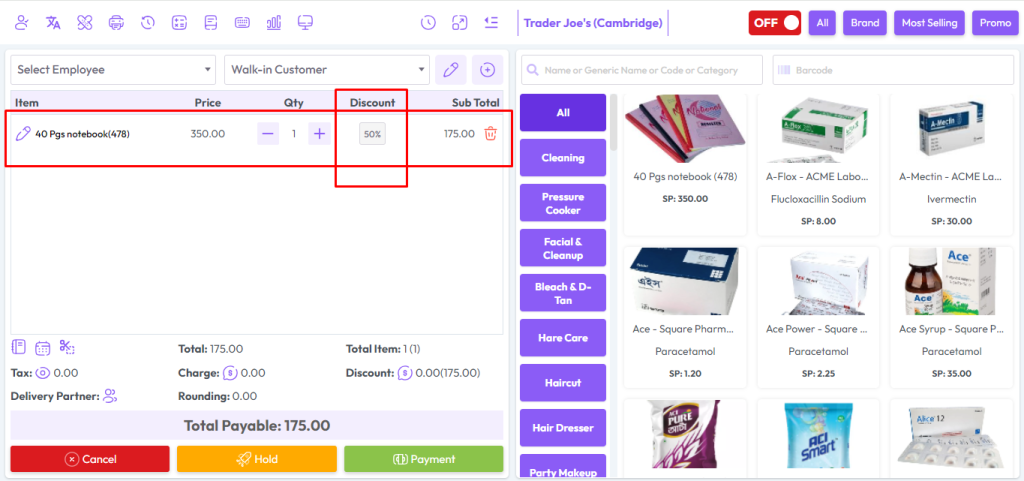
Earlier you saw that 50% discount was given on this product.
Discount for an Item in POS Item Cart
Discount on entire sale in POS
First, add the product to the cart.
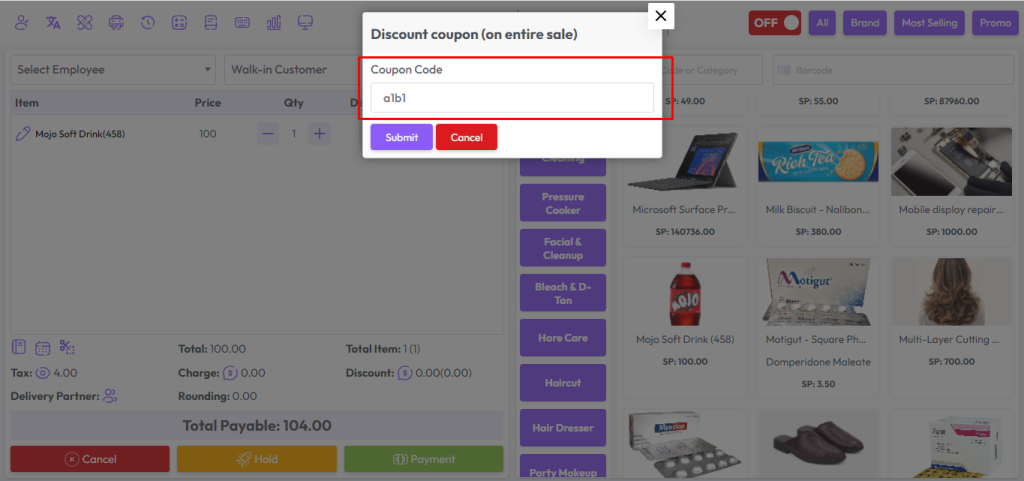
Then click on the marked place to apply the coupon discount.

Enter the coupon code in the provided field and click the Submit button.
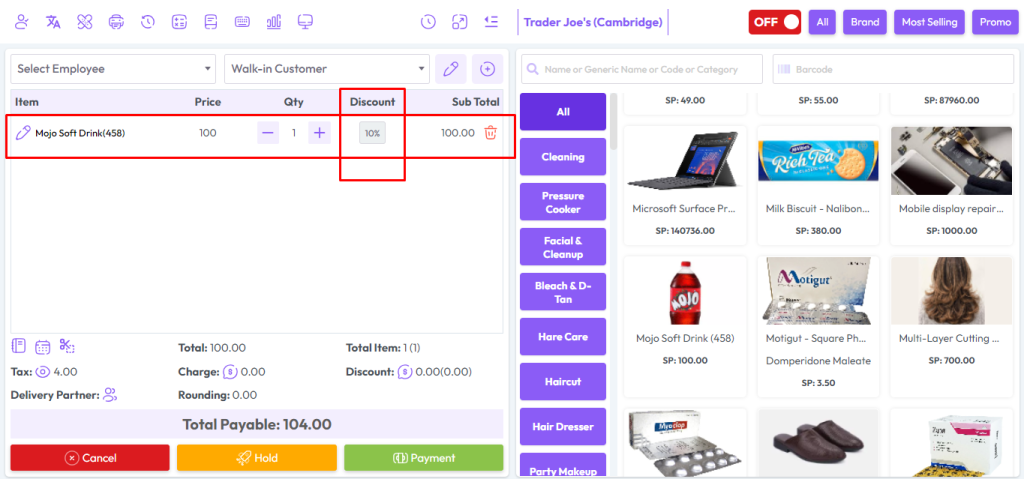
Once submitted, the discount will be applied to each eligible item in the sale.
This helps in ensuring customers receive the correct promotional discount automatically.
It ensures accurate calculation and application of discounts on all items.
Enter the coupon code in the field.
Click the Submit button to apply the discount.
Discount is applied to each eligible item.
Ensure correct calculation and application of discounts.
Here you will see that 7% discount has been applied on each product, which we have already shown by creating discounts.
In the POS Item Modal, products with a Buy and Get Free offer are highlighted.
When you click on such a product, the modal will display a title indicating the free item offer.
This helps in informing the cashier and customer about the promotional offer clearly.
It ensures the offer is applied correctly during the sale process.
Click on a product with a Buy and Get Free offer in POS.
The modal shows a title indicating the free item.
Inform cashier and customer about the promotion.
Ensure the offer is applied correctly during the sale.

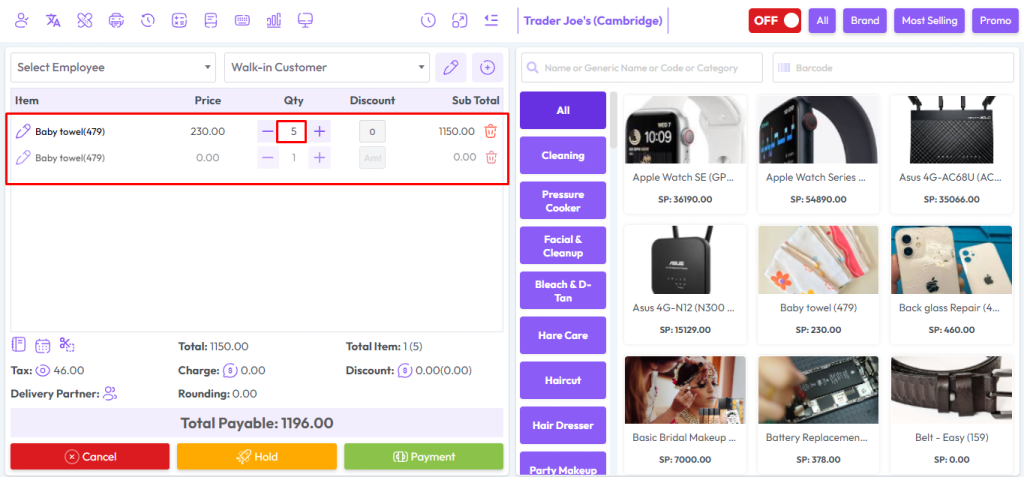
You will see here that buy 5 products get one item free.
You may have seen earlier that we have created a free item promotion where buying 5 Coca-Cola you will get 1 Coca-Cola free.