Damage (IMEI Item)
Home / Documentation /
⚙️ Getting Started
🏪 Outlet
⚙️ Settings
🏧 Working With Counter
💰 Working Denomination
🛒 Make a Test Sale
👥 Employee Management
📅 Attendance
📋 Working with Tax
🏦 Account
📦 Working (General Item)
📦 Working (Variation Item)
📱 Working (IMEI Item)
🏷️ Working (Serial Item)
💊 Working (Medicine Item)
💳 Working (Installment Item)
🔧 Working (Service Item)
📊 Stock (General Item)
📊 Stock (Variation Item)
📊 Stock (IMEI Item)
📊 Stock (Serial Item)
📊 Stock (Medicine Item)
📊 Stock (Installment Item)
📥 Purchase (General Item)
📥 Purchase (Variation Item)
📥 Purchase (IMEI Item)
📥 Purchase (Serial Item)
📥 Purchase (Medicine Item)
📥 Purchase (Installment Item)
🏷️ Barcode & Label
🖨️ Working with Printer
🛒 Sale (General Item)
🛒 Sale (Variation Item)
🛒 Sale (IMEI Item)
🛒 Sale (Serial Item)
🛒 Sale (Medicine Item)
🛒 Sale (Installment Item)
🔧 Sale (Service Item)
🌐 Multivendor e-Commerce
📧 Working with Email
💬 Working with SMS
💳 Payment Gateway Setting
💬 Working with WhatsApp
👤 Working with Customer
🏢 Working with Supplier
📤 Purchase Return (General Item)
📤 Purchase Return (Variation Item)
📤 Purchase Return (IMEI Item)
📤 Purchase Return (Serial Item)
📤 Purchase Return (Medicine Item)
📤 Purchase Return (Installment Item)
🔄 Sale Return (General Item)
🔄 Sale Return (Variation Item)
🔄 Sale Return (IMEI Item)
🔄 Sale Return (Serial Item)
🔄 Sale Return (Medicine Item)
🔄 Sale Return (Installment Item)
📊 Dashboard
🎁 Promotion & Coupon
🏆 Loyalty
💳 Installment Sale
🔧 Warranty/Servicing
📈 Income
📉 Expense
💰 Salary/Payroll
📋 Quotation
🔄 Transfer (General Item)
🔄 Transfer (Variation Item)
🔄 Transfer (IMEI Item)
🔄 Transfer (Serial Item)
🔄 Transfer (Medicine Item)
🔄 Transfer (Installment Item)
❌ Damage (General Item)
❌ Damage (Variation Item)
❌ Damage (IMEI Item)
❌ Damage (Serial Item)
❌ Damage (Medicine Item)
❌ Damage (Installment Item)
🏢 Fixed Asset
📊 Report
🔄 Update Software
❌ Uninstall License
Add Damage
The Damage option for IMEI products allows you to record damaged items that are tracked through unique IMEI numbers. This ensures accurate identification, proper monitoring, and reliable reporting of individual product damage.
Go to the left sidebar and expand the Damage menu.
Click on the Add Damage option.
Select the IMEI Product you want to record as damaged.
Enter the required details such as IMEI number, quantity, and reason.
Save the entry to successfully add the damage record.

The IMEI Product Damage option is used to record items tracked by unique IMEI numbers.It ensures that each damaged product is correctly identified.This process helps in accurate stock and inventory tracking.From the Item field, choose a product of IMEI Type.Selecting the correct IMEI product prevents record mismatches.
The entry will be used for monitoring and reporting.

After selecting IMEI item you will get a popup modal, Enter the quantity in the Quantity field for how many IMEIs you want to damage, below field will be generated according to quantity number. Enter the IMEI number in the IMEI field. Then click the Add to Cart button to add these items to the cart.
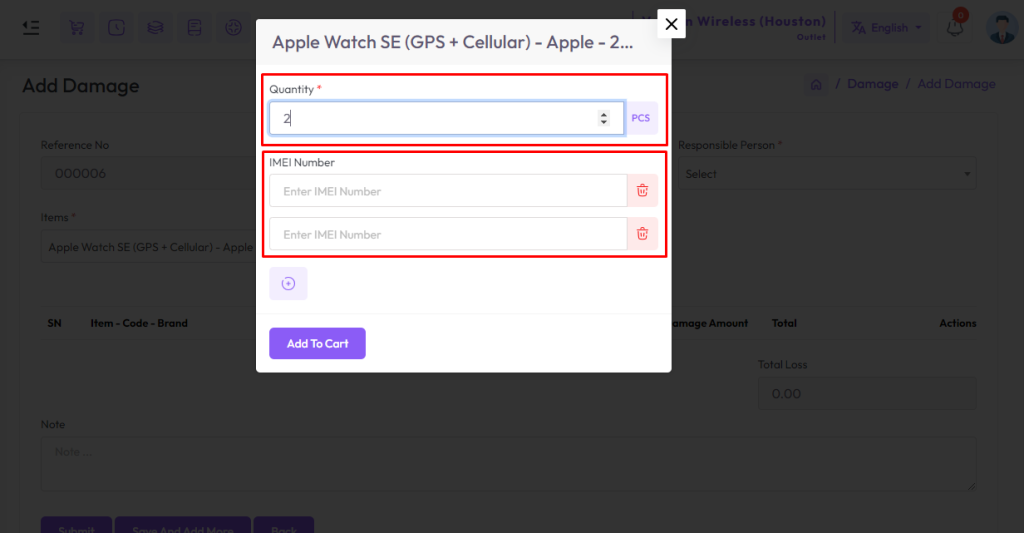
The IMEI Field Increase option allows you to add multiple IMEI numbers when recording IMEI products. This ensures that each product is tracked individually, making inventory and damage records more accurate and reliable.
Go to the Add Damage form for IMEI products.
Locate the IMEI Field section.
Click on the Plus (+) button to add a new IMEI field.
Enter the additional IMEI number(s) as required.
Save the form to successfully record the details.

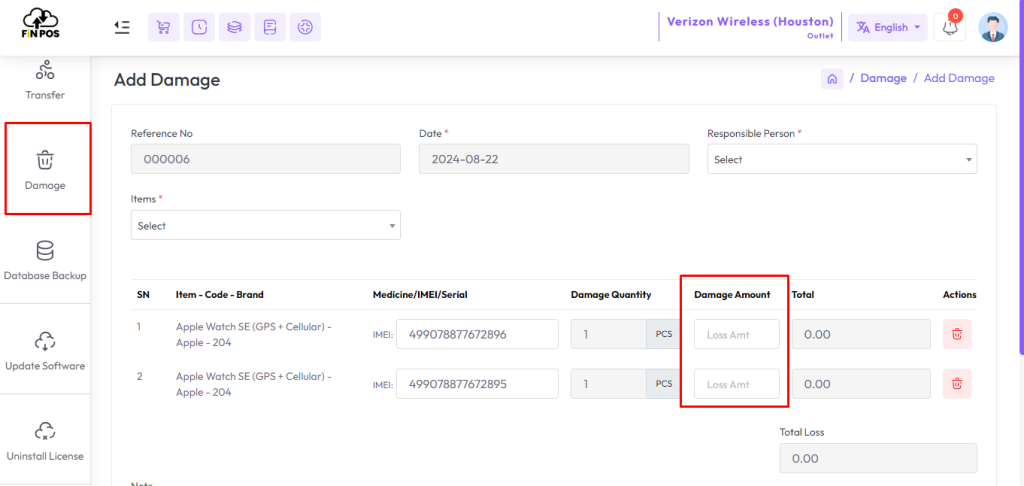
The Loss Amount field is used to record the financial value of damaged IMEI products. Entering this value ensures that the system calculates the correct monetary loss and keeps the inventory records accurate for reporting and tracking.
Locate the Loss Amount field in the form.
Enter the total value of the damaged IMEI items.
Make sure the value reflects the actual loss.
Double-check the entry before saving.
Save the record to update the loss amount successfully.