Loyalty
Home / Documentation /
⚙️ Getting Started
🏪 Outlet
⚙️ Settings
🏧 Working With Counter
💰 Working Denomination
🛒 Make a Test Sale
👥 Employee Management
📅 Attendance
📋 Working with Tax
🏦 Account
📦 Working (General Item)
📦 Working (Variation Item)
📱 Working (IMEI Item)
🏷️ Working (Serial Item)
💊 Working (Medicine Item)
💳 Working (Installment Item)
🔧 Working (Service Item)
📊 Stock (General Item)
📊 Stock (Variation Item)
📊 Stock (IMEI Item)
📊 Stock (Serial Item)
📊 Stock (Medicine Item)
📊 Stock (Installment Item)
📥 Purchase (General Item)
📥 Purchase (Variation Item)
📥 Purchase (IMEI Item)
📥 Purchase (Serial Item)
📥 Purchase (Medicine Item)
📥 Purchase (Installment Item)
🏷️ Barcode & Label
🖨️ Working with Printer
🛒 Sale (General Item)
🛒 Sale (Variation Item)
🛒 Sale (IMEI Item)
🛒 Sale (Serial Item)
🛒 Sale (Medicine Item)
🛒 Sale (Installment Item)
🔧 Sale (Service Item)
🌐 Multivendor e-Commerce
📧 Working with Email
💬 Working with SMS
💳 Payment Gateway Setting
💬 Working with WhatsApp
👤 Working with Customer
🏢 Working with Supplier
📤 Purchase Return (General Item)
📤 Purchase Return (Variation Item)
📤 Purchase Return (IMEI Item)
📤 Purchase Return (Serial Item)
📤 Purchase Return (Medicine Item)
📤 Purchase Return (Installment Item)
🔄 Sale Return (General Item)
🔄 Sale Return (Variation Item)
🔄 Sale Return (IMEI Item)
🔄 Sale Return (Serial Item)
🔄 Sale Return (Medicine Item)
🔄 Sale Return (Installment Item)
📊 Dashboard
🎁 Promotion & Coupon
🏆 Loyalty
💳 Installment Sale
🔧 Warranty/Servicing
📈 Income
📉 Expense
💰 Salary/Payroll
📋 Quotation
🔄 Transfer (General Item)
🔄 Transfer (Variation Item)
🔄 Transfer (IMEI Item)
🔄 Transfer (Serial Item)
🔄 Transfer (Medicine Item)
🔄 Transfer (Installment Item)
❌ Damage (General Item)
❌ Damage (Variation Item)
❌ Damage (IMEI Item)
❌ Damage (Serial Item)
❌ Damage (Medicine Item)
❌ Damage (Installment Item)
🏢 Fixed Asset
📊 Report
🔄 Update Software
❌ Uninstall License
Loyalty Setting
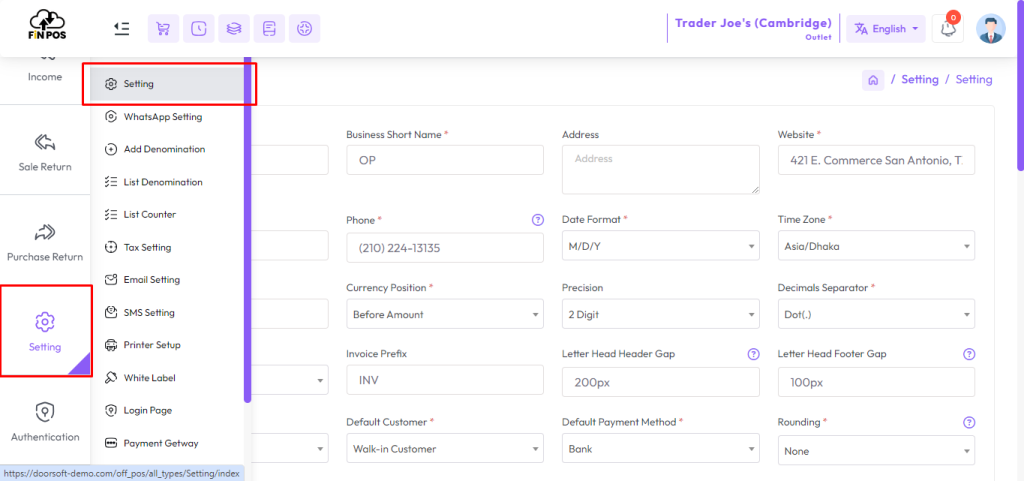
To set up Loyalty Points, first expand the Setting menu from the left sidebar.
Clicking on the Setting menu allows you to configure loyalty point options for customers.
This helps in managing reward points efficiently and tracking customer benefits.
It ensures proper setup and maintenance of the loyalty points system.
Expand the Setting menu from the left sidebar.
Click on Setting to configure loyalty points.
Manage reward points for customers efficiently.
Set up and maintain the loyalty points system properly.
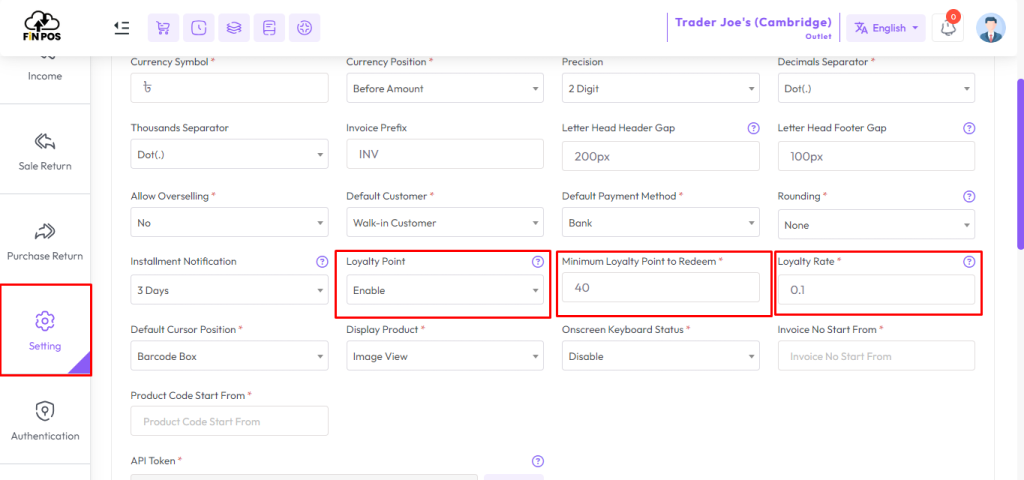
Select Enable from the Loyalty Points field to keep loyalty points enabled
Select Disable from the Loyalty Points field to keep loyalty points disable
Minimum Loyalty Point to Redeem: Define the Minimum Loyalty Point to Redeem.
Loyalty Point Rate: Define 1 loyalty point is equal to how much money as per your currency.
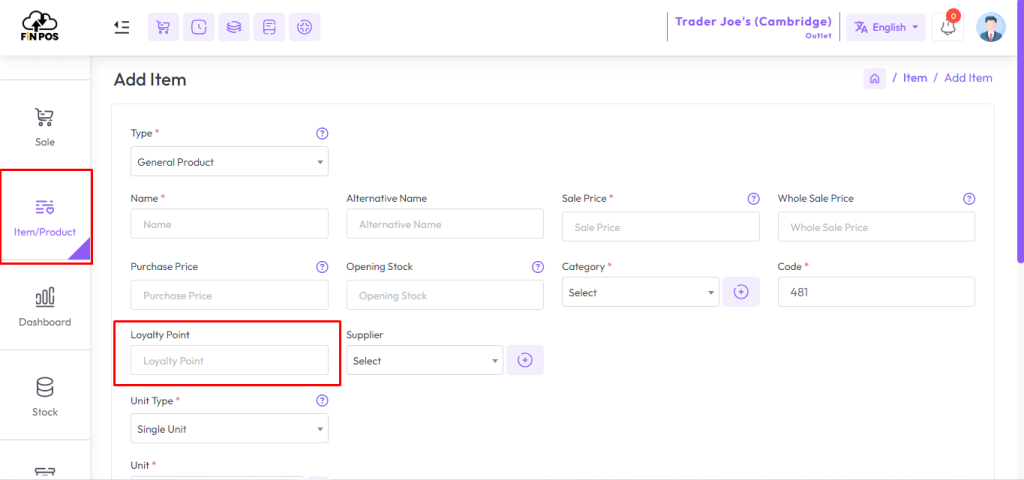
Loyalty Point for Each Item
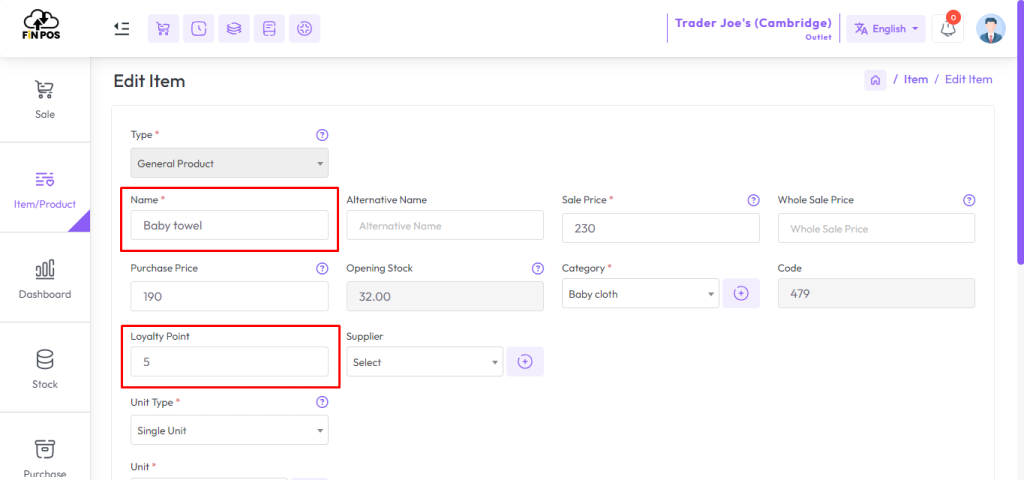
To setup Loyalty Point for each “Item” expand Item/Product menu click on Add Item or if the item already exist goto List Item click on the edit button, enter loyalty point in “Loyalty Point” field, When you sell a product, customers will earn loyalty points assigned to the product.
Customer Loyalty Account
Here, it is shown that the Loyalty Point is set to 10 for the Nido product.
This indicates that customers will earn 10 points for purchasing this product.
Setting loyalty points helps in tracking rewards and encouraging repeat purchases.
It ensures proper management of customer loyalty benefits.
Loyalty Point is set to 10 for the Nido product.
Customers earn points when purchasing this product.
Track and manage reward points efficiently.
Encourage repeat purchases through loyalty benefits.
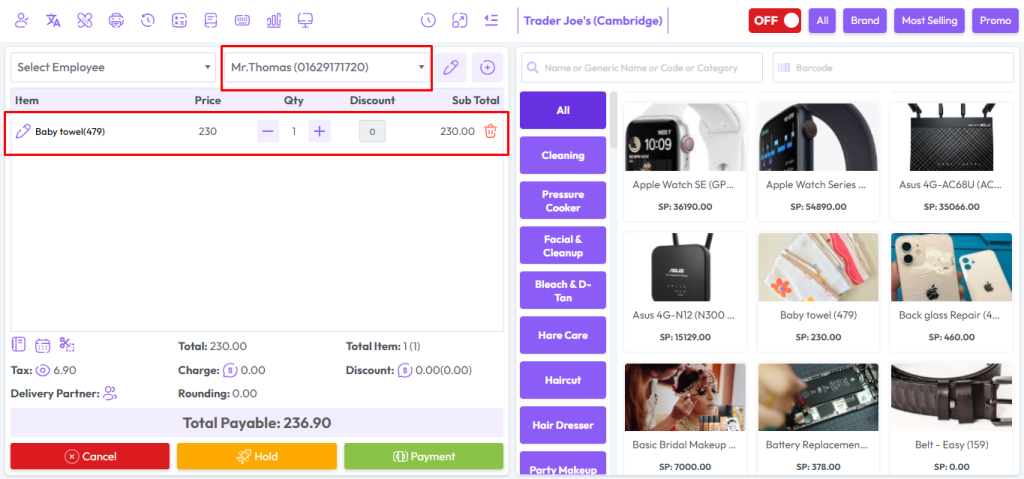
When the product was sold for the first time, 10 loyalty points were added to the customer’s account.
This reflects the reward given to the customer for their purchase.
Adding points helps in tracking earned rewards and managing the loyalty program efficiently.
It ensures customers are rewarded correctly for each qualifying purchase.
10 points added to the customer’s account for the first purchase.
Reflects rewards given for the purchase.
Track earned loyalty points efficiently.
Manage customer rewards accurately.
The snapshot below shows an example of how many loyalty points a customer has earned.
It provides a clear view of points accumulated from various purchases.
This helps in understanding customer rewards and tracking their loyalty benefits.
It ensures accurate monitoring and management of the loyalty points system.
View the snapshot to see earned loyalty points.
Understand points accumulated from purchases.
Track customer rewards efficiently.
Manage loyalty points accurately.
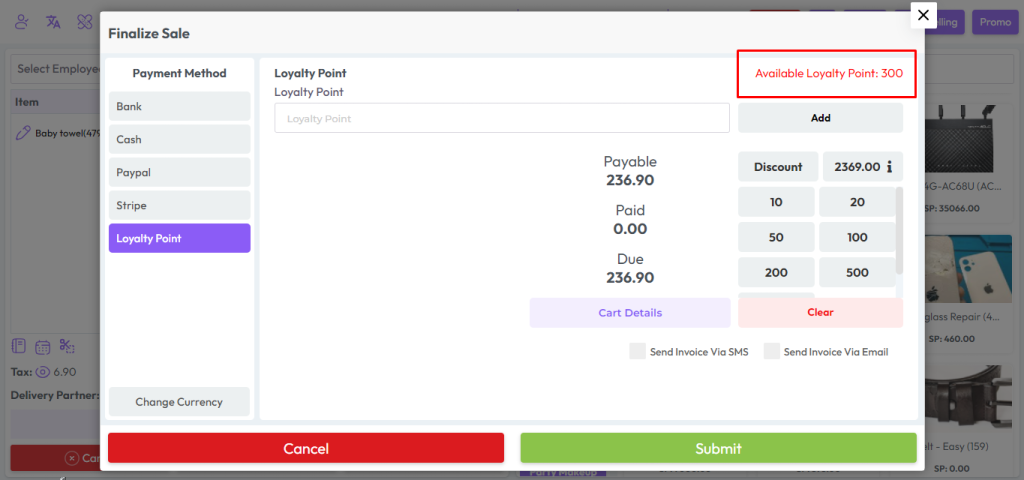
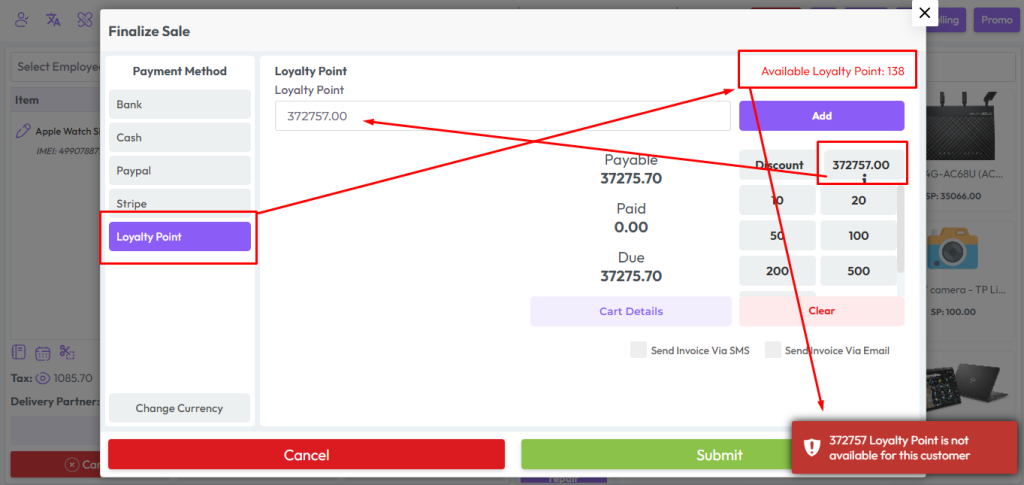
Redeem Loyalty Point
Customers need to earn a minimum 40 loyalty points for redeem as per our setting.
Let’s finish the last order then this customer will earn 10 loyalty points. And then place another order to redeem loyalty points and other’s payment method.
Available Loyalty Point Report
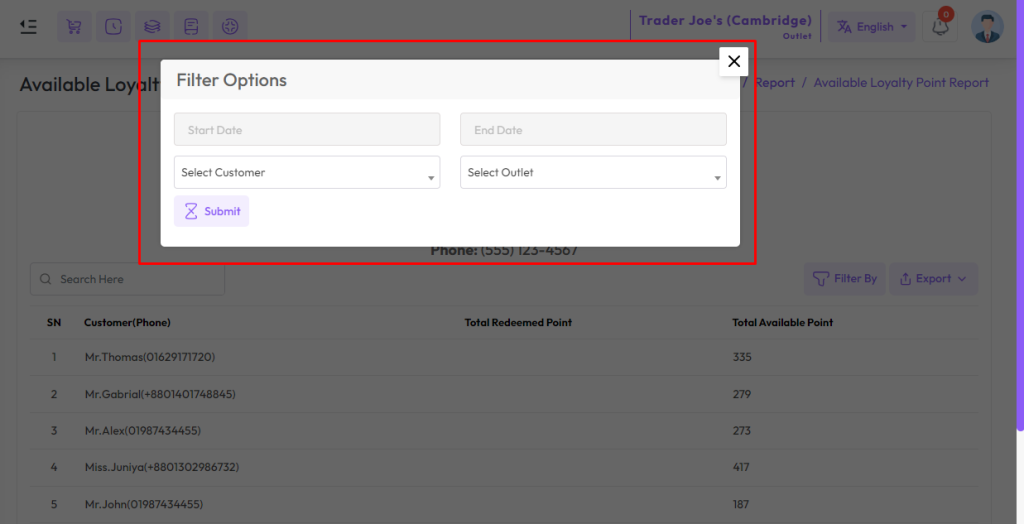
To view Available Loyalty Point Report Expand Report Menu and click Available Loyalty Point Report from the left sidebar. select a date to view the report within a specified date if needed. select a customer also you can select outlet from the outlet field to filter report according to outlet.
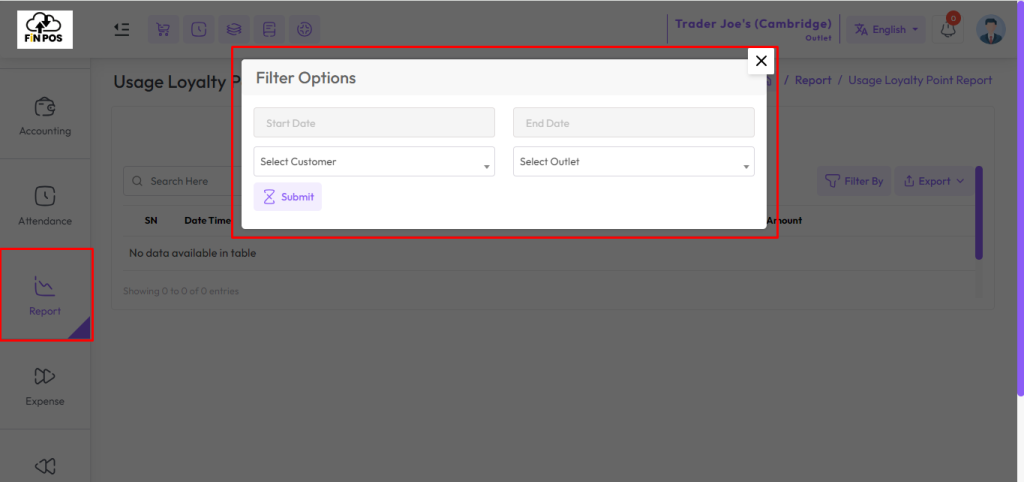
Usage Loyalty Point Report
To view Usage Loyalty Point Report expand Report Menu and click Usage Loyalty Point Report from the left sidebar. select a date to view the report within a specified date if needed. select a customer also you can select outlet from the outlet field to filter report according to outlet.