Settings
Home / Documentation /
⚙️ Getting Started
🏪 Outlet
⚙️ Settings
🏧 Working With Counter
💰 Working Denomination
🛒 Make a Test Sale
👥 Employee Management
📅 Attendance
📋 Working with Tax
🏦 Account
📦 Working (General Item)
📦 Working (Variation Item)
📱 Working (IMEI Item)
🏷️ Working (Serial Item)
💊 Working (Medicine Item)
💳 Working (Installment Item)
🔧 Working (Service Item)
📊 Stock (General Item)
📊 Stock (Variation Item)
📊 Stock (IMEI Item)
📊 Stock (Serial Item)
📊 Stock (Medicine Item)
📊 Stock (Installment Item)
📥 Purchase (General Item)
📥 Purchase (Variation Item)
📥 Purchase (IMEI Item)
📥 Purchase (Serial Item)
📥 Purchase (Medicine Item)
📥 Purchase (Installment Item)
🏷️ Barcode & Label
🖨️ Working with Printer
🛒 Sale (General Item)
🛒 Sale (Variation Item)
🛒 Sale (IMEI Item)
🛒 Sale (Serial Item)
🛒 Sale (Medicine Item)
🛒 Sale (Installment Item)
🔧 Sale (Service Item)
🌐 Multivendor e-Commerce
📧 Working with Email
💬 Working with SMS
💳 Payment Gateway Setting
💬 Working with WhatsApp
👤 Working with Customer
🏢 Working with Supplier
📤 Purchase Return (General Item)
📤 Purchase Return (Variation Item)
📤 Purchase Return (IMEI Item)
📤 Purchase Return (Serial Item)
📤 Purchase Return (Medicine Item)
📤 Purchase Return (Installment Item)
🔄 Sale Return (General Item)
🔄 Sale Return (Variation Item)
🔄 Sale Return (IMEI Item)
🔄 Sale Return (Serial Item)
🔄 Sale Return (Medicine Item)
🔄 Sale Return (Installment Item)
📊 Dashboard
🎁 Promotion & Coupon
🏆 Loyalty
💳 Installment Sale
🔧 Warranty/Servicing
📈 Income
📉 Expense
💰 Salary/Payroll
📋 Quotation
🔄 Transfer (General Item)
🔄 Transfer (Variation Item)
🔄 Transfer (IMEI Item)
🔄 Transfer (Serial Item)
🔄 Transfer (Medicine Item)
🔄 Transfer (Installment Item)
❌ Damage (General Item)
❌ Damage (Variation Item)
❌ Damage (IMEI Item)
❌ Damage (Serial Item)
❌ Damage (Medicine Item)
❌ Damage (Installment Item)
🏢 Fixed Asset
📊 Report
🔄 Update Software
❌ Uninstall License
White Label
In this module, you can change your software name, footer, and site logo as per your requirements.
Expand the Settings menu from the left sidebar and click on the White Label menu.
This feature allows you to customize the system branding according to your business identity.
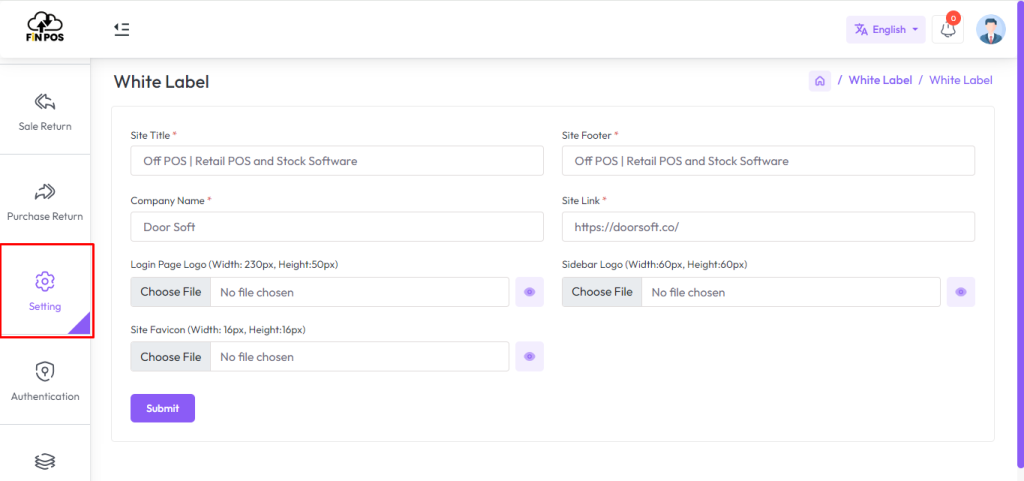
Here are the white label settings You will get some software settings fields like “Site Title, Site Footer, Company Name, Website links, Site Logo, and Site Favicon” Fill up the required field and hit the Submit Button.
To hide the “White Label Menu” from the left sidebar, go to your database manually, find the table tbl_companies, press “Ctrl + F” and type “white_label_status” and put its value “0” Then the White Label menu will be hidden, “0” means it will not show White Label menu from the left sidebar, “1” Means it will show White Label from the left sidebar.

Setting
Expand the Settings menu from the left sidebar and click on the Settings menu to configure the basic settings of the software.
After clicking on the Setting menu you will get this below interface, Here are lots of fields, Each field will be described in turn.
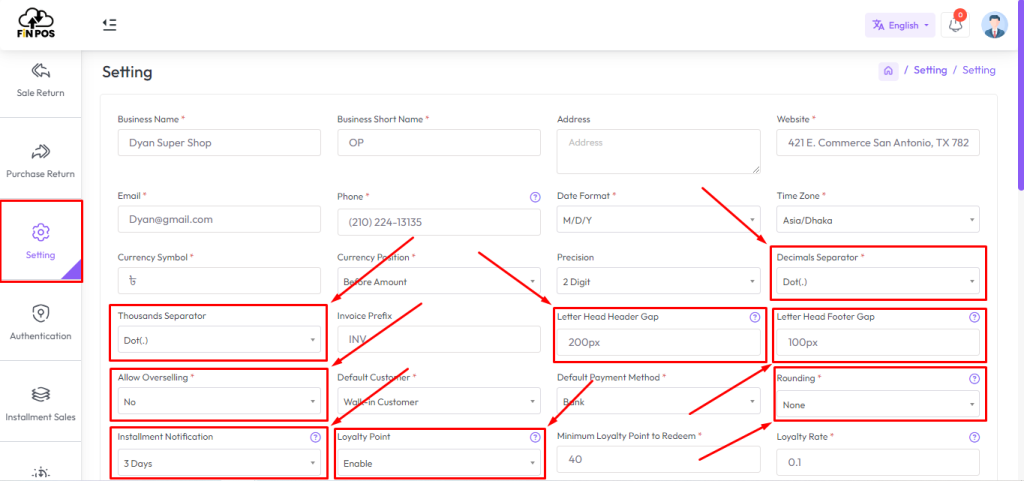
Decimal Separator: The decimal separator is a symbol used to separate the integer part from the fractional part of a number in decimal notation. In many countries, including the United States, the decimal separator is a period (.), while in others, such as many European countries, it is a comma (,). For example: In the United States: 10.50 In Germany: 10,50.
Thousand Separator: The thousand separator, also known as the thousands separator or group separator, is a symbol used to separate groups of digits in large numbers, primarily for readability purposes. the comma (,) is commonly used as the thousand separator. For example: 1,000 (comma as the thousand separator) 1.000 (period as the thousand separator in some countries)
Invoice Prefix: An invoice prefix is a string of characters that is added at the beginning of an invoice number to help identify or categorize invoices. It serves as a unique identifier or marker for invoices generated by a particular entity, department, or system. For example: FiNPOS-INV-, INV-, FiNPOS
Note: Special characters are not allowed in invoice prefixes, like: !,@,#,$,%,^,&,*
Overselling is when you don’t have the product in stock but you can borrow it from another store sell it and then return it to that store. There are two options in the Allow Overselling field 1. “Yes”, 2.”No”
What happens if select “Yes”!
Overselling Select “Yes” means the product can be sold even if it is not in stock, and no block will be received while selling.

What happens if select “No”!
Overselling Select “No” means the product can’t be sold if it is not in stock a block will be received during the sale.
Rounding:
The price of the products can be taken as a whole number or as a rounded decimal value by selecting the particular roundoff method. If none is selected the value is taken as a whole number.
Example:
Round to nearest whole number:
2.01 => 2, [2.01-2.49 will be count as 2]
2.50 => 3, [2.50-2.99 will be count as 3]
Round to nearest decimal (multiple of 0.05):
2.11 => 2.10
2.12 => 2.10
2.13 => 2.15′;
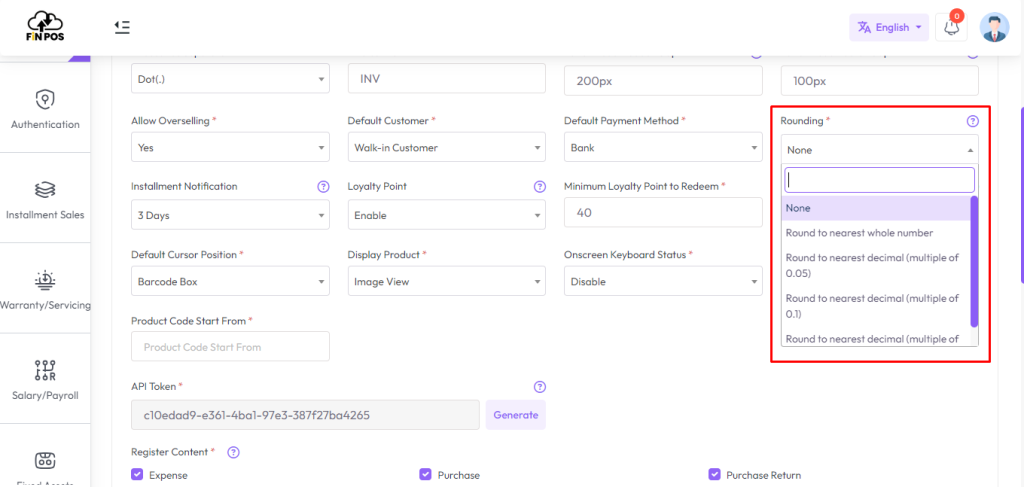
Installment Notification: We will discuss later in the Installment Product Sale article. This notification feature helps keep track of upcoming installment payments. It ensures customers are reminded on time and reduces the chances of missed payments.
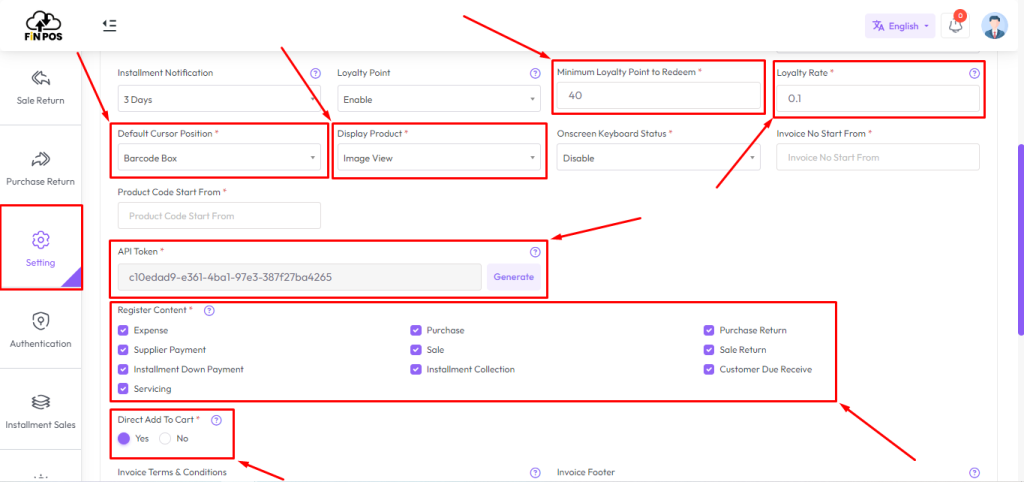
Default Cursor Position: In the shown snapshot below here we can see two search fields: Name or Generic Name or Code or Category field another is Barcode. Default Cursor Position means after reloading or after sale entry In which field the cursor will be positioned.
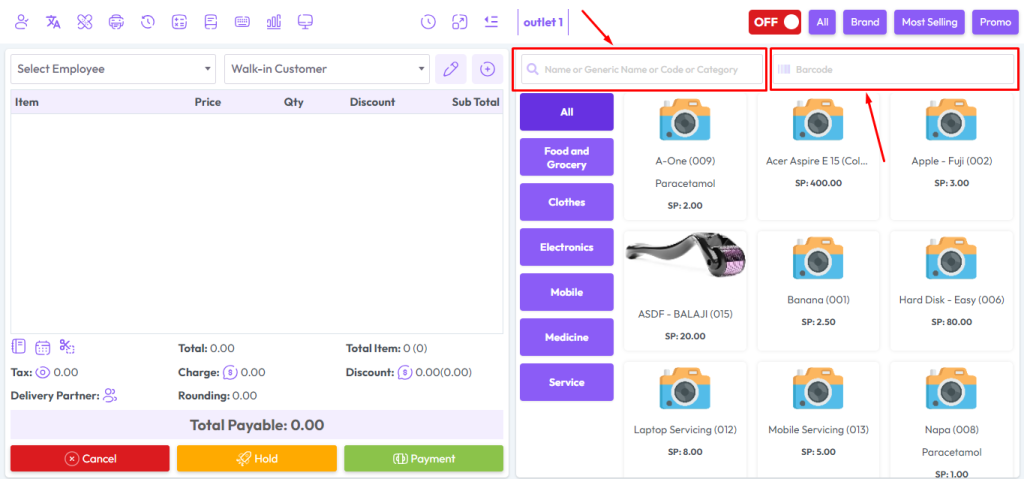
Display Product: In this Display Product field has two option, one is Image View another is Box View.
Image View: Image view means in POS screen product will be show with Image.

Box View: Box view means in POS screen product will be show without Image, In product box will be show only Product name, price etc.

API Token: We are providing API for the item and sale module, click the generate button to generate the API key.

Register Content: Checking the register contents means you cannot access those options without opening the register.

Direct Add To Cart: Direct add to cart has two option, one is Yes another is No.

Direct Add To Cart “YES”: If you click Direct add to cart is “Yes” that means whenever you click on the product it will be added to the cart directly.
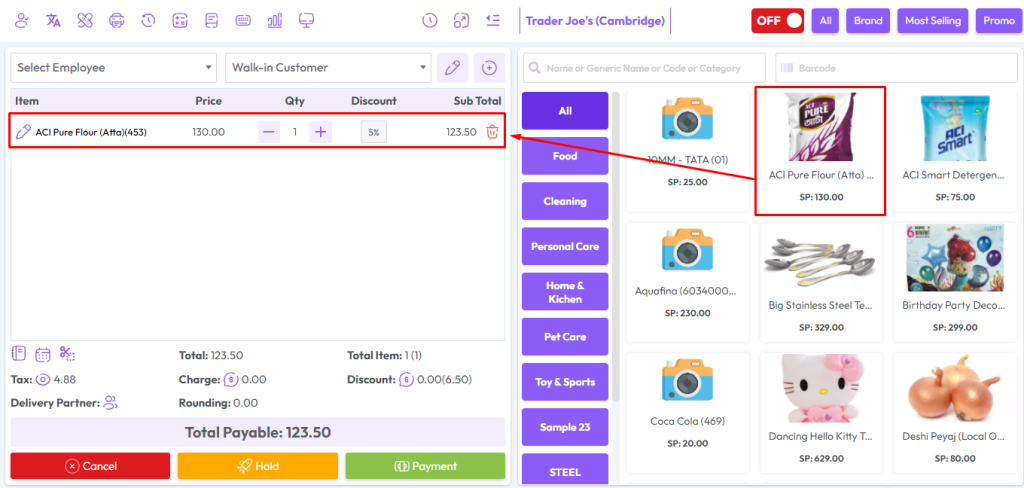
Direct Add To Cart No: Direct Add to Cart No: If you click on Direct Add to Cart is “No” It means whenever you click on the product it will open a modal and from that modal, you can change the price discount. after that Click on the “Add To Cart” button to add this product to cart.

Note: Direct add to cart is only effective for normal products, except for normal products you will get a pop-up modal every time you click on the product.
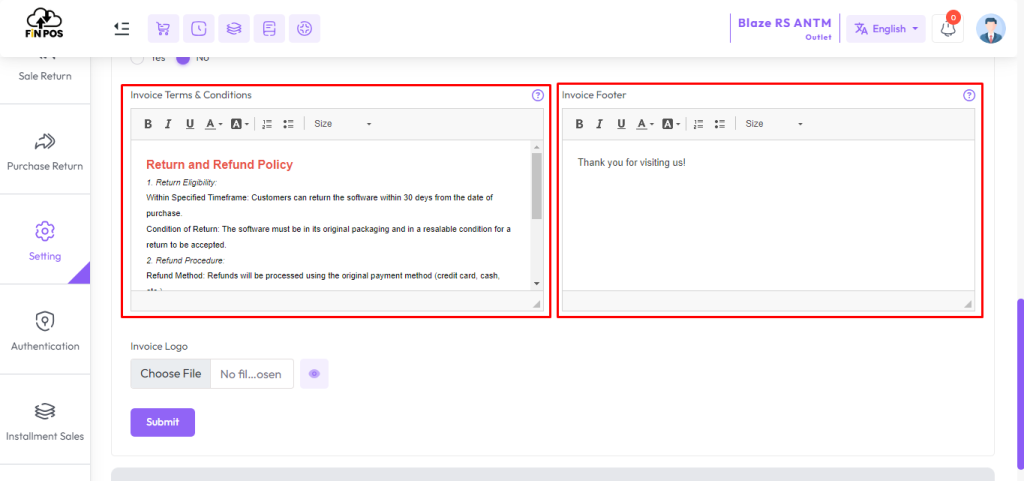
Write your product sale terms and conditions in the Invoice “Terms & Conditions” Field. It will be shown only the A4 invoice.
Write the Invoice footer description in the “Invoice Footer” field, It will show only Thermal Printer “56mm and 80mm”.
Add new language
In this module, you can add a new language by going to your project directory application/language.
Place the required language files in this folder to enable the new language in the system.
This feature allows you to make the application multilingual and user-friendly for a wider audience.

Copy the “english” language folder and paste it here then rename the folder name as below table.
Find your desired language and take the folder name.
| Language | Folder Name | Language | Folder Name | Language | Folder Name |
|---|---|---|---|---|---|
| Arabic | arabic | Azerbaijani | azerbaijani | Bulgarian | bulgarian |
| Bengali | bengali | Catalan | catalan | Chinese (S) | chinese |
| Czech | czech | Danish | danish | German | german |
| Finnish | finnish | French | french | Spanish (Argentina) | spanish |
| Greek | greek | English | english | Spanish | spanish |
| Estonian | sstonian | Hebrew | hebrew | Hindi | hindi |
| Croatian | croatian | Hungarian | hungarian | Armenian | armenian |
| Indonesian | indonesian | Icelandic | icelandic | Italian | italian |
| Persian | persian | Japanese | japanese | Georgian | georgian |
| Korean | korean | Lithuanian | lithuanian | Latvian | lithuanian |
| Macedonian | macedonian | Malay | malay | Mexico | mexico |
| Norwegian | norwegian | Nepali | nepali | Dutch | dutch |
| Polish | polish | Brazilian | brazilian | Portuguese | portuguese |
| Romanian | romanian | Russian | russian | Serbian (Latin) | serbian |
| Albanian | albanian | Slovak | slovak | Slovenian | slovenian |
| Swedish | swedish | Thai | thai | Turkish | turkish |
| Chinese (T) | chinese | Ukrainian | ukrainian | Urdu (Pakistan) | urdu |
| Uzbek | uzbek | Vietnamese | vietnamese |
Now open your file from location applicaiton/language/english/english_lang.php Open the file in a text editor like Notepad++ or Sublime Text, Vs code or any editor and change it by following the screenshot. You can download this editor front the following link: https://www.sublimetext.com/ Or https://code.visualstudio.com/

Finally save the file and run the software. You will find the newly added language in the change language dropdown.
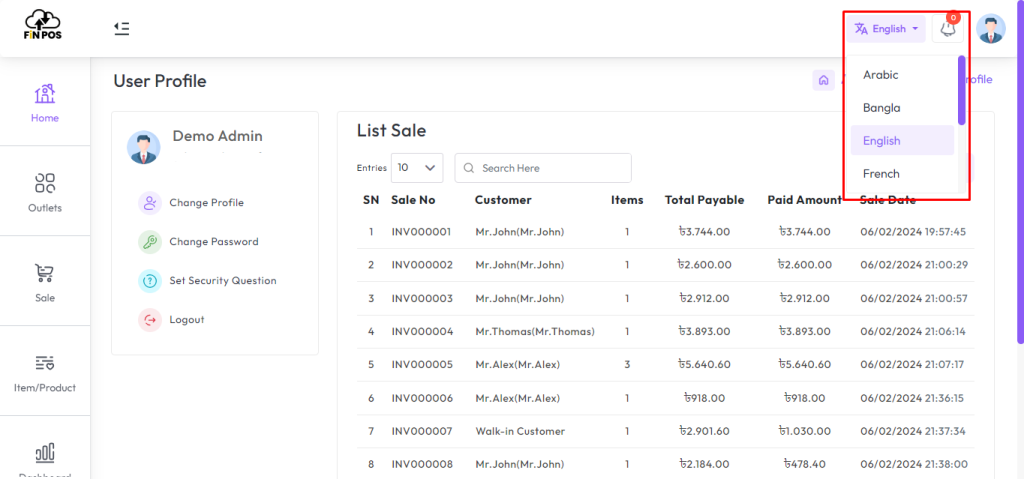
Select your newly added language. The language will be changed. This makes the system more flexible for users. It allows everyone to work in their preferred language easily.
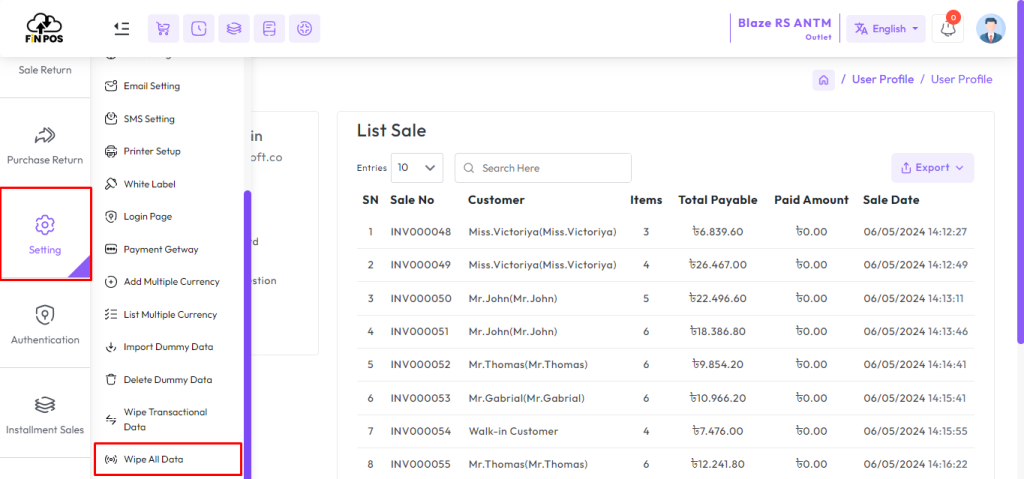
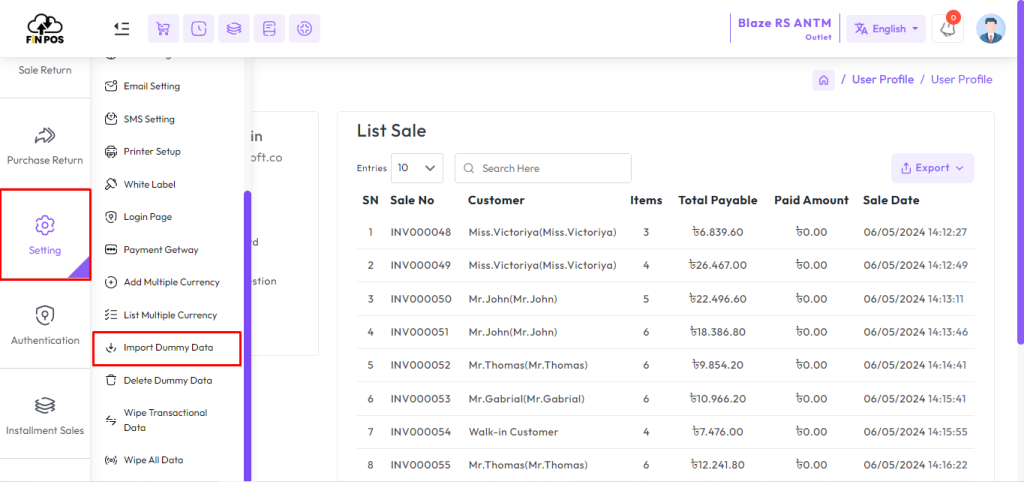
Import Dummy Data
When you purchase the software, the whole system data will be blank, for the user’s convenience, some dummy data will be imported as soon as this button is clicked, so that the user can get a very quick idea about the software.
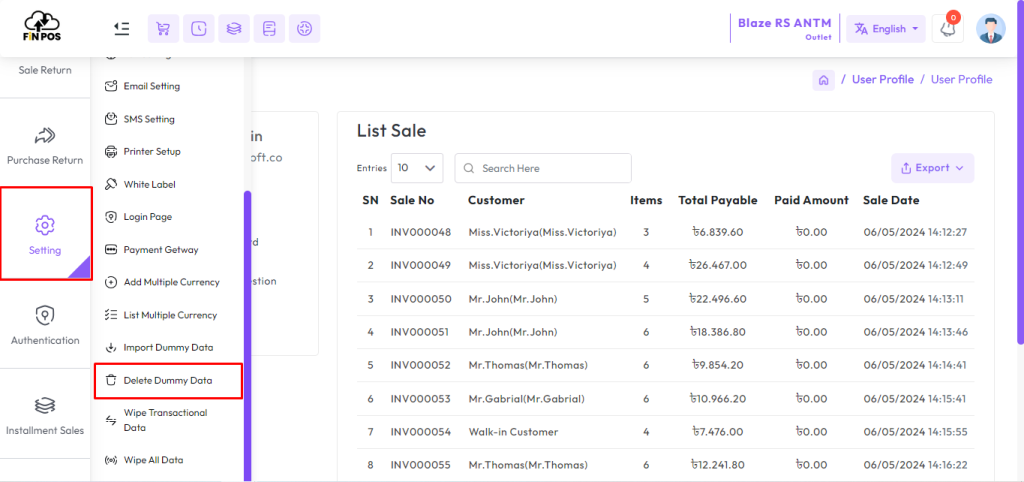
Delete Dummy Data
In this module, you can delete all the previously imported dummy data from the system.
This helps you clean up sample records and prepare the system for real data entry.
It ensures your application remains accurate, organized, and free from unnecessary test data.
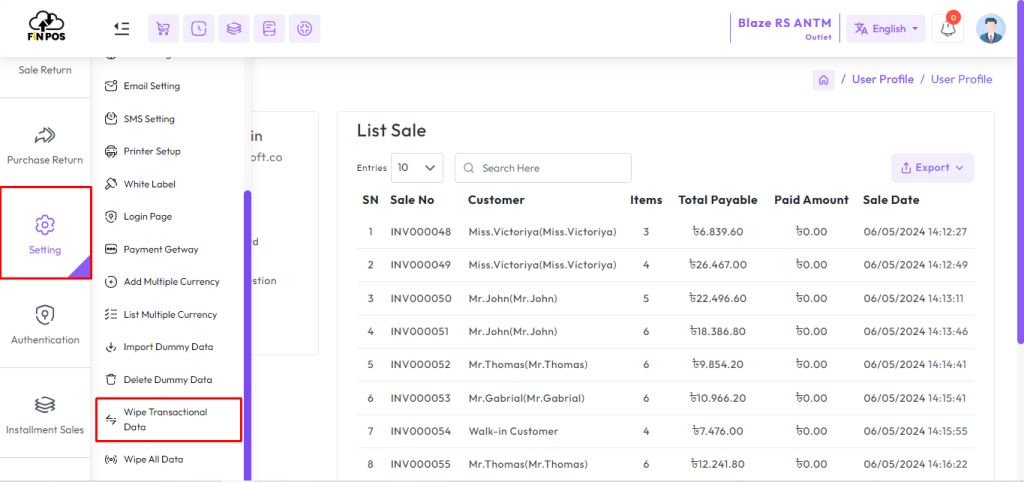
Wipe Transaction Data
Wipe Transaction Data means delete all transactional data by clicking “Wipe Transaction Data” Transactional data means Purchase Entry, Purchase Return Entry, Sale Entry, Sale Return Entry, Damage Entry, Transfer Entry, Stock, Low Stock, Installment Sale, Installment Collection, Servicing, Salary, Income, Expense, Deposit, Withdraw, Suppleir Payment, Customer Receive.
Wipe All Data
By clicking the Wipe All Data menu, you can delete all the data of the entire software. Only without walking customer from Customer Table, admin from User Table, Company from Company Table and Some Payment method from Payment Method Table.